
Wizard
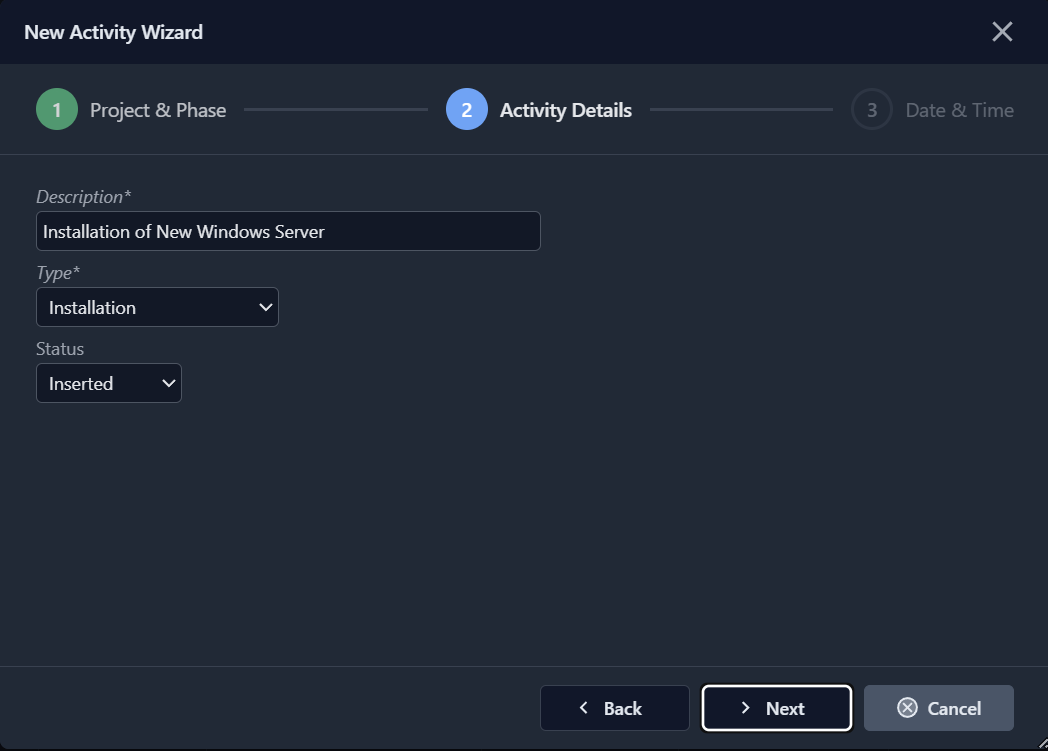
The Wizard controller guides the user through a sequence of steps to create a new record. Each step presents a subset of fields from the model, with Back/Next navigation and per-step validation. On the final step, a Finish button saves the record to the database.
The Wizard always opens as a modal dialog with title bar, close button, and configurable dimensions.
Basic Configuration
Type: Data

Controller: Wizard
  Width: 700
  Height: 500
  Steps:
    Step: _(Project & Phase)
      Fields:
        PHASE:
        EMPLOYEE:
        ROLE:
    Step: _(Activity Details)
      Fields:
        DESCRIPTION:
        TYPE:
        STATUS:
    Step: _(Date & Time)
      Fields:
        ACTIVITY_DATE:
        START_TIME:
        END_TIME:
  FinishButton: _(Create Activity)

MainTable:
  Model: ACTIVITY

DisplayLabel: _(New Activity Wizard)
ImageName: auto_fix_high
Steps
Each Step node defines a page in the wizard. The step title is the node value (supports localization via _() macro).
Data Steps
A data step lists model fields under a Fields subnode. All standard editor types are supported: text, date, time, select, reference (small and large), AllowedValues, memo.
Step: Customer Selection
  Fields:
    CUSTOMER_ID:
    PROJECT_NAME:
Layout Steps
A step can reference a layout file instead of inline fields:
Step: Project Details
  Layout: ProjectWizard_Step2
The layout file follows the same format as Form layouts (Row, FieldSet, Field, Spacer nodes).
HTML Steps
For informational or review pages, use the Html property:
Step: Review & Confirm
  Html: |
    <div class="kx-wizard-html">
      <h3>Review the data and click Finish to create the record.</h3>
    </div>
Configuration Properties
| Property | Default | Description |
|---|---|---|
Width | (from Defaults/Window) | Dialog width in pixels |
Height | (from Defaults/Window) | Dialog height in pixels |
FinishButton | Finish | Label for the Finish button (supports localization) |
OnExecute | (empty) | Reserved for future server-side rule name |
Steps | (required) | Container of Step nodes |
Step Indicators
The wizard displays a visual step indicator bar at the top of the dialog:
- Current step: highlighted with accent color and bold title
- Completed steps: green circle with checkmark
- Future steps: dimmed with default style
Steps are connected by separator lines. The indicator updates automatically as the user navigates.
Navigation
| Button | Visible | Behavior |
|---|---|---|
| Back | Always (disabled on step 1) | Go to previous step |
| Next | Steps 1 to N-1 | Validate current step, then advance |
| Finish | Last step only | Validate all steps, POST to server, save record |
| Cancel | Always | Close wizard without saving |
Keyboard: Press Escape to cancel.
Per-Step Validation
Before advancing to the next step, the wizard validates all required fields on the current step. If a field is invalid, it is focused and the browser's validation tooltip is shown.
On Finish, all steps are re-validated. If any step has invalid fields, the wizard switches to that step and focuses the first invalid field.
Wizard Rules
The Wizard supports custom business rules via the TKXWizardRuleImpl base class, similar to model rules (TKRuleImpl).
YAML Declaration
Controller: Wizard
  Rules:
    MyProjectWizardRules:
  Steps:
    Step: ...
Delphi Implementation
unit MyWizardRules;

interface

uses
  Kitto.Rules.Wizard,
  Kitto.Store;

type
  TMyProjectWizardRules = class(TKXWizardRuleImpl)
  public
    procedure BeforeNextStep(const ARecord: TKRecord;
      const ACurrentStep: Integer; var AAllow: Boolean); override;
    procedure BeforeExecute(const ARecord: TKRecord); override;
    procedure AfterExecute(const ARecord: TKRecord); override;
  end;

implementation

procedure TMyProjectWizardRules.BeforeNextStep(const ARecord: TKRecord;
  const ACurrentStep: Integer; var AAllow: Boolean);
begin
  // Example: validate cross-field logic on step 0
  if ACurrentStep = 0 then
  begin
    if ARecord.FieldByName('CUSTOMER_ID').IsNull then
    begin
      AAllow := False;
      raise Exception.Create('Please select a customer before proceeding.');
    end;
  end;
end;

procedure TMyProjectWizardRules.BeforeExecute(const ARecord: TKRecord);
begin
  // Called before saving. Raise an exception to prevent the save.
end;

procedure TMyProjectWizardRules.AfterExecute(const ARecord: TKRecord);
begin
  // Called after successful save. Create related records, send notifications, etc.
  // Raise an exception to rollback the transaction.
end;

initialization
  TKXWizardRuleRegistry.Instance.RegisterClass(
    'MyProjectWizardRules', TMyProjectWizardRules);

finalization
  TKXWizardRuleRegistry.Instance.UnregisterClass('MyProjectWizardRules');
Available Callbacks
| Callback | When | Can prevent? |
|---|---|---|
BeforeNextStep(ARecord, ACurrentStep, AAllow) | Before moving to next step | Yes (AAllow := False) |
AfterNextStep(ARecord, ANewStep) | After moving to next step | No |
BeforePrevStep(ARecord, ACurrentStep, AAllow) | Before moving to previous step | Yes (AAllow := False) |
AfterPrevStep(ARecord, ANewStep) | After moving to previous step | No |
BeforeExecute(ARecord) | Before saving to DB | Yes (raise exception) |
AfterExecute(ARecord) | After successful save | Yes (raise to rollback) |
BeforeCancel(AAllow) | Before closing without save | Yes (AAllow := False) |
AfterCancel | After wizard is cancelled | No |
Data Endpoint
The wizard finish action POSTs all form data to:
POST kx/view/{ViewName}/wizard-finishThe server creates a new record with model defaults, populates fields from the POST data, executes BeforeExecute rules, saves to database, executes AfterExecute rules, and returns a success script that closes the wizard dialog.
TasKitto Example
The TasKitto demo includes a New Activity Wizard (Views/NewActivity.yaml) with three steps:
- Project & Phase — select Phase, Employee, and Role (reference fields)
- Activity Details — enter Description, Type, and Status
- Date & Time — set Activity Date, Start Time, and End Time
Access it from the Activities folder in the main menu.
CSS Classes
| Class | Element |
|---|---|
.kx-wizard-panel | Root form element |
.kx-wizard-steps | Step indicator bar container |
.kx-wizard-step | Individual step indicator |
.kx-wizard-step-active | Current step |
.kx-wizard-step-completed | Completed step (green) |
.kx-wizard-step-num | Step number circle |
.kx-wizard-step-title | Step title text |
.kx-wizard-step-separator | Line between steps |
.kx-wizard-body | Scrollable content area |
.kx-wizard-page | Individual step page |
.kx-wizard-toolbar | Navigation button bar |
.kx-wizard-html | HTML step content wrapper |
Architecture
The Wizard controller (TKXWizardController) inherits from TKXDataPanelController, giving it access to ViewTable, Store, and ACL logic. It reuses the same editor rendering pipeline as the Form controller (TKXEditorFactory).
Client-side navigation is handled by the kxWizard JavaScript module (kxwizard.js), which manages step state, button visibility, validation, and the finish POST request.