
Live Preview
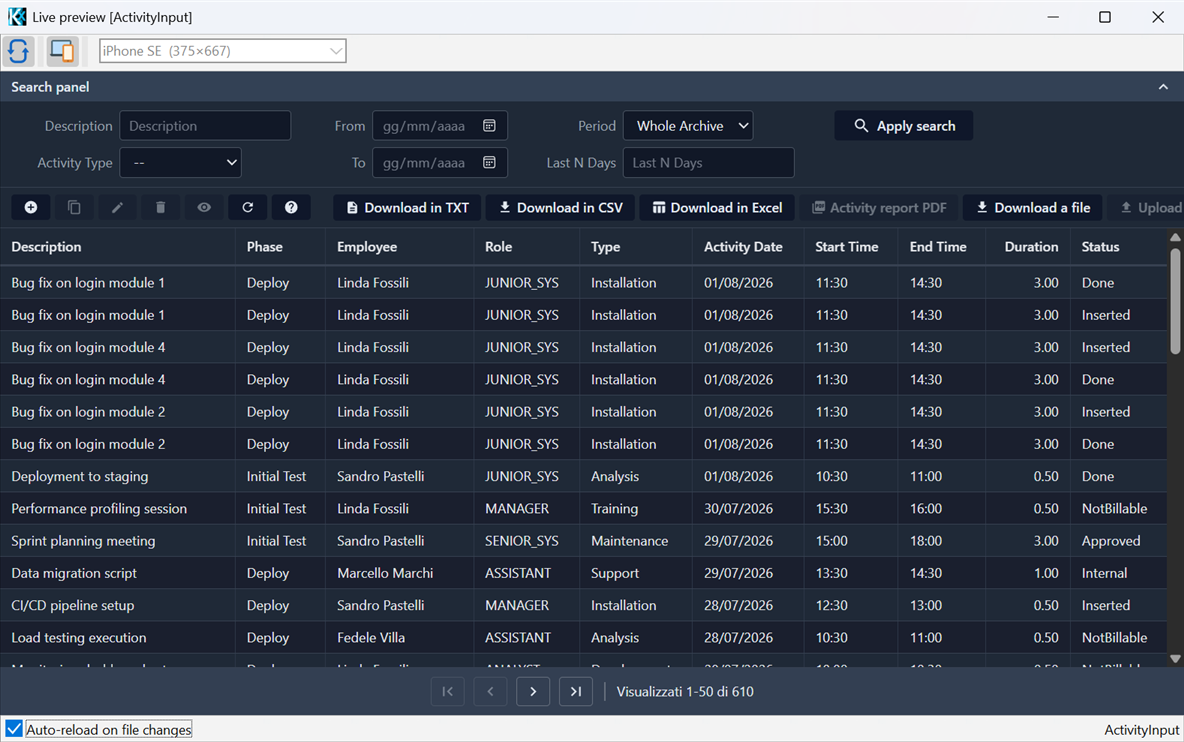
Live Preview renders a View (or a Layout) with the real Kittox engine inside a window hosted by KIDEx, without compiling or launching the application. It is meant for a fast edit → see loop while designing views and layouts.
Under the hood KIDEx starts an in-process web server (127.0.0.1, on an ephemeral port) with a real TKWebApplication built from the open project's Home folder, and shows it in an embedded browser (Microsoft Edge WebView2) opened directly on the view being edited. Data comes from the project's real database connection, so the preview reflects the actual application.
Requirement
Live Preview needs the WebView2 Runtime, which is preinstalled on Windows 10 21H2+ and Windows 11. On older systems install it once from Microsoft.
Opening the preview
The Preview command is available from three places, and is enabled only when the active editor is a View or a Layout:
- the context menu of a View or Layout node in the project tree;
- the toolbar button;
- the View menu of the main window.
A single preview window is reused: invoking Preview again on another view swaps the shown view in the same window instead of opening a new one. Closing and reopening the project starts a fresh preview.
Previewing a View
Select a View (in the tree or the editor) and choose Preview. The view opens as the page body, without the application's Home chrome (menu/tree), so you see just the grid or form you are working on.
Previewing a Layout
A layout has no rendering of its own — it only positions fields for a view's grid or form. So KIDEx previews the first view that uses the layout.
A view table binds to a layout in one of two ways, and both are honoured:
- Explicitly, via the
Controller/Form/LayoutorController/Grid/Layoutnode naming the layout; - By convention, when the layout is named
{ViewName}_Formor{ViewName}_Grid.
KIDEx scans all data views (main table and detail tables, for both form and grid) and previews the first one that uses the layout. If several views use the same layout the first match is enough to see the rendering while you edit it. If no view uses the layout, KIDEx tells you so instead of opening an empty window.
Live-reload
While the preview is open, KIDEx watches the project's Metadata and Resources folders. When you save a change (a .yaml, .css, .js, image, …) the embedded engine reloads its configuration from disk — no stale cache — and the browser refreshes automatically, so you see the effect of the edit at once.
- Auto-reload on file changes is a toggle; its state is remembered between sessions.
- Reload now forces an immediate reload (also available while auto-reload is off).
The authenticated session is preserved across a reload, so a reload does not send you back to a login.
Device emulation
The toolbar has a Device toggle and a device combo that simulate a mobile phone or tablet, the way a browser's device toolbar does — useful to check how a responsive view renders on a handheld.
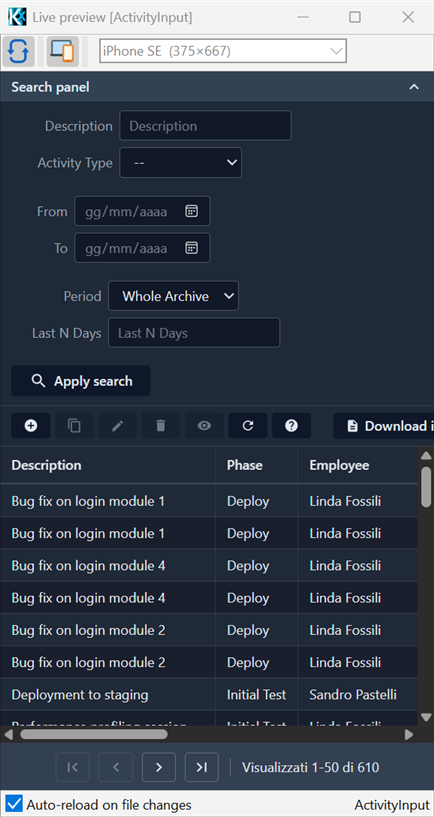
- Turn Device on to emulate the device selected in the combo; turn it off to return to the desktop browser.
- The catalogue includes common presets (iPhone SE, iPhone 14 Pro, Pixel 7, Samsung Galaxy S20, iPad Air, iPad Pro), each with its viewport size, device pixel ratio, mobile flag and user-agent.
- The toggle state and the selected device are remembered between sessions.
Emulation sets the viewport metrics, touch emulation and the user-agent, then reloads the page so the application's server-side mobile detection matches the emulated device.
Window position
The preview window remembers the screen, size and state (maximized/normal) it was last used at, and reopens there.
Authentication in preview
The preview runs the application's real authentication, authorization and user profile — the rendered UI (the menu, the permitted views and their data) depends on them. There is no fake "always-authenticated" bypass: to see a view complete with its data, the preview logs in as a real user, exactly as the deployed application does.
Since you cannot fill in the login form by hand every time, the preview logs in automatically from a set of default credentials. There are two places to provide them; the .kproj file is the recommended one.
Configure the login in the project's .kproj file
The project file (Home/{ProjectName}.kproj) can carry a PreviewMode section with the credentials the preview should use. This keeps the design-time login out of the application's Config.yaml, so nothing preview-specific ships with the app:
PreviewMode:
  Auth:
    Defaults:
      UserName: SYSDBA
      Password: password
PROFILEID: ADMINUserName/Password— the credentials the preview authenticates with.PROFILEID(optional) — pre-sets the user profile. It is only needed when the application's Home view name depends on the profile (e.g.HomeView: %Auth:PROFILEID%_Home), so the preview can resolve the right Home. The node name is the auth field the application actually reads (herePROFILEID) — use whatever name your app's%Auth:…%macro expects, not a fixed keyword.
PreviewMode/Auth is merged over the application's Auth node for the preview only, key by key: it overrides just the values it lists (typically the Defaults), while everything else — the authenticator, the SQL that reads the user, the JWT settings — stays as the application defines it. The application's real Config.yaml is never modified.
You can edit the .kproj by hand, or from KIDEx via File → Settings…, which opens the .kproj in the tree editor: add PreviewMode → Auth → Defaults, then the UserName and Password nodes, and add the profile field (e.g. PROFILEID) with Add custom node.
Or use the application's own Auth/Defaults
If the application already defines Auth/Defaults in its Config.yaml, the preview uses those credentials too. A PreviewMode block in the .kproj takes precedence for the preview.
Impersonating a profile
Applications that choose the Home by profile (HomeView: %Auth:PROFILEID%_Home) usually get the profile from the authenticated user's record. In the preview you can decide which profile to impersonate by setting PROFILEID in the .kproj PreviewMode/Auth/Defaults (e.g. ADMIN vs USER). See Auth and Access Control.