
Project Management
KIDEx works with Kittox application projects. A project is simply a Home directory containing the Metadata folder (with Models, Views, Layouts and Config files) and optionally Resources, ReportTemplates, and other runtime assets.
Creating a new project
To scaffold a new Kittox application from a template, use File > New Project. The wizard collects the application name and path, the database drivers, the Delphi versions to target, the authentication and access control choices, the server settings and the theme, then generates the entire project tree (Home/Metadata/, Source/, Projects/D{N}/) ready to compile.
See the dedicated New Project Wizard page for the full step-by-step walkthrough.
Opening an existing project
Use File > Open Project and select the Home directory of an existing Kittox application. KIDEx scans the Metadata folder and builds the project tree.
You can also pass the project path as a command-line parameter:
KIDEX.exe "D:\MyProjects\MyApp\Home"Project tree
The left panel displays the project structure as a navigable tree:
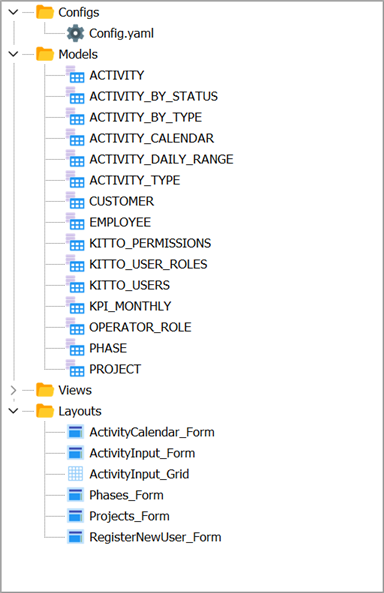
| Node | Contents |
|---|---|
| Models | Data model definitions (one .yaml file per model). Each model maps to a database table. |
| Views | UI definitions: Data views, Tree views (menus), and other controller views. |
| Layouts | Form and grid layout definitions that control field arrangement in forms. |
| Config | The Config.yaml file (and any alternate configs like ConfigDesktop.yaml). |
| Resources | Static files: CSS, images, JavaScript, templates. |
Double-click any item to open it in the editor panel. The tree supports:
- Drag & drop to reorder nodes
- Delete to remove a node (with confirmation)
- Right-click to access the context menu with available properties and child nodes
Integrated HTTP server
From the toolbar you can start the project's engine — the application executable that sits next to the .kproj (<Project>.exe, compiled from the generated .dpr). It opens in its own window, the standard Kitto.Vcl.MainForm server console:
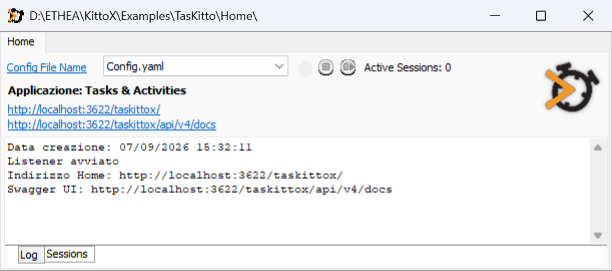
- Click Start (play button) to launch the engine; the button is enabled only when the executable exists and is not already running
- The Home URL appears as a clickable link in the engine window, together with the Swagger UI address
- Close the engine window to shut down the server
- The Sessions tab shows active sessions with user agent, IP address, and last request time
This allows you to edit YAML metadata, restart the server, and immediately see the changes in the browser — all without leaving KIDEx.
Config file selection
If the Metadata folder contains multiple config files (e.g. Config.yaml, ConfigDesktop.yaml, Config_MyApp.yaml), KIDEx shows a dropdown in the toolbar to select which one to use when starting the server.