
Login Controller
By default, if you use standard authentication you will get a standard login window when navigating to the application. You can customize the login window by setting some controller properties or replacing it with a different controller altogether.
By default, a view named Login is used if present. As an example of a stand-alone login view, here is the entire content of a file named Login.yaml:
Controller: Login
  BorderPanel:
    NorthView:
      Controller: HtmlPanel
        Height: 180
        Html: |
          <div style="text-align: center">
            <p/>
            <p><img src="%IMAGE(main_logo)%"></img></p>
            <p><b>Application Name</b></p>
            <p style="margin-left: 10px">A link <a href="mailto:one@domain.com">one@domain.com</a><br>
              Another link <a href="mailto:two@domain.com">two@domain.com</a><br><br>
            </p>
            <p/>
          </div>
    SouthView:
      Controller: HtmlPanel
        Height: 60
        Html: |
          <div style="text-align: center; font-size: 11px;">
            <p>Technical support: <a href="mailto:support@domain.com">support@domain.com</a></p>
          </div>
  ExtraWidth: 300
  ExtraHeight: 180
As you can see in the example above, the Login controller hosts a BorderPanel which allows you to integrate other controllers in it, such as an HtmlPanel.
Here is an example of a login view defined inline in Config.yaml (from the HelloKitto example):
Login:
  Controller:
    Title: Login to "HelloKitto" %APP_VERSION%
    BorderPanel:
      NorthView:
        Controller: HtmlPanel
          Height: 80
          Html: |
            <div style="text-align: center">
              <p/>
              <p><img src="%IMAGE(hello_kitto_150)%"></img></p>
              <p/>
            </div>
    LabelWidth: 150
    ExtraWidth: 350
    ExtraHeight: 100
    LocalStorage:
      Mode: Password
      AskUser: True
        .Default: False
      AutoLogin: False
Title Bar
The login dialog always shows a title bar at the top. By default the application title (from Config.yaml → AppTitle) is used. You can override it with the Title property:
Controller: Login
  Title: Welcome to My Application
The title bar uses the same dark chrome style as dialog headers (--kx-chrome-dark background).
BorderPanel
The BorderPanel node lets you embed custom content around the login form on four regions — above (NorthView), below (SouthView), to the left (WestView) and to the right (EastView). Each region hosts a single child controller (an HtmlPanel for a logo, a ThemeSwitcher, etc.). All four are optional and can be combined freely; undeclared regions collapse.
The form is the centre. NorthView/SouthView stack above/below the fields within the centre column; WestView/EastView flank that whole centre column as full-height side panels. The title bar and the Login footer (status/error + button) span the full dialog width:

So a logo in WestView sits beside the form, while the Login button stays in a full-width bar at the very bottom with the error message to its left.
NorthView
Rendered above the fields (inside the centre column), typically a logo or branding banner:
BorderPanel:
  NorthView:
    Controller: HtmlPanel
      Height: 100
      Html: <center><img src="%IMAGE(logo)%"></center>
SouthView
Rendered below the fields at the bottom of the centre column — just above the full-width footer (Login button). Typically support info, disclaimers, or a theme switcher. The South region right-aligns its content:
BorderPanel:
  SouthView:
    Controller: HtmlPanel
      Height: 60
      Html: |
        <div style="text-align: center; font-size: 11px;">
          Technical support: +39 0123 456789
        </div>
WestView / EastView
Rendered to the left and right of the form as full-height side columns — ideal for a vertical logo or branding next to the credentials, instead of stacked on top:
BorderPanel:
  WestView:
    Controller: HtmlPanel
      Html: <center><img src="%IMAGE(logo)%"></center>
The side regions size to their content and are separated from the form by a hairline. On narrow screens (≤480px) West/East stack vertically (West above, East below the form) so the layout never squeezes the credentials.
Logo on the side
A common layout is the logo in WestView and the theme switcher in SouthView — see the TasKitto login. Move the logo to NorthView for the classic logo-on-top look.
All four regions are optional and can be used in any combination.
Dialog Sizing
Use ExtraWidth and ExtraHeight to adjust the dialog dimensions:
Controller: Login
  ExtraWidth: 300
  ExtraHeight: 180
These values are added to the base dialog size. You can also set a freeform CSS Style property.
Form Customization
The FormPanel sub-node controls the form fields:
| Property | Default | Description |
|---|---|---|
FormPanel/UserName | User Name | Label for the user name field |
FormPanel/Password | Password | Label for the password field |
FormPanel/LabelWidth | 100 | Width in pixels for field labels |
FormPanel/InputStyle | (empty) | Extra CSS for input fields |
FormPanel/ButtonStyle | (empty) | Extra CSS for the login button |
FormPanel/BodyStyle | (empty) | Extra CSS for the form body |
FormPanel/RememberCredentials | Remember Credentials | Checkbox label when LocalStorage/Mode is Password |
FormPanel/RememberUserName | Remember User Name | Checkbox label when LocalStorage/Mode is UserName |
LocalStorage
The LocalStorage sub-node controls persistent credential storage in the browser's localStorage:
Controller: Login
  LocalStorage:
    Mode: Password
    AskUser: True
      .Default: False
AutoLogin: False| Property | Values | Description |
|---|---|---|
Mode | UserName, Password, (empty) | What to store. Password stores both user name and password. UserName stores only the user name. Empty or missing disables storage. |
AskUser | True / False | If True, shows a checkbox letting the user opt in/out of storage. |
AskUser/Default | True / False | Default checked state of the checkbox (default: True). |
AutoLogin | True / False | If True and both fields are pre-filled from localStorage, the form is automatically submitted after a short delay. |
WARNING
The LocalStorageMode shorthand (e.g. LocalStorageMode: Password) is still accepted for backwards compatibility but the LocalStorage sub-node form is preferred as it allows full control.
Links
You can enable clickable links below the credential fields by adding boolean nodes:
Controller: Login
  ResetPassword: True
  RegisterNewUser: True
  PrivacyPolicy: True
Each link triggers a view request (kx/view/ResetPassword, etc.) so the corresponding views must be defined. You can customize the link style with HrefStyle:
ResetPassword: True
  HrefStyle: color: blue; font-size: 11px;
Default labels (translatable):
- ResetPassword →
Password forgotten? - RegisterNewUser →
New User? Register... - PrivacyPolicy →
Privacy policy...
Pre-login views must declare ACName: empty
The link targets are routes the user reaches before authenticating, so they must be declared public — otherwise the authentication gate returns 404 + empty body. Add an empty ACName: at the top of each linked view's YAML:
# Views/RegisterNewUser.yaml
ACName:                   # explicit empty value → public view
Controller: ...
TKMetadata.GetACURI returns '' for views with empty ACName:, which TKAccessController.GetAccessGrantValue treats as "always granted" — the auth gate detects this and lets every related route through (the GET that renders the view, the POST that submits the form, any Blob/Upload/Tool used inside it). Same convention applies to any custom landing view that must be reachable pre-login.
HtmlPanel pre-login also needs IsModal: True
Form and TKXFormController descendants are modal by default; everything else (including HtmlPanel) is embedded in a tab. Pre-login views linked from the Login form have no tab system to attach to, so an HtmlPanel-based PrivacyPolicy (or any informational page reached pre-login) must declare IsModal: True explicitly to render as a dialog overlay instead of being appended to the page background.
# Views/PrivacyPolicy.yaml
ACName:
Controller: HtmlPanel
  IsModal: True
  AllowClose: True
  FileName: Privacy.htm
  Width: 600
  Height: 500
The dialog overlay does not add inner padding to the embedded HTML body — if the source .htm is a bare fragment, wrap it in a styled root element (e.g. <div style="padding: 1.25rem 1.75rem; line-height: 1.6;">…</div>) so the text gets sensible margins.
Language Selector
With LanguagePerSession: True in Config.yaml, the login form shows the LanguageSwitcher — a flag drop-down (with the Language label on its left) that lets the user choose the interface language before logging in. The choice is stored in the session and used for all subsequent localized strings; the same controller also appears in the home.
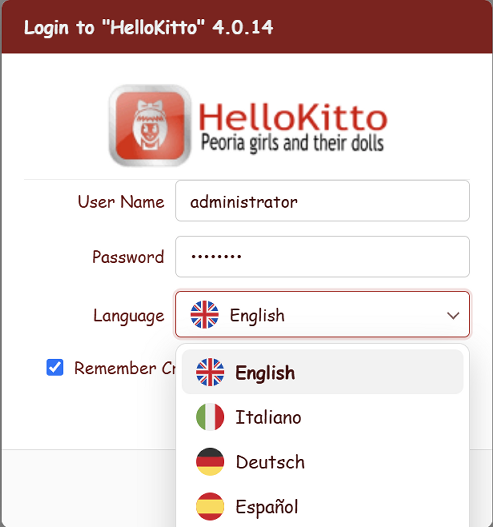
# Config.yaml
LanguageId:            # empty → auto-detect from the browser (Accept-Language); set a code to force it
LanguagePerSession: True
Leave LanguageId empty to have the initial language auto-detected from the browser (Accept-Language); set a code (en, it, …) to force a default. The switcher lists every language for which the application ships a compiled catalog under Home/Locale/<code>/LC_MESSAGES/, plus English. See LanguageSwitcher and Localization for details.
Environment / database choice
When the application supports multiple databases (typical of business management software with separate "company" or "fiscal year" environments), you can let the user pick which one to log into via a drop-down placed before the user name field.
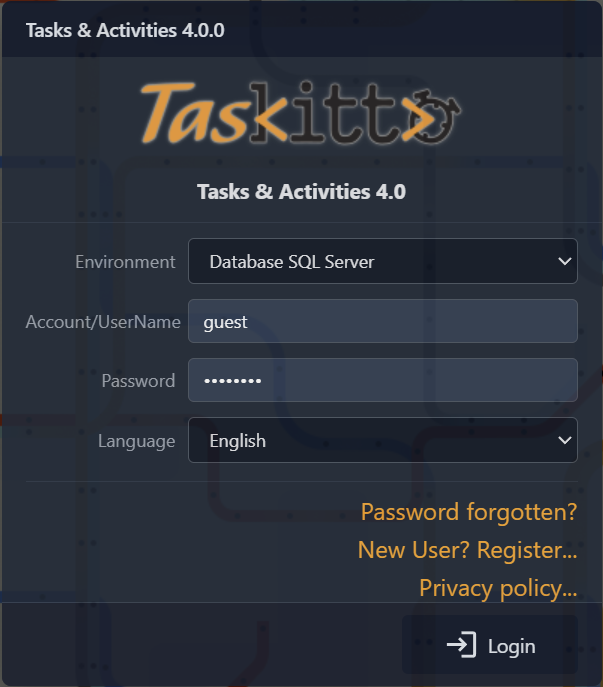
The model is self-contained: each database is a complete environment (auth + data). The authentication query runs against the chosen database, so the KITTO_USERS table can be different in each environment. The selected database becomes the active one for the entire session, overriding DefaultDatabaseName. With legacy authenticators (Auth: DB | TextFile | custom) the choice is persisted in a kx_db cookie (30 days) so the same environment is pre-selected on the next visit. With a JWT envelope the choice travels in the db claim of the signed token, so no separate kx_db cookie is set; the JWT cookie path is scoped to the AppPath, eliminating cross-app environment leakage. Trade-off under JWT: once the token expires the next login form pre-selects DefaultDatabaseName instead of the last picked environment (the JWT typically lives 1 hour and slides on every active request, so this only matters after extended idle time).
The feature is opt-in: with no Auth/DatabaseChoices node in Config.yaml, the combo is not rendered and the legacy behavior is preserved.
Configuration
Add DatabaseChoices under the Auth node. The value is a comma-separated list of database names defined under Databases:
# Config.yaml
Databases:
  FireDAC_MSSQL: FD
    DisplayLabel: Database SQL Server          # Optional: shown in the combo.
    Connection:
      DriverID: MSSQL
      ...
  FireDAC_PostgreSQL: FD
    DisplayLabel: Database PostgreSQL
    Connection:
      DriverID: PG
      ...
  FireDAC_Firebird: FD
    DisplayLabel: Database Firebird
    Connection:
      DriverID: FB
      ...

Auth: TasKitto
  DatabaseChoices: FireDAC_MSSQL, FireDAC_PostgreSQL, FireDAC_Firebird
  ...
Each database entry can carry a DisplayLabel sub-node for a friendlier label in the combo; if absent, the raw config name is shown.
Only available databases are shown
A name listed in DatabaseChoices appears in the combo only if that database is actually usable:
- its
Databases/<Name>block is defined (not commented out), and - the DB adapter it references (
FD,ODAC,DBX,ADO, …) is registered — i.e. the matchingEF.DB.*unit is compiled into the application (present in itsUseKitto.pasuses).
A choice that fails either check is silently skipped, so the combo never offers an environment that would fail to connect; if none of the listed databases are available, the combo is not rendered at all.
This makes it safe to list an optional back-end in DatabaseChoices permanently. For example, TasKitto can keep ODAC_Oracle in the list even though the ODAC (Devart) support is disabled by default: the entry stays hidden until a developer who owns an ODAC license enables it — by uncommenting the Databases/ODAC_Oracle block and the EF.DB.ODAC unit in UseKitto.pas — at which point it appears automatically, with no change to DatabaseChoices.
Combo label
The combo uses the standard FormPanel label vocabulary. You can override the label text with:
Controller: Login
  FormPanel:
    Database: Environment   # Default: 'Environment'
Default selection priority
The pre-selected option is determined in this order:
- Cookie
kx_db(legacy auth, set on the previous successful login, 30-day lifetime) — replaced by thedbclaim of the JWT cookie when the app runs with a JWT envelope. - The currently active
Session.DatabaseName(rare — first visit of the page). DefaultDatabaseNamefromConfig.yaml.
Showing the active environment elsewhere
Two macros are exposed after a successful login:
%Auth:Environment%— the user-friendly label (Databases/<Name>/DisplayLabel), falling back to the raw config name. Use this in the StatusBar or dialog titles so the displayed text matches what the user picked in the combo.%Auth:DatabaseName%— the raw config name (e.g.FireDAC_PostgreSQL). Useful when you need the exact identifier for diagnostic logs or routing decisions.
Example StatusBar:
# Views/Home.yaml
SouthView:
  Controller: StatusBar
    Text: Environment: %Auth:Environment% - user: %Auth:USER_NAME%
Routing under the hood
TKConfig.GetDatabaseName (the single source of truth used by TKConfig.Database, CreateDBConnection, and every other connection-resolution path in the framework) gives priority to TKWebSession.Current.DatabaseName when set, falling back to DatabaseRouter and then DefaultDatabaseName. So a single per-session value redirects every database operation — including the auth query itself, since the session value is applied before Authenticate runs.
Authentication
The Login controller works with Kittox's pluggable authentication system. The authenticator type is configured in Config.yaml:
Auth: DB
  IsClearPassword: False
  IsPassepartoutEnabled: True
  PassepartoutPassword: password
  .Defaults:
    UserName: administrator
    Password: password
Available authenticator types:
| Type | Description |
|---|---|
DB | Database-backed authentication using KITTO_USERS table with MD5 password hashing |
DBCrypt | Like DB but uses BCrypt for password hashing (recommended). Auto-migrates from MD5 on first login |
TextFile | File-based user list |
OSDB | Operating system user authentication |
DBServer | The user is validated by opening a database connection with the typed credentials. Its Connection block must read them through %Auth:...% — the application refuses to start otherwise |
LDAP | Simple bind against Active Directory or a generic LDAP directory |
JWT | Wrapper around any of the above: the session id is replaced by a signed cookie |
Null, or no Auth node | No authentication required — every request is an authenticated anonymous session |
If Auth: names a class that is not registered — a typo, or the unit missing from UseKitto.pas — the application refuses to start and the log lists the class ids actually registered.
See Authentication for full configuration details.
An empty password is never accepted
Whatever the authenticator, a blank password is refused — and so is a login against a user record whose password column is empty or NULL. The single exception is Auth: OSDB while it authenticates the operating-system user, where the password field carries nothing by design. See No login with an empty password.
Password or one-time code
The second field of the form is normally the password. With LoginType: PIN on the DB authenticator it is a six-digit TOTP code instead, validated against the per-user SECRET_CODE of the user record — and in that mode the password is not checked at all. That column is required: without it the login is refused. See PIN login.
After a successful login
A user whose record demands a first step — a password change, or a privacy confirmation — lands on that dialog instead of the home view, and cannot get past it by calling another endpoint directly: while the step is pending every request outside the required view answers 404. See Imposed steps.
Footer
The login footer is a full-width bar at the bottom of the dialog, below the North/West/Center/East body row — so it spans the entire width even when a logo occupies a WestView/EastView side column. It holds the login status / error message on the left (which expands to fill the available space) and the Login button on the right. It has a styled background matching the form toolbar, with a top border separator. This is automatic and requires no configuration.
A SouthView controller (e.g. a theme switcher) renders inside the centre column, just above this full-width footer.
The Login controller renders as a centered dialog window. The login form uses HTMX to submit credentials and receive the server response (success redirect or error message) without a full page reload.
How the form is submitted
Two channels, and the second one exists only as a safety net.
Through HTMX — the normal path. The form carries hx-post="kx/login", the server answers with a small fragment, and the page is never reloaded. Every SPA call is marked with the X-KittoX: true header, which is how the server recognises this channel.
Natively — if the form is submitted before HTMX has bound hx-post. The form also carries method="post" action="kx/login", so the credentials travel in the request body, and the server (seeing no X-KittoX header) answers 303 See Other to the application root instead of a fragment. The browser lands on the home exactly as it would have through HTMX. 303 rather than 302 is deliberate: after a POST it tells the browser to continue with a GET, so the address bar ends on the app root and never lingers on kx/login.
The Login button stays disabled until the page has finished loading (window.htmx present and document.readyState === 'complete'), which is what closes the race in the first place, and the cursor shows not-allowed while it is.
Why the button stays disabled until HTMX is ready
Were the button enabled as soon as both fields are non-empty — which, with LocalStorage pre-filling them, is immediately, before HTMX has bound anything — a click in that window would submit the form natively. A form with no method/action submits as a GET on the current URL: the user name and password would appear in the address bar as query parameters, stay in the browser history, and travel in the Referer of any external link on the page.
Worse, the app root authenticates from those parameters (see The Login dialog), but without going through kx/login it issues no token: with AccessControl: JWT there is no kx_acl claim, so every view is denied and the home renders with the Logout entry alone — looking like a broken, half-logged-in session, with F5 repeating the same URL.
Nothing in the application generates such a URL. Supplying credentials in the URL by hand still works: it is a documented feature.
AutoLogin is not affected
LocalStorage/AutoLogin submits through htmx.trigger(form, 'submit') after a short delay, so it always goes through the HTMX channel.