
View & Layout Editor
The View Editor and Layout Editor work together to define the user interface of a Kittox application. Views define what data is shown and how it behaves; layouts define where fields are positioned in forms.
View Editor
Editor layout
When you double-click a view in the project tree, KIDEx opens it in the editor panel:
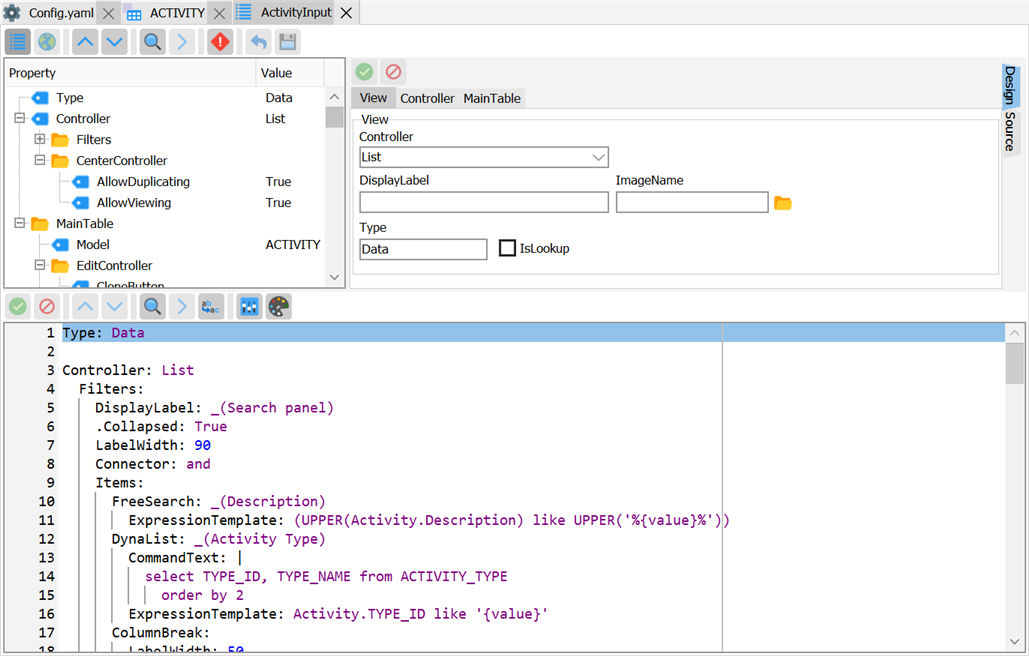
The tree shows the complete view structure:
- Type —
Data(for data-bound views) orTree(for menu views) - Controller — the controller type (
List,Form,BorderPanel,TabPanel, etc.) - MainTable — the primary data model and its field selection
- Fields — which model fields to include and their view-level overrides
- DetailTables — master/detail relationships for form tabs
- Controller settings — CRUD permissions, toolbar, filters, paging, ToolViews
Read-only properties
A property that the metadata carries but the HTMX runtime does not honour yet is shown read-only rather than hidden: the value written in the YAML stays visible and can be copied, but it cannot be edited from the designer. It becomes editable again when the feature is wired up.
Creating a view manually
- Right-click the Views node in the project tree
- Select New View
- Choose the view type (Data or Tree)
- Enter a name for the YAML file
- Use the tree editor and context menus to build the view structure
DataView wizard
For data-bound views, the DataView Wizard generates a complete view from a model:
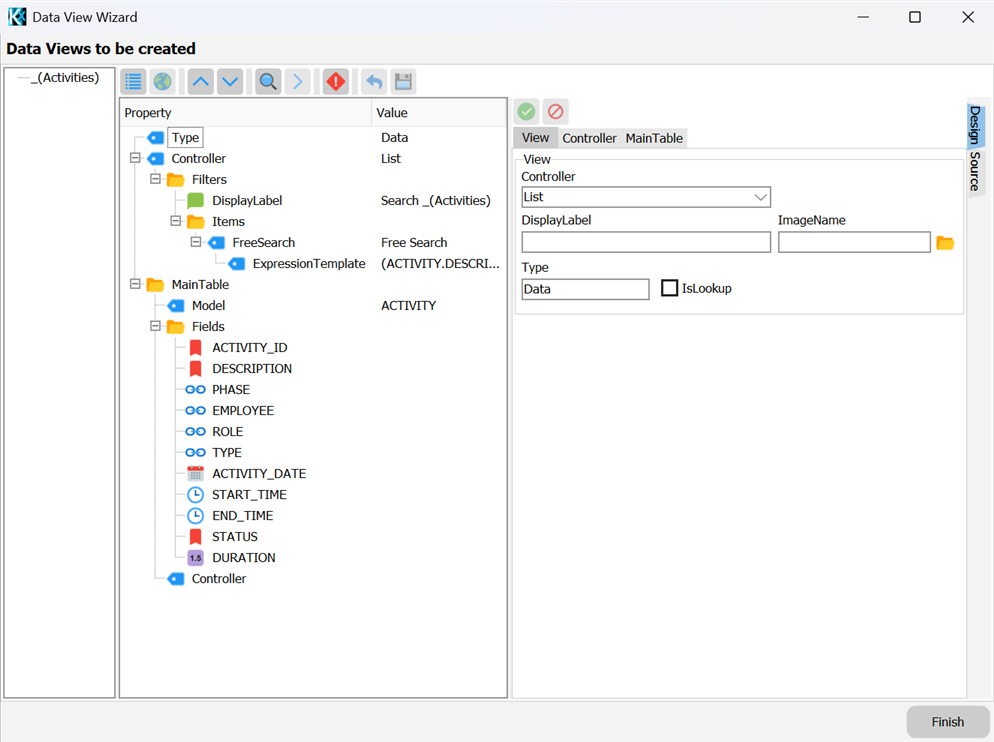
- Right-click a model in the project tree and select Create DataView…
- Choose the model
- Select which fields to include
- Choose the controller type (List is the default)
- Click Generate — KIDEx creates the view YAML file
The wizard generates a view with:
Type: DataandController: ListMainTablereferencing the selected modelFieldswith the selected field set- Default
DisplayLabelfrom the model name
Layout Editor
Layouts control how fields are arranged in form dialogs. Without a layout, fields are stacked vertically. With a layout, you can organize fields in rows, fieldsets, and multi-page tabs.
Editor layout
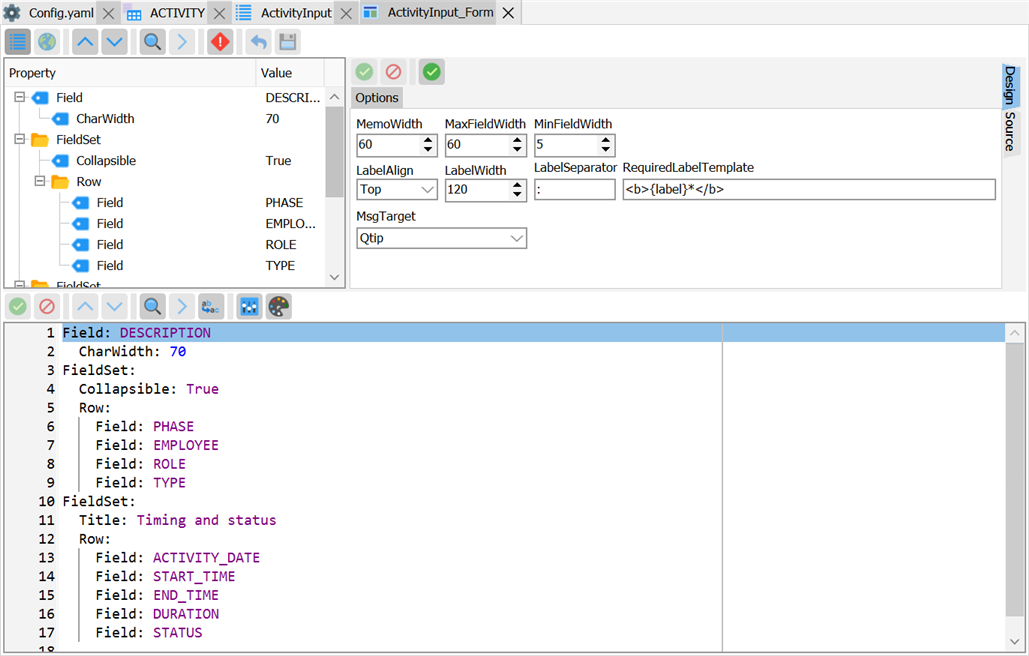
Layout files are stored in Metadata/Views/Layouts/ and are named by convention: {ViewName}_Form.yaml for form layouts, {ViewName}_Grid.yaml for grid column layouts.
Layout containers
The context menu for layout nodes offers these container types:
| Container | Description |
|---|---|
Field | A single field reference (by name from the model) |
Row | Horizontal row — child fields are placed side by side |
FieldSet | A bordered group with optional title, collapsible |
Spacer | Empty space between fields |
PageBreak | Starts a new tab page in the form dialog |
Example layout structure:
Field: DESCRIPTION
  CharWidth: 70
FieldSet:
  Title: Details
  Row:
    Field: PHASE
    Field: EMPLOYEE
    Field: ROLE
FieldSet:
  Title: Timing
  Row:
    Field: ACTIVITY_DATE
    Field: START_TIME
    Field: END_TIME
    Field: DURATION
    Field: STATUS
Layout preview
KIDEx can show a live preview of a layout without compiling or launching the application: it renders the layout with the real Kittox engine in an embedded browser. Because a layout has no rendering of its own, KIDEx previews the first view that uses the layout (resolved from the explicit Controller/Form|Grid/Layout node or the {ViewName}_Form / {ViewName}_Grid convention).
Open a Layout in the editor and use the Preview command (toolbar, the View menu, or the layout node's context menu). Editing the layout and saving triggers an automatic reload of the preview.
See Live Preview for the full description (device emulation, live-reload, and how views and layouts are previewed).
Grid layouts
Grid layouts ({ViewName}_Grid.yaml) control which columns appear in the grid and their order. They are simpler than form layouts — just a flat list of field names:
Field: DESCRIPTION
Field: ACTIVITY_DATE
Field: EMPLOYEE
Field: STATUS
Field: DURATION
View validation
When saving a view, KIDEx checks for:
- References to fields not present in the model
- Invalid controller names
- Missing required nodes (e.g.
MainTablefor Data views) - Layout fields that don't match the view's field list
Errors appear in the log panel with line numbers and descriptions.