
New Project Wizard
The New Project Wizard scaffolds a complete Kittox application from a template — Win64 .dpr/.dproj files for the deployment modes you pick, the Home/Metadata folder with an initial Config.yaml, the supporting .pas units (UseKitto.pas, Controllers.pas, Rules.pas), and the JWT envelope auth wiring.
Three ways to launch the wizard
The same template engine and the same wizard form are reachable from three entry points — all three produce byte-identical output (modulo AppTitle and the per-.dproj GUIDs, which are fresh by design):
| Entry point | Where | Audience |
|---|---|---|
| KIDEx standalone | KIDEX.exe → menu File > New Project (or New Project button on the Welcome screen) | Designer working visually inside KIDEx |
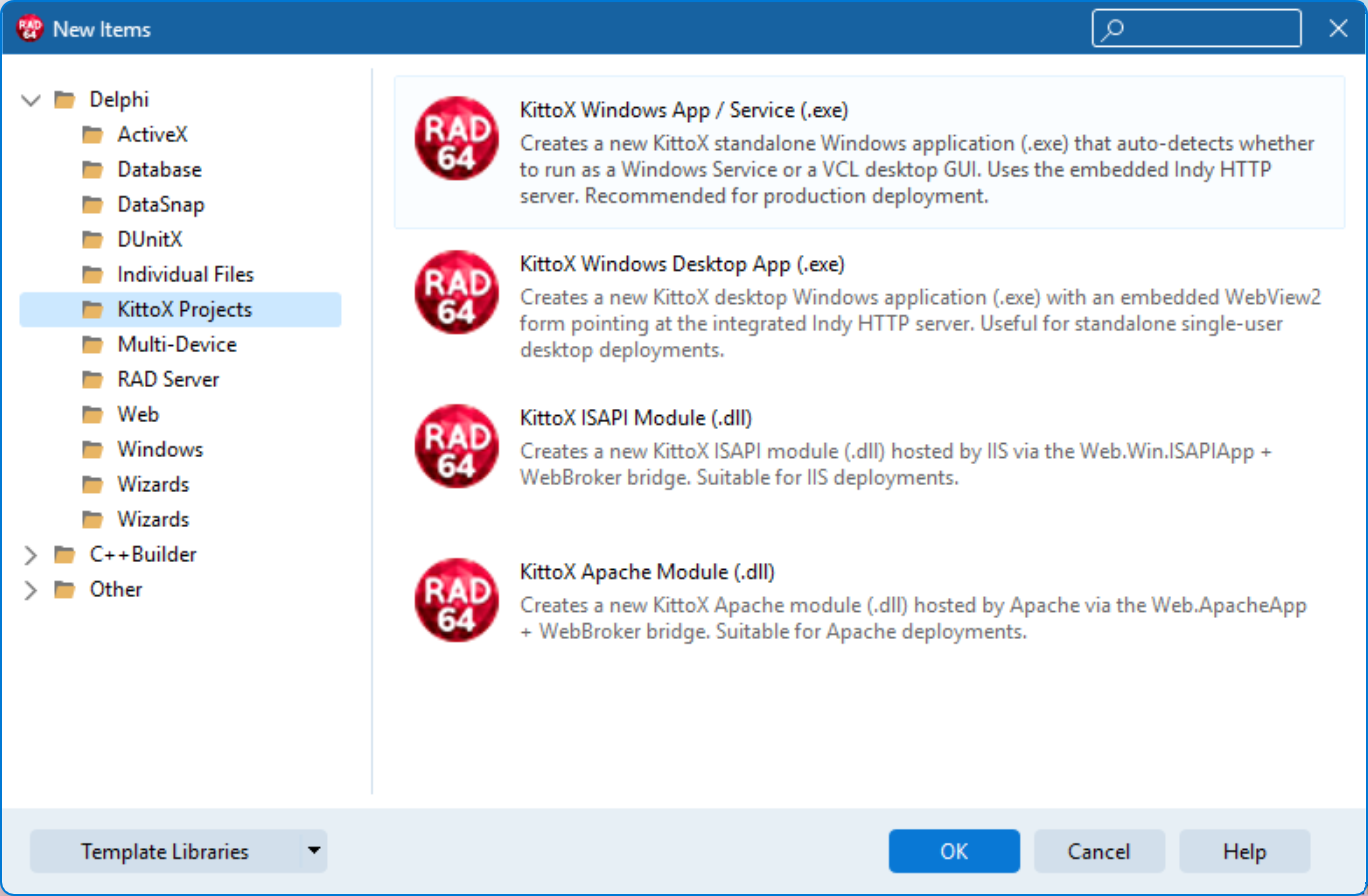
| RAD Studio IDE plugin | Delphi IDE (with KittoXIDE.bpl installed) → File > New > Other > KittoX Projects | Developer who wants to stay in RAD Studio. The gallery shows 4 entries (one per deployment mode) — see KIDEx |
| MCP-KittoX | AI agent calling the project_create_app tool over JSON-RPC | AI agent (Claude Desktop, Claude Code, Codex, …) — see MCP-KittoX |
The IDE plugin entry pre-selects the deployment mode that the user picked from the gallery (e.g. KittoX ISAPI Module (.dll) → ISAPI checkbox already ticked, others greyed out). All other steps are identical to the KIDEx flow.
The MCP-KittoX flow is fully programmatic — it skips the visual wizard but accepts the same parameters as a JSON DTO.
Wizard pages
The visual wizard has 5 pages, navigated with Back / Next / Finish buttons.
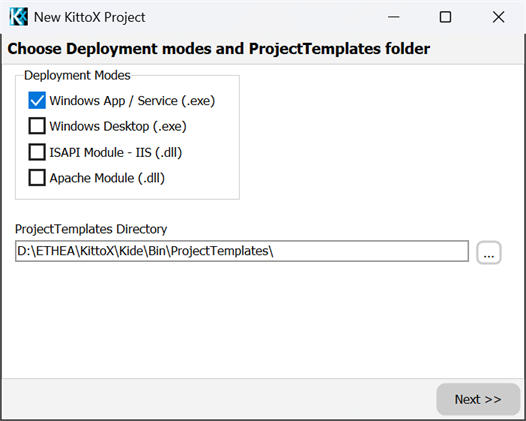
Page 1 — Deployment modes + ProjectTemplates folder
The first page collects two things:
Deployment Modes — a multi-select of the four supported targets. Pick one or more (default: only Standalone).
Checkbox Output Description Windows App / Service (.exe) <ProjectName>.dprStandalone executable, embedded Indy HTTP server. Auto-detects whether to run as Windows Service or VCL desktop GUI. Recommended for production. Windows Desktop (.exe) <ProjectName>Desktop.dprEmbedded WebView2 desktop application (single-user). ISAPI Module (.dll) <ProjectName>ISAPI.dprISAPI library hosted by IIS. Built with <GenDll>true</GenDll>.Apache Module (.dll) mod_<projectname>.dprApache 2.4 module (lowercase identifier required by Apache convention). You can tick more than one — every ticked mode gets its own
.dpr/.dproj/.reswritten to disk. Each.dprojgets a fresh per-buildProjectGuidso they don't collide when imported into a Delphi project group.When the wizard is launched from the RAD Studio gallery, the deployment mode that matches the chosen entry is already ticked and the group-box is locked — the user explicitly picked one mode in the gallery and shouldn't be able to widen the choice silently. From KIDEx standalone the four checkboxes are freely editable.
ProjectTemplates Directory — the folder that contains the template subfolders (
Basic/,Empty/, …). The default value is resolved as follows:%KITTOX_HOME%\ProjectTemplates\if the environment variable is set- otherwise
Bin\ProjectTemplates\next to the running module (KIDEx standalone resolves toKIDEX.exe's folder; the IDE plugin resolves to the loadedKittoXIDE.bpl's folder)
You can override this with the … browse button — useful when you keep custom templates outside the default install or when the Delphi IDE has loaded the package from a non-standard location.
The list of templates shown on Page 2 enumerates the subfolders of whatever path is on this field, so this is the foundation for everything that follows.
Page 2 — Choose a template
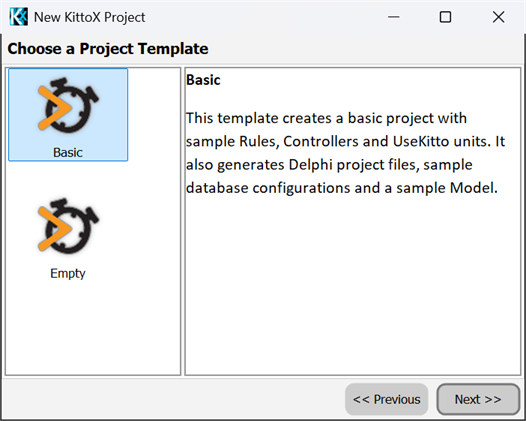
Two templates ship with KIDEx:
| Template | Use it when |
|---|---|
| Empty | You want a minimal skeleton — Config.yaml, empty Models/ and Views/, basic .dpr. Good starting point if you intend to use the Model Wizard immediately to generate Models from an existing DB. |
| Basic | You want a working sample to learn from — pre-configured database connection, sample Model + List view, JWT authentication wired in, Home view with a tree menu and toolbar. Run-and-explore. |
Custom templates can be added by dropping a folder under the ProjectTemplates Directory chosen on Page 1 — the wizard discovers them automatically.
Page 3 — Template options
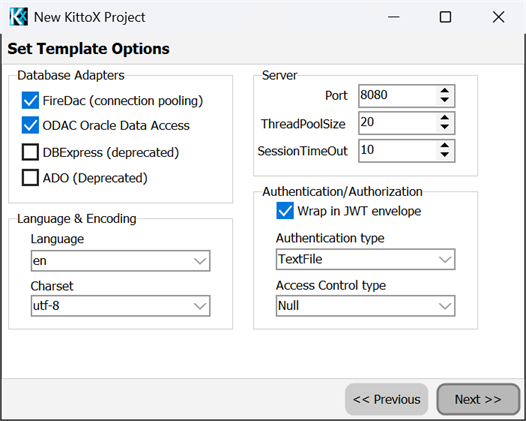
Four groups of settings shape the generated Config.yaml and UseKitto.pas:
| Group | Setting | Choices |
|---|---|---|
| Databases | DB drivers | FireDAC (recommended), DBExpress, ADO — multi-select. The matching units are added to UseKitto.pas and Databases: stubs are emitted in Config.yaml. |
| Access Control | Authentication | Null / DB / TextFile (default — see note below) / OSDB. The chosen storage holds the credentials. |
| Use JWT | When ticked (default), the generated Config.yaml adds an optional JWT: envelope block under the chosen Auth: <storage> authenticator. Recommended for new projects — see JWT Authenticator. | |
| Access Control | Null (default) / DB / JWT. The default is Null because a brand-new project has no KITTO_PERMISSIONS table yet — switch to DB or JWT after you populate the permissions table. |
Default authentication: TextFile
The wizard ships a ready-to-use Home/FileAuthenticator.txt with three demo accounts so the freshly-generated app authenticates out of the box, without requiring a users table in your database:
| User | Password |
|---|---|
user | password |
admin | admin |
guest | password |
In addition the default Auth: TextFile block (with its JWT: envelope) enables a passpartout password (PassepartoutPassword: password) — a master password that lets you log in as any user. Convenient for demos and first-time exploration; edit Home/Metadata/Config.yaml to disable it (IsPassepartoutEnabled: False and remove the line) before exposing the app outside your dev environment. To switch to credential storage in your database, change the Authentication combo to DB and re-run the wizard.
| Server | Port | Default 8080. | | | Thread pool size | Default 20. | | | Session timeout (min) | Default 10. | | Localization | Language | en / it / fr / de / es — sets LanguageId in Config.yaml. | | | Charset | utf-8 (recommended) / iso-8859-1. |
Page 4 — Project name and directory
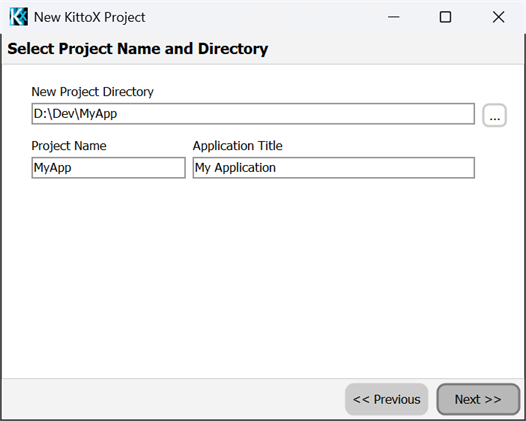
| Field | Description |
|---|---|
| New Project Directory | The parent folder where the project tree will be created. Use … to browse. The wizard appends nothing — the directory you pick is the project root. |
| Project Name | The technical name used as .dpr/.dproj base, identifier in program <Name>; / library <Name>;, and macro {ProjectName} substituted across the template. Stick to alphanumerics. The Apache deployment uses mod_<lowercase> (Pascal requires lowercase identifiers for Apache convention). |
| Application Title | Human-readable title shown in the browser tab and the desktop title bar. Free text, supports localization. Auto-derived from Project Name as you type, editable. |
When you click Next, the wizard runs TProjectTemplate.CreateProject: it copies the chosen template tree to the target directory, expands all macros ({ProjectName}, {ProjectNameLower}, {ProjectGuid}), processes Config.yaml, and removes the .dpr/.dproj/.res of the deployment modes you didn't tick on Page 1.
Page 5 — Done
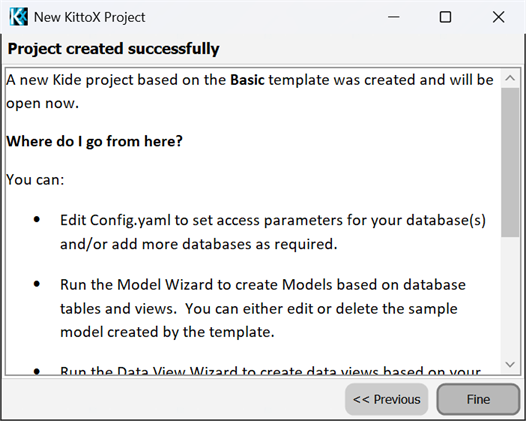
A summary of what was generated. Finish closes the wizard.
- From KIDEx standalone: the project is opened automatically in the IDE.
- From the RAD Studio plugin: the matching
.dproj(the one for the deployment mode you picked from the gallery) is opened in the running Delphi IDE as a new project group, ready to compile.
Generated tree
After Finish the project directory contains:
MyApp/
├── Home/
│   ├── Metadata/
│   │   ├── Config.yaml             ← all your wizard choices land here
│   │   ├── Models/                 ← empty (Model Wizard) or sample (Basic template)
│   │   ├── Views/                  ← empty or sample
│   │   └── Layouts/
│   ├── Resources/
│   │   ├── application.css         ← starting point for custom styles
│   │   └── locale/                 ← .po files (one per language)
│   ├── ReportTemplates/
│   └── FileAuthenticator.txt       ← demo credentials (when Auth = TextFile, the default)
├── Source/
│   ├── UseKitto.pas                ← uses-clause with chosen DB drivers, controllers, JWT
│   ├── Controllers.pas             ← stub for custom Delphi controllers
│   └── Rules.pas                   ← stub for custom business rules
└── Projects/
    ├── MyApp.dpr / .dproj          ← Standalone (if ticked)
    ├── MyApp.ico
    ├── MyAppDesktop.dpr / .dproj   ← Desktop (if ticked)
    ├── MyAppISAPI.dpr / .dproj     ← ISAPI (if ticked)
    └── mod_myapp.dpr / .dproj      ← Apache (if ticked)
Only the deployment modes you ticked on Page 1 are present — the others are deleted post-copy.
One Win64 dproj per deployment
Earlier versions of the wizard generated one subfolder per Delphi version (D10_4/, D11/, D12/, D13/). KittoX targets Win64 only with a single .dproj per deployment, in line with the Examples/. RAD Studio compatibility is preserved at the source-code level (D10.4+) and packages are built for each version — only the project file is unique.
After the wizard
Typical first-time path:
- Config Editor → Databases: replace the stub connection with your real DB parameters and click Test Connection.
- Model Wizard: import the tables you want to expose.
- View & Layout Editor → DataView Wizard: generate List/Form views from the imported Models.
- Click Start in KIDEx (or Run in RAD Studio) to launch the integrated server and preview the application in your browser.
See also
- KIDEx overview — including the section on the RAD Studio IDE plugin
- Project Management — opening, switching, and managing projects after they're generated
- Model Wizard — populate the empty
Models/folder from a database - Config Editor — fine-tune the
Config.yamlproduced by this wizard - JWT Authentication — full reference for the auth envelope generated by Page 3
- MCP-KittoX — the AI-agent-facing entry point to the same wizard, via the
project_create_apptool - Installation — install Kittox Enterprise and KIDEx if you haven't yet