
Model Editor
The Model Editor is the primary tool for defining and maintaining the data models that form the foundation of every Kittox application. Each model maps to a database table and defines fields, data types, references (foreign keys), detail references (one-to-many), and business rules.
Editor layout
When you double-click a model in the project tree, KIDEx opens it in the editor panel:
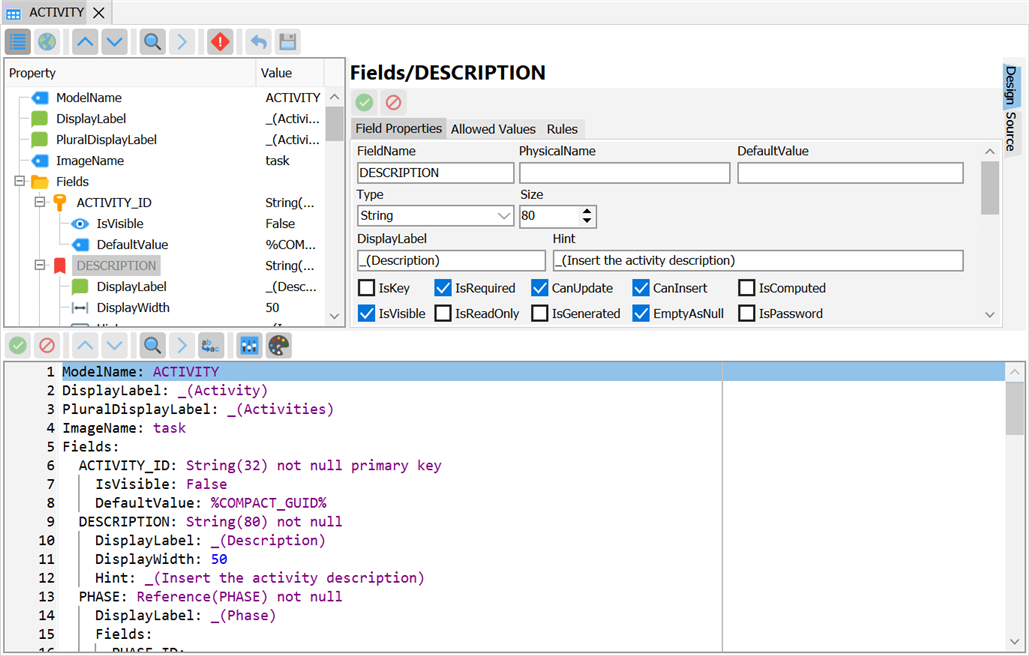
The editor has two main areas:
- Tree panel (left) — the model structure:
ModelName,Fields,DetailReferences,Rules, etc. - Property panel (right) — context-sensitive property editor for the selected node. Changes are immediately reflected in the underlying YAML.
Creating a model manually
- Right-click the Models node in the project tree
- Select New Model
- Enter the model name (should match the database table name)
- The model opens in the editor with a basic structure
- Right-click the Fields node to add fields one by one
Each field requires at minimum a name and a data type. Use the right-click context menu to see all available field properties — the menu is built dynamically from RTTI attributes on TKModelField.
Database reverse engineering
For projects backed by an existing database, the Model Wizard imports table structures directly from the DB catalog and generates Model YAML files automatically. It can also be re-run on an existing project to detect new/changed/removed columns and propose update actions while preserving the customizations you've already made (display labels, widths, rules, allowed values).
See the dedicated Model Wizard page for the full walkthrough.
Field properties
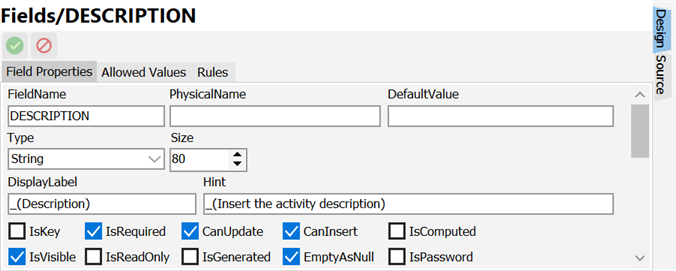
The most commonly used field properties:
| Property | Type | Description |
|---|---|---|
DisplayLabel | String | Label shown in forms and grids (auto-generated if not set) |
DisplayWidth | Integer | Width in characters for forms and grid columns |
IsRequired | Boolean | Whether the field is mandatory |
IsVisible | Boolean | Whether the field appears in auto-generated views |
IsReadOnly | Boolean | Whether the field is editable |
IsPassword | Boolean | Renders the field as a masked password input |
AllowedValues | Subnode | Static list of valid values (rendered as a dropdown) |
DefaultValue | String | Default value for new records (supports macros like %COMPACT_GUID%) |
Expression | String | SQL expression for computed/calculated fields |
Hint | String | Tooltip text shown when hovering over the field |
Rules | Subnode | Business rules applied to this field |
For the complete list of properties, right-click a field in KIDEx — the context menu shows all available properties with descriptions, built from RTTI attributes.
Read-only properties
A property that the metadata carries but the HTMX runtime does not honour yet is shown read-only rather than hidden: the value written in the YAML stays visible and can be copied, but it cannot be edited from the designer. It becomes editable again when the feature is wired up.
Reference fields
Reference fields define foreign key relationships. In the model tree, a reference field has child nodes for the FK column(s):
EMPLOYEE: Reference(EMPLOYEE) not null
  Fields:
    EMPLOYEE_ID:
The context menu for reference fields includes properties specific to the referenced model, such as IsLarge (which switches from a dropdown to a lookup dialog in forms).
Detail references
Detail references define one-to-many relationships. They appear under the DetailReferences node, where the node's value is the detail model's name and everything else is a subnode of it, one level in:
DetailReferences:
  Phases: PHASE
    ReferenceField: PROJECT
CascadeDelete: True| Node | Default | Meaning |
|---|---|---|
DisplayLabel | the detail model's own label | Label shown for the detail table, e.g. on its tab. |
PhysicalName | — | Physical name of the foreign key in the database. |
ReferenceField | — | Which reference of the detail model links back here. Needed only when the detail model points at this model more than once. |
CascadeDelete | False | Whether deleting a master deletes this detail's rows along with it. See Models. |
Written one level out instead of in, a subnode is read as another detail reference and does nothing as a setting. The tree panel shows the real nesting, which is the quickest way to check it.
KIDEx uses these to generate detail tabs in form views automatically.
Model validation
KIDEx validates models when you save or when you explicitly run Tools > Validate Models. The validator checks for:
- Missing primary key fields
- References to non-existent models
- Invalid data type specifications
- Duplicate field names
- Circular reference chains
Validation errors and warnings appear in the log panel at the bottom of the KIDEx window.