
Model Wizard
The Model Wizard is KIDEx's database reverse-engineering tool. It connects to a live database, queries the catalog, and generates Kittox Model YAML files automatically — saving hours of manual work on projects with dozens of tables.
It is also the recommended way to keep your models in sync with the database when the schema changes: re-running the wizard on an existing project detects new columns, removed columns, and changed data types, and proposes a list of update actions you can review before applying.
When to use the Model Wizard
- New project, existing database — you have a database (yours or imported from another system) and you need a Model file for each table you intend to use in Kittox. The wizard generates the whole Models folder in seconds.
- Schema migration — your DBA has added columns to a table; re-run the wizard to update the affected Models without losing the customizations you've already made (display labels, widths, rules, allowed values).
- Quick prototyping — point the wizard at a sample database to bootstrap a working Kittox application in minutes.
Launching the wizard
There are three ways to start the wizard:
- Menu: Metadata > Model Wizard…
- Right-click the Models node in the project tree → Update Models… (or a single model → Update model…)
- Toolbar of the Metadata panel: the Model Wizard icon (when a project is open)
The project must be open and at least one database connection must be configured in Config.yaml (see Database Configuration and the Config Editor).
Wizard steps
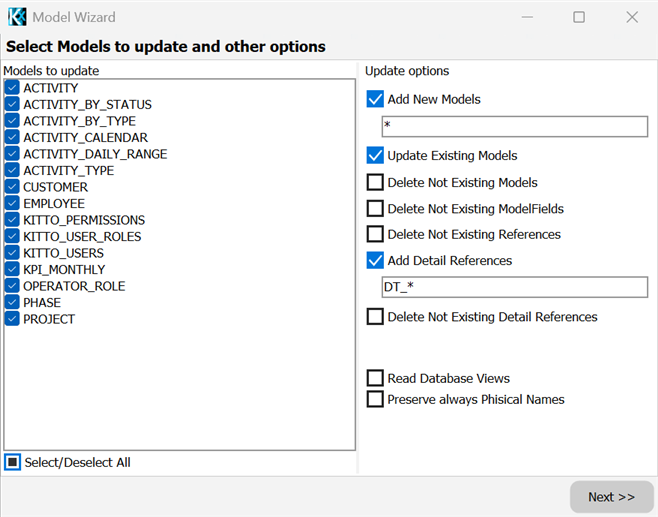
The wizard collects the table selection and the options on its first page, asks for the database connection on the second and shows the review of the proposed actions on the third; the last page runs the update and shows its log.
1. Choose the database connection
The wizard lists all the connections defined under Databases in your Config.yaml. Pick the one whose schema you want to import.
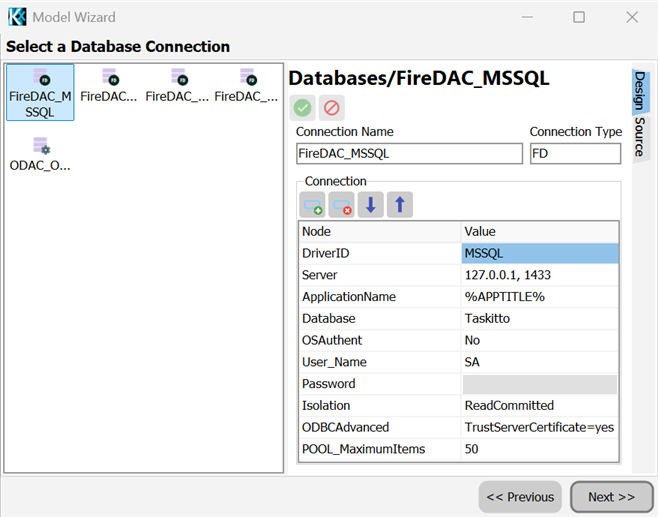
If the connection requires credentials, the wizard prompts for them (and remembers them for the rest of the session, never persisting them to disk).
2. Browse and select tables
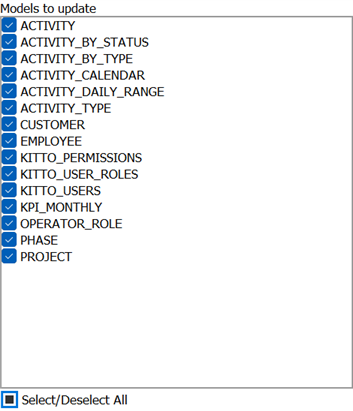
KIDEx queries the database catalog and shows the available objects:
| Option | Effect |
|---|---|
| Include views as tables | Adds database views to the list — generated as read-only Models, useful for reporting screens |
| Filter by name | Substring filter to narrow down a long table list |
| Select all / Select none | Bulk selection helpers |
Tick the tables you want to import. The wizard remembers the selection across sessions for the same project.
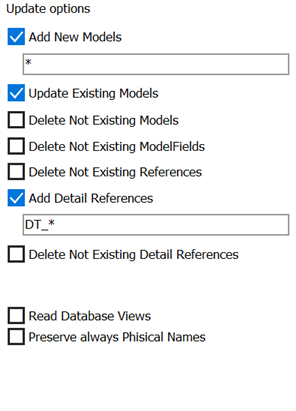
3. Choose options
| Option | Default | Description |
|---|---|---|
| Beautify names | On | Converts UPPER_UNDERSCORE and Names With Spaces (e.g. Quarterly Orders, Sales by Category — common in Northwind-style sample DBs) into CamelCase for the Kittox Model and Field names (QuarterlyOrders, SalesByCategory), while preserving the original PhysicalName for the SQL layer. Disable this if your DB already uses readable names. |
| Generate detail references | On | Detects foreign keys pointing into each table and adds DetailReferences for the inverse relationship (one-to-many master→detail). Disable for very dense schemas where you'd get spurious detail tabs. |
| Detail name filter | DT_* | Which foreign keys are turned into DetailReferences, matched against the constraint name. See below. |
| Generate references | On | Detects foreign keys leaving each table and produces Reference() fields with IsLarge set when the referenced table has many rows. |
| Update existing models | On | When a Model file already exists, the wizard switches to diff mode (see below). When off, existing files are left untouched. |
| Preserve custom properties | On | In diff mode, never overwrite hand-edited properties like DisplayLabel, DisplayWidth, Hint, IsRequired, AllowedValues, Rules, DefaultValue. |
Which foreign keys become detail grids — the detail name filter
A relational schema cannot tell the two kinds of foreign key apart:
| Relationship | What you want in the UI | Example |
|---|---|---|
| Composition — the child belongs to the master | a detail grid inside the master | PHASE → PROJECT: phases live inside their project |
| Classification — the child just points at a lookup table | a lookup field with a caption | ACTIVITY → EMPLOYEE: you do not want an "Activities" grid inside the employee record |
Both are plain FOREIGN KEY constraints, so the wizard asks the schema designer to declare the intent, and the cheapest place to put it is the name of the constraint. That is what the Detail name filter box on the options page matches against, and its default DT_* is the Ethea house convention — not an SQL standard. The sample databases follow it: DT_DOLL_MOM, DT_INVITATION_PARTY, DT_PHASE_PROJECT for compositions, FK_DOLL_HAIR, FK_ACTIVITY_EMPLOYEE for lookups.
On a database that was not designed for Kittox the names carry no such distinction, and you simply list the constraints you want, separated by spaces:
UFF_PAL_FK STA_UFF_FKThe field accepts several glob patterns (*, ?), a leading ~ negates one (~FK_* means "every constraint except those starting with FK_"), and the comparison is case-sensitive — on Oracle constraint names are uppercase. Patterns are OR-ed, so you cannot express "neither this nor that" with two negations.
To find out what your database actually contains, list the foreign keys and group them by the table they point at: a table referenced by many others is a lookup, one referenced only by the rows that belong to it is a master. On Oracle:
SELECT c.table_name, c.constraint_name, rc.table_name AS references_table, c.delete_rule
FROM   user_constraints c
JOIN   user_constraints rc ON rc.constraint_name = c.r_constraint_name
WHERE  c.constraint_type = 'R'
ORDER  BY 1, 2;
DELETE_RULE = CASCADE is a strong hint of composition, a foreign key column with a role suffix (TIC_TIPI_ID_STATUS) a strong hint of a lookup.
The delete rule is a hint for you, not an input: the wizard does not turn DELETE_RULE = CASCADE into CascadeDelete: True. Whether deleting a master takes its details with it is declared by hand on the detail reference — see Models.
Nothing at run time depends on the constraint name: it is stored in the Model as PhysicalName only so that the wizard can recognise the same relationship on the next run. A DetailReferences entry added by hand needs no PhysicalName at all.
4. Review the proposed actions
Before writing anything to disk, the wizard shows a review panel with one row per action:
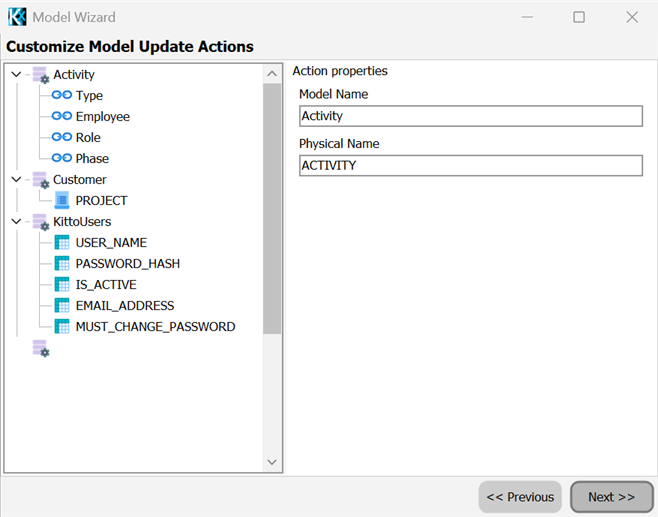
| Action type | Meaning |
|---|---|
| Add Model | A .yaml file will be created for a new table |
| Update Model | An existing .yaml file will be modified |
| Delete Model | An existing .yaml file references a table that no longer exists in the DB |
| Add Field | A new column has been detected on an existing table |
| Update Field | A column has changed (data type, size, NULL/NOT NULL) |
| Delete Field | A column is no longer in the DB |
| Set Primary Key | The PK definition has changed |
| Add/Update/Delete Reference | A foreign key has been added, modified, or removed |
| Add/Update/Delete Detail Reference | The inverse FK relationship has changed |
Each action has a checkbox: untick the ones you don't want to apply. The detail panel on the right shows the YAML diff so you can see exactly what will change.
Field descriptions — DisplayLabel and Hint
When you select an Add Field or Update Field action in the tree, the detail panel exposes two additional editable text boxes alongside the standard editors:
- DisplayLabel — the short, human-readable label shown in grid headers, form captions and lookup popups (single line).
- Hint — the long-form description shown as a tooltip on grid columns and as the field's
placeholder/ contextual help in forms.
Both come pre-filled from two sources, in order of precedence:
The database's native column comment when present. KIDEx reads them automatically during the schema-import step from:
Database Source SQL Server extended property MS_DescriptionPostgreSQL pg_description/COMMENT ON COLUMNFirebird / InterBase RDB$RELATION_FIELDS.RDB$DESCRIPTIONMySQL INFORMATION_SCHEMA.COLUMNS.COLUMN_COMMENTOracle USER_COL_COMMENTS.COMMENTSIf the DBA has documented the schema natively in the database engine, those descriptions land directly in your KittoX Models. No double bookkeeping.
The Field name itself if no comment is available (placeholder display only — see below).
The two text boxes are identifier-aware: if you leave them equal to the Field name (the default placeholder when there's no DB comment) the wizard doesn't emit the corresponding YAML node. The runtime falls back to the Field name automatically, so the YAML stays clean. As soon as you type something different the node is written. The Hint field has an extra guard: if you leave it equal to whatever you typed into DisplayLabel, only DisplayLabel is emitted (no duplicate Hint).
This means a typical workflow is:
- For tables whose DBA documented every column natively: review the auto-filled values, fine-tune the wording for the UI, click Apply. Both
DisplayLabelandHintend up in YAML. - For undocumented tables: leave the defaults and the YAML stays compact; come back later and add labels manually or re-run the wizard after the DBA documents the columns.
- For ad-hoc edits: directly customize either field for that one action only — the change is per-field, not per-table.
Headless equivalent in MCP-KittoX
Both the auto-fetch from the DB and the override flow are available to AI agents via the models_create_from_db tool. Agents that maintain documentation in CSV / glossary / prior YAML can pass a field_descriptions array with {model_name, field_name, display_label, hint} overrides, which take precedence over the DB-fetched values on every non-empty property.
5. Apply
Click Apply to execute the selected actions. KIDEx:
- Saves all currently open editors (a backup safety net before changing files)
- Writes the new and updated
.yamlfiles - Removes deleted files (if any)
- Refreshes the project tree
- Logs every action in the bottom panel with file paths
The metadata catalog is reloaded automatically — you can immediately edit the generated Models in the Model Editor or open them in YAML mode.
What the wizard generates
A typical Model generated for an EMPLOYEE table looks like this:
ModelName: Employee
PhysicalName: EMPLOYEE
Fields:
  Id: Integer primary key
    DisplayLabel: Employee number
    Hint: Internal numeric identifier assigned at hire time
    PhysicalName: EMP_ID
  FirstName: String(50) not null
    DisplayLabel: First name
    PhysicalName: FIRST_NAME
  LastName: String(50) not null
    DisplayLabel: Last name
    PhysicalName: LAST_NAME
  HireDate: Date
    DisplayLabel: Hire date
    Hint: Date the employee joined the company (TZ Europe/Rome)
    PhysicalName: HIRE_DATE
  Department: Reference(Department) not null
    DisplayLabel: Department
    Fields:
      DEPT_ID:
        PhysicalName: DEPT_ID

DetailReferences:
  Activities: Activity
    ReferenceField: Employee
What you get for free:
PhysicalNamestamped on every Field that was renamed by the beautifier — keeps the SQL layer pointing at the original column name.- Primary keys detected from the catalog and marked with
primary key. - Not-null constraints translated into
not nullmodifiers. - Foreign keys rendered as
Reference(TargetModel)fields with the appropriate FK column underFields:. - Inverse foreign keys (other tables pointing at this one) rendered as
DetailReferencesso master/detail forms work out of the box. - Data types translated from the catalog into the KittoX vocabulary, with the size and scale that belong to the type: a
VARCHAR(50)becomesString(50), aDECIMAL(12,3)becomesDecimal(12, 3), and a type that admits neither — an integer, a boolean, a date — carries neither. - LOB columns recognised as such and written as
MemoorBlobwith no size:VARCHAR(MAX),NVARCHAR(MAX),TEXT,NTEXT,XML, a FirebirdBLOB SUB_TYPE TEXTand an OracleCLOBall becomeMemo;VARBINARY(MAX),IMAGE,BYTEA, a FirebirdBLOB SUB_TYPE BINARYand an OracleBLOBbecomeBlob. Sized binary columns (BINARY(n),VARBINARY(n),RAW(n)) are left as they were, because they are not LOBs. DisplayLabelandHintpre-filled from the database's native column comments (see Field descriptions above) — and editable per-field before the wizard writes the YAML.
Diff mode (re-running on an existing project)
When you re-run the wizard on a project where Models already exist, the wizard switches to diff mode:
- Each table in the DB is compared field-by-field against the existing Model file
- New columns produce Add Field actions
- Changed columns produce Update Field actions (with a side-by-side diff)
- Removed columns produce Delete Field actions, opt-in by default — unticked, so accidentally renaming a column in the DB doesn't cause a destructive Model edit
- Tables that are no longer in the DB produce Delete Model actions, also opt-in
Hand-edited properties (DisplayLabel, DisplayWidth, IsRequired, Rules, AllowedValues, etc.) are always preserved when Preserve custom properties is on (default).
Relationships are reconciled too:
- A missing
DetailReferencesentry on an existing Model is proposed again, so re-running the wizard recovers one that was never generated. - An entry you wrote by hand is recognised and completed — the wizard keeps the name you chose and only fills in what is missing, it never adds a second entry for the same relationship. A
ReferenceFieldyou set on purpose is left alone: when the detail Model has more than one reference to the same master, which one to navigate is your decision. - The primary key of each Model is realigned to the one the database declares, including a column that is both primary key and foreign key: the key is then declared on the reference field and its sub-fields inherit it. This happens even when nothing else about the table changed — a key whose columns or just their order differ from the database is enough. It matters: master and detail are paired by position, so a key in the wrong order returns the detail rows of another master record, or none at all. Models built on views, where the database exposes no primary key, are left untouched, so a key you declared by hand survives.
- Two foreign keys from the same detail table to the same master produce two distinct entries: the first keeps the natural name (the plural of the detail Model), the second gets a numeric suffix, and each carries its own
ReferenceField.
A foreign key that changed is followed as well, under the same constraint name:
- Different columns — the new ones move into the reference field; the ones that left go back to being plain fields of the Model, with the type read from the database. A column that was dropped from the table is not kept as a field.
- Different order of the columns of a composite key — the sub-fields are reordered to match, for the same positional-pairing reason as above.
- A different referenced table — the
Reference()spec is rewritten to the new Model, the detail entry moves to the new master and is removed from the old one. - Deleted — with Delete not existing references ticked, the reference field goes but its columns stay, as plain fields keeping their type and their
primary keyflag if they had one.
The delete options are scoped to what they name: Delete not existing fields leaves reference fields alone (they are backed by a constraint, not by a column), and a detail entry you wrote by hand — which carries no PhysicalName — is not mistaken for a stale one. Re-running the wizard without listing your detail constraints in the detail name filter does not remove the detail references already in your Models: the filter decides what is generated, not what is deleted.
One case is not covered: if a constraint is renamed in the database the wizard does not recognise the existing entry, because a relationship is identified by the name of its foreign key, and it adds a new one beside it. Delete the stale entry, or tick Delete not existing detail references.
Tips
- Filter the table list with a substring before importing — most DBs have system tables and audit tables you don't need in Kittox.
- Untick uninteresting tables the first time round. You can always re-run the wizard later to add more.
- Inspect the YAML diff in the review panel before applying — the wizard never modifies anything until you click Apply.
- Use a dev database for the first import. Once you're happy with the result, you can re-run the wizard against staging or production to update.
- Validate after import with Tools > Validate All to surface any reference issues introduced by the new Models.
See also
- Models — the Model YAML reference
- Model Editor — manual editing of the generated Models
- Config Editor — Databases — configuring the connections the wizard reads from
- How to access the database — when you need to run SQL outside the Model framework