
TStyledTaskDialog Demo
Overview
This comprehensive demo showcases the TStyledTaskDialog component, demonstrating how to create modern, styled message dialogs and task dialogs with custom buttons, hyperlinks, command links, and auto-click features.

What You'll Learn
- Using TStyledTaskDialog vs. standard TTaskDialog (see the TStyledTaskDialog page)
- Creating styled message dialogs
- Adding custom buttons and command links
- Implementing hyperlinks in messages
- Using auto-click (countdown) dialogs
- Verification checkboxes
- Expanded text sections
- Footer text
- Custom button widths and alpha blending
- Copying the dialog content to the clipboard (Ctrl+C / Ctrl+Ins)
Dialog Types
The demo includes multiple ways to show dialogs:
1. Native Dialogs (Standard VCL)
- Native MessageDlg: Delphi's standard message dialog
- Native TaskDialog: Delphi's task dialog (Windows Vista+)
- Native ShowMessage: Simple message box
2. Styled Dialogs
- StyledMessageDlg: Styled replacement for MessageDlg
- TStyledTaskDialog component: Full-featured styled task dialog (in the demo form the component is named
StyledTaskDialog; the standardTTaskDialogcomponent is namedTaskDialog) - StyledShowMessage: Simple styled message
Message Dialog Functions
Simple Messages
// Standard
ShowMessage('Hello World');

// Styled
StyledShowMessage('Hello World');
Message Dialogs with Buttons
// Standard MessageDlg
if MessageDlg('Delete this item?', mtConfirmation,
  [mbYes, mbNo], 0) = mrYes then
  DeleteItem;

// Styled MessageDlg
if StyledMessageDlg('Delete this item?', mtConfirmation,
  [mbYes, mbNo], 0) = mrYes then
  DeleteItem;
Task Dialogs with Title
// Standard TaskDialog
TaskMessageDlg('Confirm Delete',
  'Are you sure you want to delete this item?',
  mtConfirmation, [mbYes, mbNo], 0);

// Styled TaskDialog
StyledTaskMessageDlg('Confirm Delete',
  'Are you sure you want to delete this item?',
  mtConfirmation, [mbYes, mbNo], 0);
Dialog Types (TMsgDlgType)
The demo shows all message types:
| Type | Icon | Use Case |
|---|---|---|
mtWarning | Warning | Caution messages |
mtError | Error | Error notifications |
mtInformation | Info | Informational messages |
mtConfirmation | Question | Confirmation questions |
mtCustom | None | Custom dialogs |
Standard Buttons
Available button combinations:
// Single button
[mbOK]

// Yes/No
[mbYes, mbNo]

// Yes/No/Cancel
[mbYes, mbNo, mbCancel]

// OK/Cancel
[mbOK, mbCancel]

// Abort/Retry/Ignore
[mbAbort, mbRetry, mbIgnore]

// All buttons
[mbYes, mbNo, mbOK, mbCancel, mbAbort, mbRetry, mbIgnore, mbAll, mbHelp]
Default Button
Specify which button is default (Enter key):
StyledMessageDlg('Save changes?', mtConfirmation,
  [mbYes, mbNo, mbCancel], 0, mbYes);  // Yes is default
Hyperlinks in Messages
Add clickable links to dialog messages:
LMessage :=
  'The file was created: ' +
  StringToHRef('C:\Windows\System32\license.rtf', 'license.rtf') + sLineBreak +
  'You can run: ' +
  StringToHRef('C:\Windows\System32\Notepad.exe', 'Notepad Editor') + sLineBreak +
  'You can open folder: ' +
  StringToHRef('C:\Windows\System32\') + sLineBreak +
  'You can visit site: ' +
  StringToHRef('http://www.ethea.it', 'www.Ethea.it');

StyledTaskMessageDlg('File Operations', LMessage,
  mtInformation, [mbOK], 0);
Hyperlink Types
- File paths: Opens the file
- Executables: Runs the program
- Folders: Opens in Explorer
- URLs: Opens in default browser
Using TStyledTaskDialog Component
For advanced features, use the component directly:
var
  Dialog: TStyledTaskDialog;
begin
  Dialog := TStyledTaskDialog.Create(Self);
  try
    Dialog.Caption := 'Application';
    Dialog.Title := 'Confirm Action';
    Dialog.Text := 'Do you want to proceed?';
    Dialog.CommonButtons := [tcbYes, tcbNo];
    Dialog.DefaultButton := tcbYes;

    // Execute dialog
    if Dialog.Execute then
    begin
      if Dialog.ModalResult = mrYes then
        PerformAction;
    end;
  finally
    Dialog.Free;
  end;
end;
Custom Buttons
Add custom buttons with command links:
Dialog.CommonButtons := []; // Clear common buttons

// Add custom button with command link
with Dialog.Buttons.Add as TTaskDialogButtonItem do
begin
  Caption := 'Retry';
  CommandLinkHint := 'Retry the operation...';
  ModalResult := mrRetry;
  Default := True;
end;

with Dialog.Buttons.Add as TTaskDialogButtonItem do
begin
  Caption := 'Cancel';
  CommandLinkHint := 'Cancel and return...';
  ModalResult := mrCancel;
end;

// Enable command links
Dialog.Flags := Dialog.Flags + [tfUseCommandLinks];
Auto-Click Feature
Dialogs can auto-close after a delay:
// Auto-click after 5 seconds (component)
StyledTaskDialog.AutoClickDelay := 5000;
StyledTaskDialog.AutoClick := True;

// Or use the function parameter
DoStyledTaskMessageDlg('Auto-closing dialog',
  'This will close in 5 seconds',
  mtInformation, [mbOK], 0,
  5000);  // AutoClickDelay: 5000ms = 5 seconds

// Or for all the dialogs, once (last parameter: AutoClickDelay)
InitializeStyledTaskDialogs(True, Screen.MessageFont, False, '', 255, 74, 30, 5000);
The button background color is drawn progressively for each second of AutoClickDelay duration (see the AutoClick guide).
Expanded Text
Add collapsible detail text:
Dialog.ExpandedText :=
  'Technical Details:' + sLineBreak +
  'Error Code: 0x80004005' + sLineBreak +
  'Module: DataAccess.dll' + sLineBreak +
  'Function: Connect';
Dialog.ExpandButtonCaption := 'Show Details';
Footer Text
Add footer information:
Dialog.FooterText := 'For more information, visit www.example.com';
Dialog.FooterIcon := tdiInformation;
Verification Checkbox
Add a "Don't show again" option:
Dialog.VerificationText := 'Don''t show this message again';
Dialog.Flags := Dialog.Flags + [tfVerificationFlagChecked];

// Check if user checked it
if Dialog.Execute then
begin
  if tfVerificationFlagChecked in Dialog.Flags then
    SaveSetting('DontShowAgain', True);
end;
Custom Button Width
Adjust button width:
StyledTaskDialog.ButtonsWidth := 120;  // 120 pixels (range 10..800)
StyledTaskDialog.ButtonsHeight := 32;  // 32 pixels (range 10..300)
Alpha Blending
Set dialog transparency:
StyledTaskDialog.AlphaBlendValue := 240; // 0-255 (255 = opaque, default)Copy to Clipboard
While a styled dialog is open, press Ctrl+C (or Ctrl+Ins) to copy its content to the clipboard, exactly as with the native Windows dialogs. The text uses the native TaskDialog layout, with empty sections omitted:
[Window Title]
...

[Main Instruction]
...

[Content]
...

[Expanded Information]
...

[Footer]
...

[Verification Text]
...

[OK]
[Cancel]
Button captions are listed in the order they appear on screen. Try it in the demo on both the native and the styled dialogs to compare the result.
Style Families
Choose button style family for the dialog:
InitializeStyledTaskDialogs(BOOTSTRAP_FAMILY);
// Now all styled dialogs use Bootstrap buttons

InitializeStyledTaskDialogs(ANGULAR_LIGHT_FAMILY);
// Now all styled dialogs use Angular buttons
The family is the only choice: the class and the appearance of every button come from its ModalResult (see How the style of the dialog buttons is chosen). The families of the units Vcl.BootstrapButtonStyles and Vcl.AngularButtonStyles must be in the uses clause to use their constants (BOOTSTRAP_FAMILY, ANGULAR_LIGHT_FAMILY, ANGULAR_M3_LIGHT_FAMILY...).
Initialization
Initialize dialog defaults in your application startup:
begin
  Application.Initialize;

  // Initialize StyledTaskDialogs with Bootstrap buttons
  InitializeStyledTaskDialogs(
    True,                    // Use title in MessageDlg
    Screen.MessageFont,      // Font to use
    False,                   // Use command links
    BOOTSTRAP_FAMILY,        // Button family
    255,                     // Alpha blend (255 = opaque)
    120,                     // Button width
    32,                      // Button height
    -1);                     // Auto-click delay (-1 = disabled)

  Application.CreateForm(TMainForm, MainForm);
  Application.Run;
end;
Error Handling
Show errors with styled dialogs:
procedure TForm.ShowError(Sender: TObject; E: Exception);
var
  LTitle: string;
begin
  LTitle := GetErrorClassNameDesc(E.ClassName,
    E is EAccessViolation);

  StyledTaskMessageDlg(LTitle, E.Message,
    mtError, [mbOK], E.HelpContext);
end;

// In FormCreate:
Application.OnException := ShowError;
Demo Features
The demo form includes:
Controls
- Dialog Type: Choose message type
- Buttons: Select which buttons to show
- Default Button: Choose default button
- Title: Set dialog title
- Message: Set dialog message text
- Caption: Set dialog window caption
- Expanded Text: Collapsible details
- Footer Text: Footer information
- Verification Text: Checkbox text
- Main Icon: Dialog icon type
Options
- Use Command Links: Enable command link buttons
- Use Title in MessageDlg: Show title in simple dialogs
- Auto Click: Enable countdown auto-close
- Auto Click Delay: Countdown duration
Test Buttons
- Native ShowMessage: Standard Windows message
- Styled ShowMessage: Styled message
- Native MessageDlg: Standard message dialog
- Styled MessageDlg: Styled message dialog
- Native TaskDialog: Standard task dialog
- Styled TaskDialog: Styled task dialog
- Use DialogComp (Native): Standard TTaskDialog component
- Use DialogComp (Styled): TStyledTaskDialog component
Advanced Examples
Progress Dialog
Dialog.Title := 'Processing...';
Dialog.Text := 'Please wait while processing';
Dialog.CommonButtons := [tcbCancel];
Dialog.Flags := Dialog.Flags + [tfShowProgressBar];
Dialog.ProgressBar.Position := 40;  // Min = 0, Max = 100 by default
Dialog.Execute;
Radio Button Dialog
with Dialog.RadioButtons.Add do
begin
  Caption := 'Option 1';
  Enabled := True;
end;

with Dialog.RadioButtons.Add do
begin
  Caption := 'Option 2';
  Enabled := True;
end;

if Dialog.Execute then
  StyledShowMessage('Selected: ' + Dialog.RadioButton.Caption);
Animated Dialogs (with Skia4Delphi)
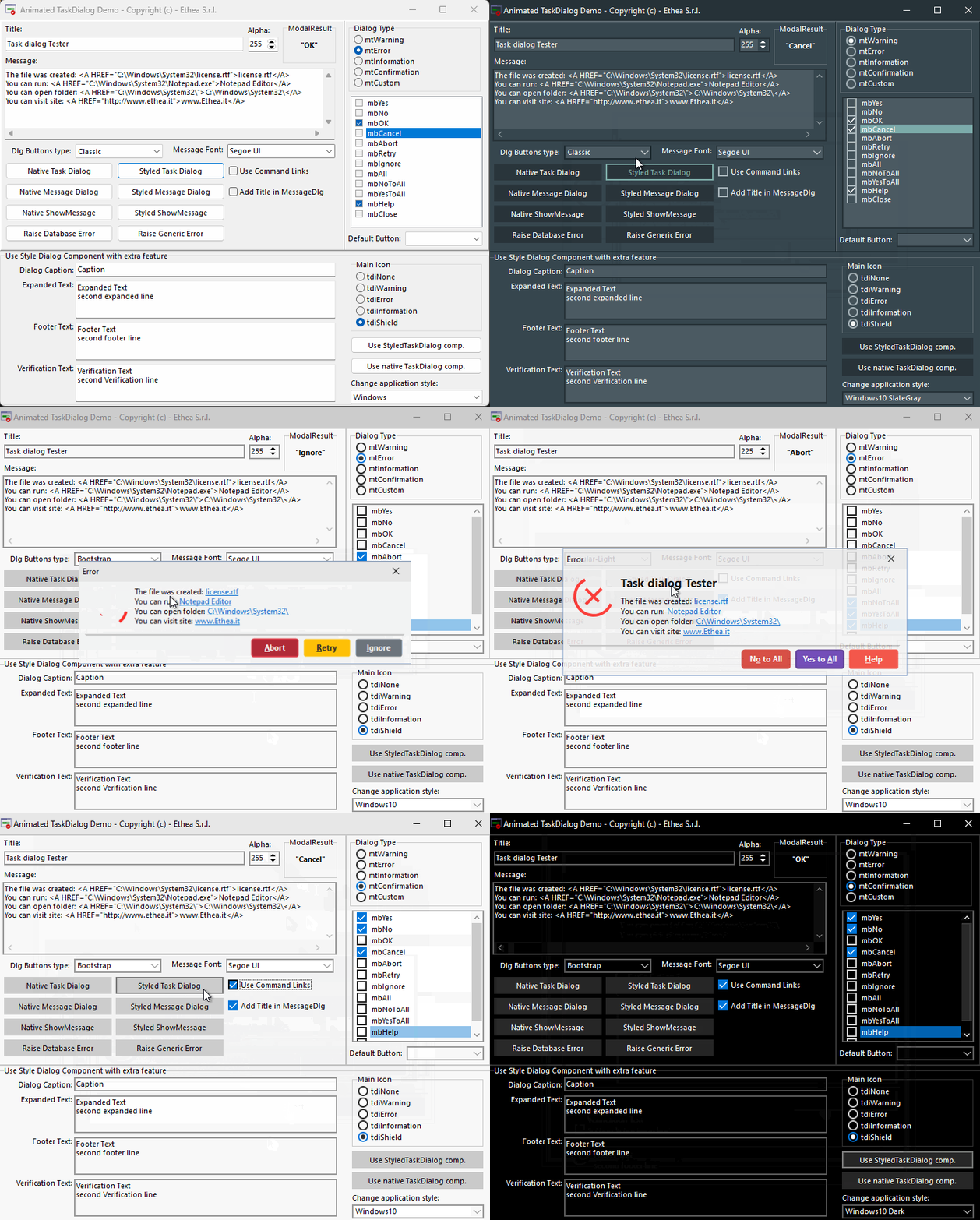
If Skia4Delphi is installed:
{$IFDEF SKIA}
StyledTaskDialog.UseAnimations := True;
{$ENDIF}
This enables Lottie animations in dialogs. The SKIA conditional define is defined in the project options of the demo (Delphi 13: StyledComponentsDemo.dproj; context menu "Enable SKIA"), which also adds Skia.Vcl.StyledTaskDialogAnimatedUnit to the uses: without that unit, setting UseAnimations raises EStyledTaskDialogException. See TStyledAnimatedTaskDialog.
Technical Details
Source Location
Demos/source/StyledDialogDemoForm.pas
Dialog Units
Vcl.StyledTaskDialog.pas- Main dialog componentVcl.StyledTaskDialogFormUnit.pas- Dialog form baseSkia.Vcl.StyledTaskDialogAnimatedUnit.pas- Animated version (optional)
Supported Versions
All Delphi versions (XE6+); the animated dialogs need Skia4Delphi (XE7+).
Key Functions
| Function | Description |
|---|---|
StyledShowMessage() | Simple message |
StyledMessageDlg() | Message with buttons |
StyledTaskMessageDlg() | Task dialog with title |
StyledMessageDlgPos() / StyledTaskMessageDlgPos() | The same, at a screen position |
InitializeStyledTaskDialogs() | Set default options |
To use these dialogs without changing existing MessageDlg/ShowMessage calls, see Vcl.StyledMessagesHooks.
See Also
- TStyledTaskDialog - Description and examples
- TStyledTaskDialog Reference - Complete technical documentation
- TStyledButton Reference - Dialog buttons