
List Controller
Displays a list of records of a data view, with options for grouping, filtering, viewing, editing and deleting records.
The List controller inherits from the BorderPanel, and by default it renders a built-in filter panel in its north region and a GridPanel in its center region. You can add other controllers in the other regions or override the center region if you want to add to or replace the grid with something else (say, a ChartPanel or a TemplateDataPanel. Currently you cannot override the north region if you use filters (see below).
Here is an example that display a grid and a chart inside an AccordionPanel:
Type: Data
Controller: List
  CenterController: AccordionPanel
    SubViews:
      Controller: GridPanel
        AllowClose: False
        ShowHeader: True
        ...
      Controller: ChartPanel
        AllowClose: False
        ShowHeader: True
        ...
Please note that you must set ShowHeader to True if you are using an AccordionPanel. Setting AllowClose to False is not required but usually preferred, as there's currently no way to reopen a closed tab or accordion subpanel.
For a different display, you could replace the AccordionPanel with a TabPanel and have the grid and chart in separate tabs. Or you could leave the grid (as per the default setting) in the center region and add the chart at the right:
Type: Data
Controller: List
  EastController: ChartPanel
    ...
Filters
Filters allow the user to apply search predicates to lists of records. The Filters/Items node has a set of subnodes, each of which represents a filter of a specified type. Each filter renders a user interface (a search box, a combo box, a set of buttons, etc.) and can build a Boolean SQL filter expression. Expressions are concatenated through a Connector (which can be "and" or "or" - default: "and").
Filter types are pluggable. Here is a list of current filter types provided with Kittox:
List: Displays a drop-down list of options, each of which has an associated expression which is used as the user selects the corresponding option.ButtonList: A set of buttons, each of which has an associated expression. The user can push multiple buttons, in which case expressions are combined through a specifiedConnector(default: "or").FreeSearch: A free search box. Whether to search in one or multiple fields, and the type of search, depend on theExpression. The search is triggered when the user blurs the box (by hitting tab) or types in enough characters; the minimum can be set through theAutoSearchAfterCharsparameter.DynaList: A dynamic drop-down list, generated by a SQL select statement.DynaButtonList: A dynamic set of buttons, generated by a SQL select statement.DateSearch: Displays a native date picker with an associated expression.TimeSearch: Displays a native time picker with an associated expression.DateTimeSearch: Displays a date picker and a time picker side by side. The combined value replaces{value}in theExpressionTemplate.NumericSearch: Displays a numeric input field with debounced triggering (300ms delay).BooleanSearch: Displays a checkbox. The expression is applied only when checked.
Example of ButtonList filter:
Filters:
  DisplayLabel: Girls Filter
  Connector: and
  Items:
    ButtonList: Hair Color
      Items:
        All: All
          Expression: 1 = 1
          IsDefault: True
        Blond: Blond
          Expression: HAIR.HAIR_COLOR = 'Blond'
        Walnut: Walnut
          Expression: HAIR.HAIR_COLOR = 'Walnut'
        Black: Black
          Expression: HAIR.HAIR_COLOR = 'Black'
        Silver: Silver
          Expression: HAIR.HAIR_COLOR = 'Silver'
        Red: Red
          Expression: HAIR.HAIR_COLOR = 'Red'
Example of DynaList filter:
Filters:
  DisplayLabel: Choose Mom
  Items:
    DynaList: Mom
      # CommandText - mandatory - must select the value field and
      # the display field as the first two fields.
      CommandText: |
        select GIRL_ID, GIRL_NAME
        from GIRL    {query}
        order by GIRL_NAME
      # ExpressionTemplate - mandatory - should contain a {value} placeholder
      # for the value field selected by the CommandText.
      ExpressionTemplate: DOLL.MOM_ID = '{value}'
      # QueryTemplate - mandatory to allow incremental search - should contain '{queryValue}%' -
      # it will be copied in {query} placeholder of Expression Template
      QueryTemplate: where GIRL_NAME like '{queryValue}%'
      # AutoCompleteMinChars: not mandatory - default is 4 characters - number of characters before incremental search starts
        AutoCompleteMinChars: 1
      # Combo width - not mandatory
        Width: 30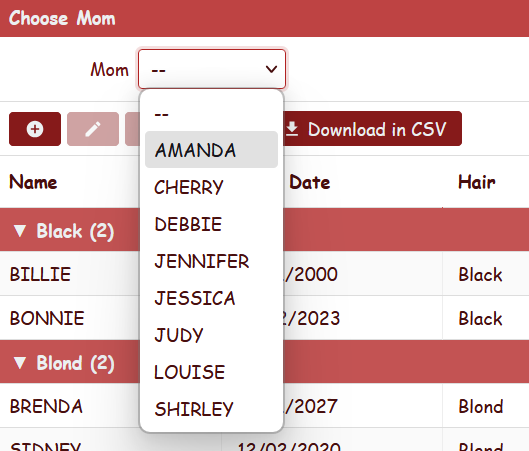
Example of DynaList filter with a where condition:
Filters:
  DisplayLabel: Choose employee
  Items:
      DynaList: Employee
        CommandText: |
          select EMPLOYEE_ID, EMPLOYEE_NAME
            from EMPLOYEE
            where EMPLOYEE_ID in (%Auth:ALLOWED_USERS%)    {query}
            order by EMPLOYEE_NAME
        ExpressionTemplate: {Q}EMPL like '{value}'
        QueryTemplate: and EMPLOYEE_NAME like '{queryValue}%'
Example of TimeSearch and BooleanSearch filters:
Filters:
  DisplayLabel: Search
  Connector: and
  Items:
    TimeSearch: Start Time
      ExpressionTemplate: START_TIME >= '{value}'
    BooleanSearch: Active Only
      ExpressionTemplate: IS_ACTIVE = 1
Example of NumericSearch filter:
Filters:
  Items:
    NumericSearch: Min Amount
      ExpressionTemplate: AMOUNT >= {value}
Example of DateTimeSearch filter:
Filters:
  Items:
    DateTimeSearch: From
      ExpressionTemplate: CREATED_AT >= '{value}'
Filters are applied to all contained controllers linked to the same ViewTable, meaning that if you have for example a grid and a chart, both are filtered and refreshed when you change filter criteria in the user interface.
Customize Layout of filters
Filters layout can be organized in colums. Simply add a ColumnBreak node to force column layout. You can also specify width of search items and width of space for labels.
Example of a complex filter with column layout:
  Filters:
    DisplayLabel: Types
    LabelWidth: 90
    Connector: and
    Items:
      FreeSearch: Description
        ExpressionTemplate: (UPPER(Activity.Description) like UPPER('%{value}%'))
      DynaList: Activity Type
        Width: 20
        CommandText: |
          select first 1 '%' TYPE_ID, '(All)' TYPE_NAME from kitto_users
            union all
          select TYPE_ID, TYPE_NAME from ACTIVITY_TYPE
            order by 2
        ExpressionTemplate: Activity.TYPE_ID like '{value}'
      ColumnBreak:
        LabelWidth: 50
      DateSearch: From
        ExpressionTemplate: ACTIVITY_DATE >= '{value}'
      DateSearch: To
        ExpressionTemplate: ACTIVITY_DATE <= '{value}'
      ColumnBreak:
        LabelWidth: 80
      List: Period
        Items:
          Today: Today
            Expression: (ACTIVITY_DATE > %DB.CURRENT_DATE%-1)
          LastWeek: Last Week
            Expression: (ACTIVITY_DATE <= %DB.CURRENT_DATE%) and (ACTIVITY_DATE >= %DB.CURRENT_DATE% - 7)
          CurrMonth: Current Month
            Expression: |
              EXTRACT(month FROM ACTIVITY_DATE) = EXTRACT(month FROM %DB.CURRENT_DATE%)
              and EXTRACT(year FROM ACTIVITY_DATE) = EXTRACT(year FROM %DB.CURRENT_DATE%)
          CurrYear: Current Year
            Expression: EXTRACT(year FROM ACTIVITY_DATE) = EXTRACT(year FROM %DB.CURRENT_DATE%)
          All: Whole Archive
            Expression: 1=1
            IsDefault: True
      FreeSearch: Last N Days
        ExpressionTemplate: ACTIVITY_DATE >= (getDate() - {value})
See the documentation for GridPanel, ChartPanel, GroupingList and other data panels for more details.
Double-click to open
Double-clicking a row in the grid automatically opens the record form:
- If the Edit action is visible and allowed for the current user, double-click opens the form in edit mode.
- Otherwise, if the View action is visible, double-click opens the form in view mode.
- If neither action is available, double-click has no effect.
This behavior is automatic and requires no configuration. It applies to both the standard List controller (grid and card mode) and the GroupingList controller.
Column sorting
In the standard grid mode, column headers are clickable for sorting. See the GridPanel - Column sorting section for full details on sort behavior, initial sort order with SortFieldNames, and sort arrow indicators.
Note: Column sorting is available only in the standard List controller. The GroupingList controller uses a fixed sort order defined by
SortFieldNamesand does not support interactive column sorting.
Card View with TemplateFileName
The List controller supports an alternative rendering mode: instead of a tabular grid, records can be displayed as custom HTML cards using a template file. This mode preserves the full CRUD functionality (Add, Edit, Delete, View), toolbar, filters, and paging — unlike the read-only TemplateDataPanel.
To enable card mode, add TemplateFileName to the controller configuration:
Type: Data
DisplayLabel: Doll Catalog

Controller: List
  TemplateFileName: DollsCard.html

MainTable:
  Model: Doll
  Fields:
    Doll_Id:
    Doll_Name:
    Date_Bought:
    Hair:
    Dress_Size:
    Picture:

  Controller:
    AllowViewing: True
    Form:
      Layout: Dolls_Form
    ToolViews:
      DownloadCSV:
        DisplayLabel: Download in CSV
        ImageName: download
        Controller: ExportCSVTool
          RequireSelection: False
When TemplateFileName is specified, the grid table is replaced by a card container where each record is rendered using the given HTML template. All other List features work as usual: CRUD buttons in the toolbar, double-click to edit, filters, ToolViews, and region views (East, West, etc.).
Template file
The template file is placed in the application's Home/Resources/ directory and defines the HTML for a single card. Field values are inserted using {FieldName} placeholders (matching the aliased field names in the view definition). Date fields can be formatted with {FieldName:date}.
Example DollsCard.html:
<div class="kx-card-body" style="width:300px;height:150px">
  <div class="kx-card-photo">
    <img src="{Picture}" alt="Doll Picture"
         onerror="this.onerror=null;this.outerHTML='<span class=kx-no-pic>No Picture</span>'">
  </div>
  <div class="kx-card-info">
    <span class="kx-card-name">{Doll_Name}</span>
    <span class="kx-card-detail">{Date_Bought:date}</span>
    <span class="kx-card-detail">{Hair} hair</span>
    <span class="kx-card-detail">Size: {Dress_Size}</span>
  </div>
</div>
Card dimensions (width and height) are set via the style attribute on the root element of the template, not in CSS. This allows each view to define its own card size.
Built-in CSS classes
Kittox provides default CSS classes for common card layouts:
| Class | Description |
|---|---|
.kx-card-body | Root card element. Use flex layout (horizontal by default). |
.kx-card-photo | Photo area (left side). Centered content, border-right separator. |
.kx-card-info | Info area (right side). Vertical flex with gap between lines. |
.kx-card-name | Record title (bold, slightly larger font). |
.kx-card-detail | Secondary information line (muted color, smaller font). |
.kx-no-pic | Fallback text when the image fails to load (italic, muted). |
Card selection and hover effects are automatically applied and use the same accent colors as grid rows:
- Hover: accent background + accent border
- Selected: accent background + 2px accent outline
You are free to use your own CSS classes in the template instead of the built-in ones. The only requirement is that the template defines the HTML for a single record.
Image fallback
Use the onerror attribute on <img> tags to handle missing or empty images gracefully:
<img src="{Picture}" alt=""
     onerror="this.onerror=null;this.outerHTML='<span class=kx-no-pic>No Picture</span>'">
This replaces the broken image icon with a text label when the field is empty or the image URL is invalid.
Form layout
Card views use the same form dialog as grid views for Add/Edit/View operations. If you need a specific form layout, define it in the Controller/Form/Layout node:
  Controller:
    Form:
      Layout: Dolls_Form
This tells the List controller to use the Dolls_Form layout (from Home/Metadata/Layouts/Dolls_Form.yaml) when opening the form dialog. Without this setting, the framework looks for a layout named {ViewName}_Form by convention.
PagingTools
By default, the List controller loads all records from the database. To enable server-side pagination with a pager bar at the bottom of the grid (or card container), set PagingTools: True in the MainTable/Controller node:
MainTable:
  Model: Girl
  Controller:
    PagingTools: True
The pager shows navigation buttons (first, previous, next, last) and a record count indicator ("Showing 1-20 of 150"). The Refresh button is in the main toolbar (not the pager) and is always available regardless of whether paging is enabled.
Page size
The default page size is 20 records. To customize it, add PageRecordCount under the PagingTools node:
MainTable:
  Model: Girl
  Controller:
    PagingTools: True
      PageRecordCount: 30
Properties
| Property | Type | Default | Description |
|---|---|---|---|
PagingTools | Boolean | False | Enables the pager bar. When False, all records are loaded. |
PagingTools/PageRecordCount | Integer | 20 | Number of records per page. Only used when PagingTools is True. |
PagingTools works with all List controller modes: standard grid, card view (with TemplateFileName), and in lookup dialogs.