
How to Install KittoX
There are two ways to install Kittox into your Delphi environment:
Option 1: Setup Installer (recommended)
The setup installer provides the fastest way to get started. It includes the KIDEX visual IDE (Enterprise edition) and handles all compilation and configuration automatically.
Download
Download the latest setup from GitHub:
What the setup does
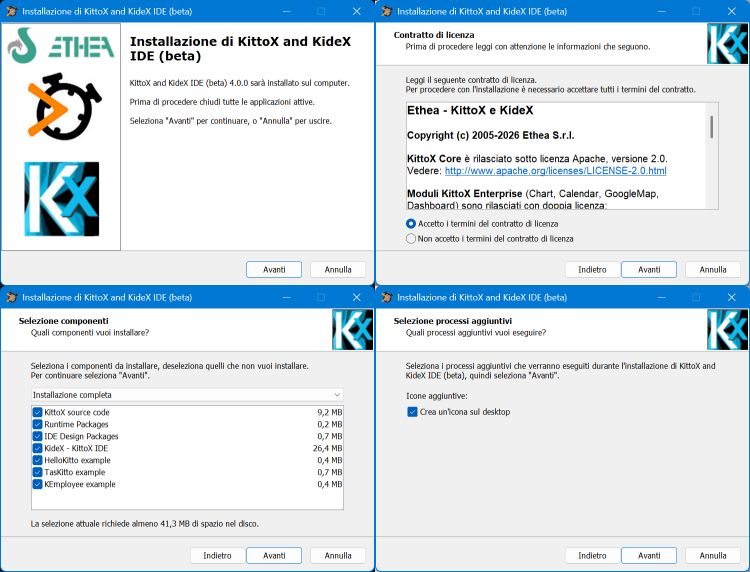
Running the setup you can:
- Choose the installation folder
- Choose the module to install
- Install KIDE and acquire a Trial license
The setup automatically:
- Installs all Kittox source files, resources, templates, and examples
- Installs KIDEX — the visual IDE for designing Kittox applications
KIDEX trial license
KIDEX is part of the Enterprise Edition. The setup installs a trial version that works for 90 days. To request a trial license key, contact Ethea S.r.l. after installation, using the License Form:
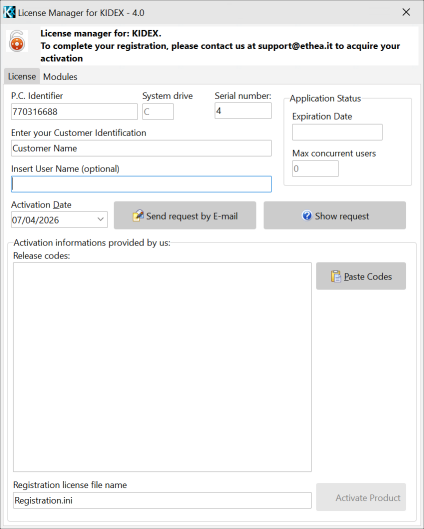
After the trial period, KIDEX requires a commercial license. The Kittox framework itself (Core + Enterprise modules) remains fully functional without KIDEX.
After installation
Once installed, you can:
- Open the KIDEX IDE to create a new project or explore the examples
- Open one of the example projects directly in Delphi (see below)
- Start developing your own application using
UseKitto.pasand YAML metadata
Option 2: Git Clone (manual installation)
If you prefer to work directly with the source repository, clone from GitHub and compile manually.
Clone the repository
git clone https://github.com/EtheaDev/KittoX.gitRepository structure
KittoX/
  Source/                    # Framework source code
    EF/                      # Entity Framework layer
    ThirdParty/              # Third-party libraries
  Home/                      # System Home (shared resources, templates)
  Projects/                  # Delphi packages (D10_4, D11, D12, D13)
  Examples/
    HelloKitto/              # Simple example
    TasKitto/                # Activity tracking example
    KEmployee/               # Employee management example
Compile the packages
Open the group project for your Delphi version from Projects/D12/ (or D10_4, D11, D13):
1. Build runtime packages:
| Package | Description |
|---|---|
KittoXCore.dproj | Core framework (Apache 2.0) |
KittoXEnterprise.dproj | Enterprise modules — Chart, Calendar, Map, Dashboard (AGPL-3.0 / Commercial) |
Build both for Win32 and Win64 platforms in Release configuration.
2. Build and install design-time package:
| Package | Description |
|---|---|
KittoXIDE.dproj | IDE integration (property editors, component registration) |
Build for Win32 only (IDE packages are always 32-bit for Delphi up to 12). Right-click and Install to register in the Delphi IDE.
Group project
The file Kitto.groupproj in the same folder contains all three packages. Open it to build everything at once.
Configure environment paths
Add the following paths to your Delphi Library Path (Tools → Options → Language → Delphi → Library → Library Path) for both Win32 and Win64:
<installdir>\Source
<installdir>\Source\EF
<installdir>\Source\ThirdParty
Alternatively, set the KITTOX environment variable to the installation folder and use:
$(KITTOX)\Source
$(KITTOX)\Source\EF
$(KITTOX)\Source\ThirdParty
Example projects
The example projects already have relative search paths configured, so they compile without modifying the environment. The library path is only needed for your own projects.
Compile and run an example
Each example has four deployment projects in its Projects/ directory:
| Project | Mode |
|---|---|
HelloKitto.dpr | Standalone (GUI / Windows Service) |
HelloKittoDesktop.dpr | Desktop Embedded (WebView2) |
HelloKittoISAPI.dpr | ISAPI DLL for IIS |
mod_hellokitto.dpr | Apache module |
To get started quickly:
- Open
Examples/HelloKitto/Projects/HelloKitto.dprin Delphi - Set the target platform to Win64
- Build and Run
- The application starts an HTTP server on the port configured in
Config.yaml(default 3621) - Open
http://localhost:3621/hellokittox/in a browser - Log in with the default credentials (see
Config.yaml→Auth/.Defaults)
See the HelloKitto, TasKitto, and KEmployee pages for details on each example, and the Deployment guide for IIS and Apache setup.
Build examples from the command line
A build script is provided to compile all examples (or a selection) in all deployment modes without opening the Delphi IDE.
Run from the Examples/ directory:
cd Examples
build_Examples.cmd
The script will:
Ask for the Delphi BDS path (default:
C:\BDS\Studio\37.0). It initializes the compiler environment usingrsvars.batfrom the BDS installation — no manual environment variables needed.Ask which examples to build:
- All (HelloKitto + TasKitto + KEmployee)
- A single example by name
Ask which deployment modes to build:
- All (Desktop, ISAPI, Apache, Embedded)
- Or a single mode:
Mode Platform Output Desktop (Standalone) Win64 Home/{AppName}.exeISAPI (IIS) Win64 Home/{AppName}ISAPI.dllApache Module Win32 Home/mod_{appname}.dllWindows Embedded Win64 Home/{AppName}Desktop.exeBuild each selected project using
msbuildin Release mode, with separate log files per build (e.g.HelloKitto_Desktop.log,TasKitto_Apache.log).Report results with a summary of successes and failures. Check the
.logfiles in eachProjects/folder for detailed build output.
Apache module requires Win32
Apache modules must be compiled for the same bitness as the Apache server. Most Apache 2.4 installations on Windows are 32-bit, so the build script uses Win32 for Apache modules. If your Apache is 64-bit, change the platform in the script or compile manually.
Next steps
- Getting Started — create your first application
- Basic Concepts — YAML metadata, models, views
- Deployment — standalone, IIS, Apache, desktop embedded
- Kittox Enterprise — KIDEX IDE, charts, calendar, dashboard