
MarkDown Text Editor
A useful Text editor with instant preview of Markdown formatted content:
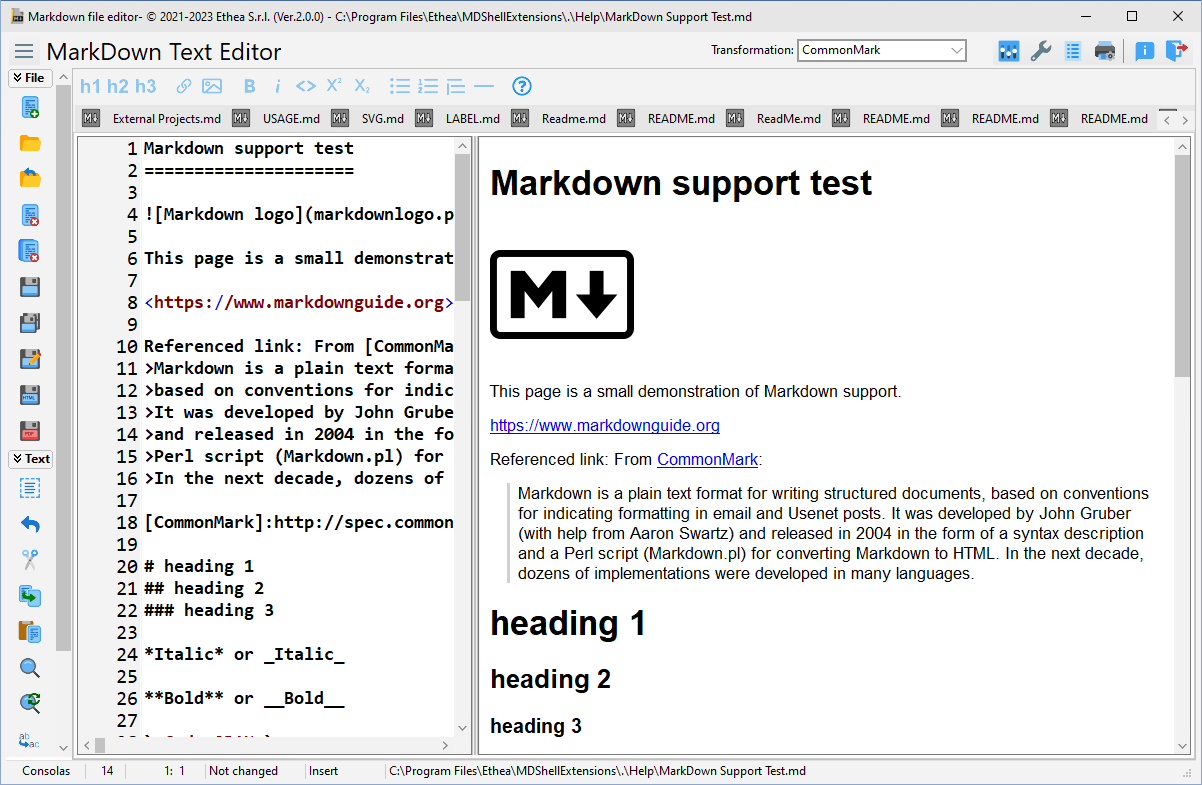
Using "MarkDown Text Editor" for Efficient Editing of Markdown Help Files
When creating and editing MarkDown files, using a Markdown Text Editor can significantly simplify the writing and formatting process. Compared to a standard text editor, this tool is specifically designed to work with the Markdown language, offering advanced features that make the editing experience more efficient and enjoyable.
Advantages of MarkDown Text Editor
Real-Time Preview
MarkDown Text Editor provides a real-time preview feature that allows you to see how the formatted text will appear as you write. This helps you avoid formatting errors and get an immediate preview of your work.
Streamlined Formatting Tools
This editor provides buttons or shortcuts for common formatting (such as headings, lists, links, and images) that streamline the writing process.
Components of MarkDown Text Editor
MarkDown Text Editor has two primary components, each serving a distinct purpose: the left panel and the right panel.
Left Panel: Writing Space
The left panel is designated for composing and editing Markdown text. This is where users can input their content, apply formatting, and structure their document using Markdown syntax. It functions as a versatile text editor, providing a workspace for content creation.
Right Panel: Preview Area
The right panel is dedicated to the real-time preview of the Markdown content being created or edited in the left panel. This feature offers users an instant visualization of how the formatted text will appear when rendered. It aids in identifying and rectifying any formatting issues before finalizing the document.
The preview uses Microsoft Edge WebView2: the document is shown as on GitHub, with math formulas (typeset by KaTeX), mermaid diagrams and charts (pie, bar and line charts are mermaid diagrams too), GitHub alerts, task lists and tables. KaTeX and mermaid are installed with the editor (Scripts folder), so they work also without an Internet connection. Print preview opens the WebView2 print dialog, "Print file" asks the printer and prints the same page with header and footer (date, title and file name of the document, page number), "Print in PDF" and "Export in HTML" produce the same page (the exported HTML page contains the scripts of formulas and diagrams).
When WebView2 is not available, or the option "Use WebView2 (Edge) when available" is disabled in the Settings dialog (Markdown processor options group), the preview uses the internal HTML viewer: in that case math formulas are shown as images and mermaid diagrams as text.
The Markdown is converted with the dialect chosen in the Settings: GitHub (default), GFM, CommonMark, DaringFireball or TxtMark.
The seamless integration of these two panels streamlines the Markdown editing process, ensuring that writers can simultaneously create content and evaluate its appearance, thus enhancing the overall editing experience.
You can also select text inside the HTML preview and copy it to the clipboard with Ctrl+C or via the right-click context menu (which exposes "Copy" and "Select All"). The copy contains both the plain text and the HTML representation, so pasting into a rich-text application preserves the formatting.
These complementary components are invaluable for users looking to harness the power of Markdown, enabling efficient and error-free content creation.
Markdown Syntax Highlighting in the Editor
While you type, the Markdown source in the editor (left panel) is shown with syntax highlighting: headings, bold and italic text, links, inline code, lists, blockquotes, HTML tags and entities are colored to make the structure of the document easier to read. The colors are theme-aware and adapt to the light or dark mode.
You can turn this on or off at any time from the Settings dialog, in the Editing Options group, with the "Highlight Markdown text" checkbox (enabled by default). When disabled, the editor shows the Markdown as plain, uncolored text. The setting is persisted across sessions.
Syntax Highlighting of Code Blocks
Fenced code blocks — the text enclosed between triple backticks — are shown in the preview with syntax highlighting based on the language, exactly like on GitHub. The language is the word written right after the opening fence, for example:
```delphi
procedure Hello;
begin
  ShowMessage('Hello, World!');
end;
```
A wide set of languages is recognized, including Pascal/Delphi, C/C++, C#, JavaScript/TypeScript, JSON, Python, SQL, Java, PHP, HTML/XML, CSS, YAML and many more. Keywords, comments, strings and numbers are colored to make technical documentation far more readable.
The colors automatically follow the current theme (light or dark). If the language after the fence is unknown — or no language is specified — the block is simply shown as plain monospace text, with no errors.
Synchronized Scrolling between Editor and Preview
When both the editor and the preview are visible side-by-side, their scroll positions are kept in sync: scrolling the Markdown editor (with the mouse wheel, the scrollbar, or the keyboard) moves the HTML preview to the corresponding position, and vice-versa.
The synchronization is bidirectional and uses a proportional mapping between the editor's display rows and the preview's pixel range. The editor's natural scroll range (where the last content line is shown at the bottom of the view) is aligned with the preview's full scroll range; if you keep scrolling past that point — the editor allows overscroll, the preview does not — the preview simply stays at its bottom.
You can enable or disable this behavior at any time:
- from the Settings toolbar (top-right of the window), with the dedicated toggle button placed right after the three Layout buttons;
- from the Settings dialog, in the Editing Options group, using the "Sync Editor and Preview scroll" checkbox.
The setting is persisted across sessions. Sync is automatically suspended when the layout is set to Only Editor or Only Viewer (it only makes sense in Editor and Viewer layout).
Single Instance and Session Restore
When you open a markdown file (for example by double-clicking it in Windows Explorer) while the Markdown Text Editor is already running, the file is opened as a new tab in the existing window, which is brought to the front — a second instance of the application is not started. Launching the editor without a file (for example from its desktop shortcut) always opens a new, independent instance.
Whether the editor reloads the files you had open in the previous session is controlled by a dedicated preference, independently from how the application is launched:
- in the Settings dialog, Editing Options group, the "Remember current session at next run" checkbox (enabled by default).
When this option is on, every startup reopens the files from the last session; when it is off, the editor always starts with an empty workspace.
Toolbar
The Markdown Text Editor Toolbar, located at the top of the application, provides swift access to a variety of functions and features listed below:
- Transformation: This function enables the selection of the Markdown rendering engine for the Preview Area. By choosing the rendering engine, control can be exerted over how Markdown content is displayed, ensuring compatibility with various Markdown dialects.
- Theme Settings: Theme settings offer the ability to customize the colors, fonts, and overall appearance of the editor. The workspace can be personalized to create a visually comfortable and tailored environment. In the Theme page of the Settings choose Same as Windows (the default), Force Dark or Force Light, then the VCL style of that type, with a preview: Light: Sky, Windows Modern, Windows11 Impressive Light, Windows11 Modern Light, Windows11 Polar Light; Dark: Glow, Windows Modern SlateGray, Windows11 Impressive Dark, Windows11 Modern Dark, Windows11 Polar Dark. The default style is Windows11 Modern Light/Dark on Windows 11, Windows Modern / Windows Modern SlateGray on Windows 10; a style chosen with a previous version that is no longer available (the old Windows10 styles) is replaced by the default one. The same styles are used by the Preview panel of Windows Explorer.
- Editor Options: Editor options provide a set of configurable preferences for the editing environment. These settings allow customization of aspects such as shortcuts, tab size, and other editing-specific parameters to suit the workflow.
- Printer Page Setup: Access the page setup options for configuring printing preferences. Ensure that printed documents match the desired format and layout.
- Printer Setup: The printer setup feature allows the choice of the printer and specification of settings for document printing. This ensures that printed documents are produced exactly as intended.
- About Markdown Text Editor: This option provides information about the Markdown Text Editor, such as version details, developer credits, and any additional relevant information.
- Close Application: This action allows for the quick exit of the Markdown Text Editor. The keyboard shortcut Ctrl+Q offers a convenient way to close the application.
Quick Actions Toolbar
In this section, we will provide detailed explanations for each action found in the toolbar. This guide will walk you through the functionality of each toolbar option, ensuring that you can make the most of the available tools and features. Let's dive into a comprehensive breakdown of these actions.
 Header 1:
- Apply Header 1 formatting to the selected text.
 Header 2:
- Apply Header 2 formatting to the selected text.
 Header 3:
- Apply Header 3 formatting to the selected text.
 Bold:
Bold:- Apply bold formatting to the selected text.
 Italic:
- Apply italic formatting to the selected text.
 Code:
Code:- Format the selected text as code.
 Superscript:
- Format the selected text as superscript.
 Subscript:
- Format the selected text as subscript.
 Unordered List:
- Create an unordered (bulleted) list.
 Ordered List:
- Create an ordered (numbered) list.
 Block quote:
- Apply block quote formatting to the selected text.
 Horizontal rule:
- Insert a horizontal rule (line) to separate content.
 Help:
Help:- Access the help or documentation for the Markdown editor.
Easy Image and Document link
 Link:
Link:- Opens a dialog to insert hyperlinks. It allows selecting files from disk or editing existing links after text selection.
 Image:
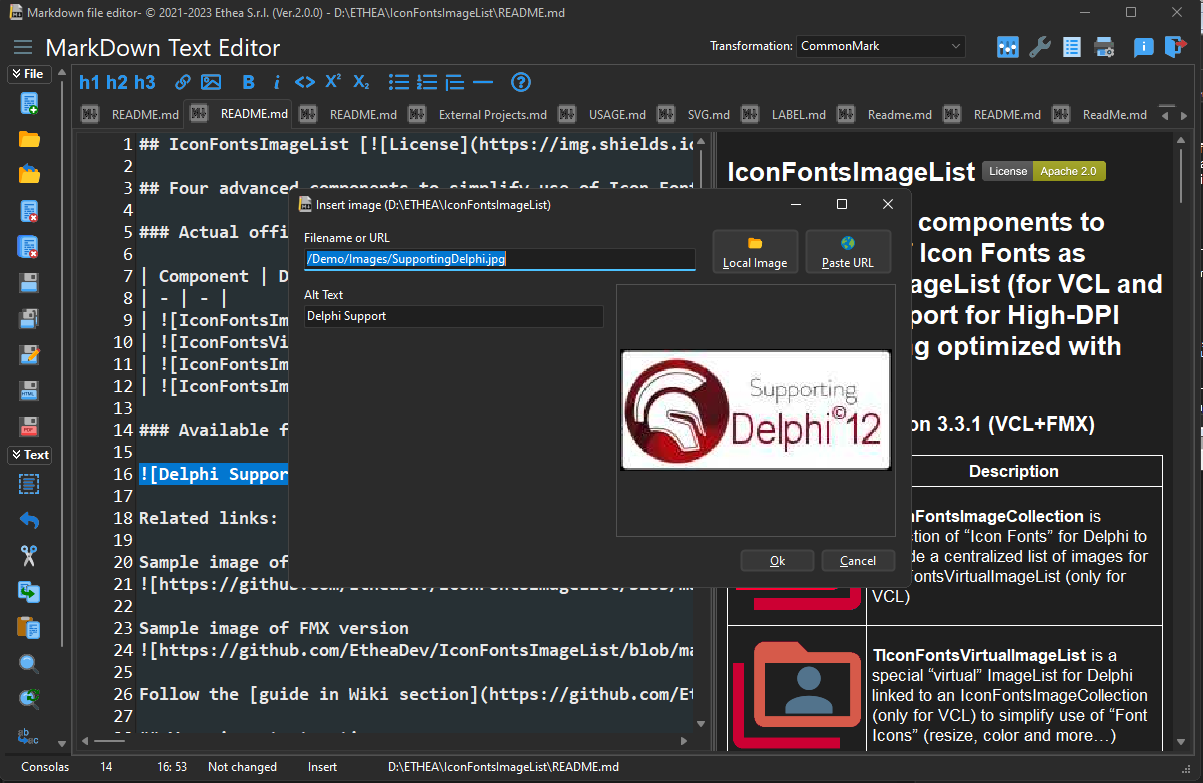
- Opens a dialog to insert images. It allows selecting image files from disk or editing existing image links after text selection. It can also select a video (
.mp4,.webm...): an image of a video file is shown as a video (see Videos).
- Opens a dialog to insert images. It allows selecting image files from disk or editing existing image links after text selection. It can also select a video (
The file selected from disk is written as a path relative to the document, with /, as on GitHub: for the document C:\Project\Docs\Manual.md the image C:\Project\Images\Logo.png becomes ../Images/Logo.png, and the spaces and the special characters of the name are percent-encoded (my%20image.png). A Windows path is never written: it is not a URL, and neither a browser nor the viewers can show it. When the file is on another drive (or the document has not been saved yet) the path cannot be relative: it is written as a file:/// URL, after a warning, because the safe mode removes those links. Keep the images and the videos of a document in its folder or in its subfolders (see Local images, videos and links).
Using those feature you can insert an image into the document or link to another markdown file:
Toggleable Left Sidebar Menu
The left sidebar menu in the Markdown Text Editor provides quick access to a variety of essential functions and features. Below, we detail each category and its corresponding actions.
File
- New: Create a new Markdown file.
- Open: Open an existing Markdown file.
- Open recent: Quickly access recently opened Markdown files.
- Close: Close the currently open file.
- Close All: Close all open files.
- Save: Save changes made to the current file.
- Save All: Save changes in all open files.
- Save As: Save the current file with a different name or location.
- Save in HTML: Export the document in HTML format.
- Save in PDF: Export the document in PDF format.
Text
- Select All: Select the entire text document for further editing.
- Undo: Revert the last action performed.
- Cut: Remove the selected text and copy it to the Clipboard.
- Copy: Copy the selected text to the Clipboard.
- Paste: Insert the contents of the Clipboard into the document.
- Search: Search for specific text within the document.
- Repeat search: Repeat the last search operation.
- Replace: Search for specific text and replace it with a specified replacement.
Print
- Print file: Print the current document: with WebView2 it asks the printer and prints the page of the preview, with header and footer; with the internal HTML viewer it prints the Markdown text.
- Print Preview: Preview how the document will appear when printed.
The left sidebar menu offers an efficient way to manage your Markdown files, edit text, and prepare your documents for printing. These actions provide a user-friendly and comprehensive set of tools for your Markdown editing needs.