
MarkDown Help Viewer in depth
The application is divided into two sections:
The Right Side is the Content Viewer and allows you to view the content of the help file.
The Left Side is the Index/Search Panel and allows you to view the contents of the help index and perform search operations.
The Content Viewer
It allows you to view the contents of the help file which can be in Markdown or HTML format
- In case of Markdown the file is transformed into HTML and can subsequently be viewed on the screen. The transformation uses the dialect selected in the Settings (or in the drop-down menu of the toolbar, when enabled): GitHub (default), GFM, CommonMark, DaringFireball or TxtMark.
The document is shown with Microsoft Edge WebView2 (math formulas, mermaid diagrams, GitHub alerts) when it is available, otherwise with the internal HTML viewer.
- In case of HTML the file is directly displayed on the screen.
The Index/Search Panel
is divided into 3 sections:
- Content/Index
- Working Dir
- Search
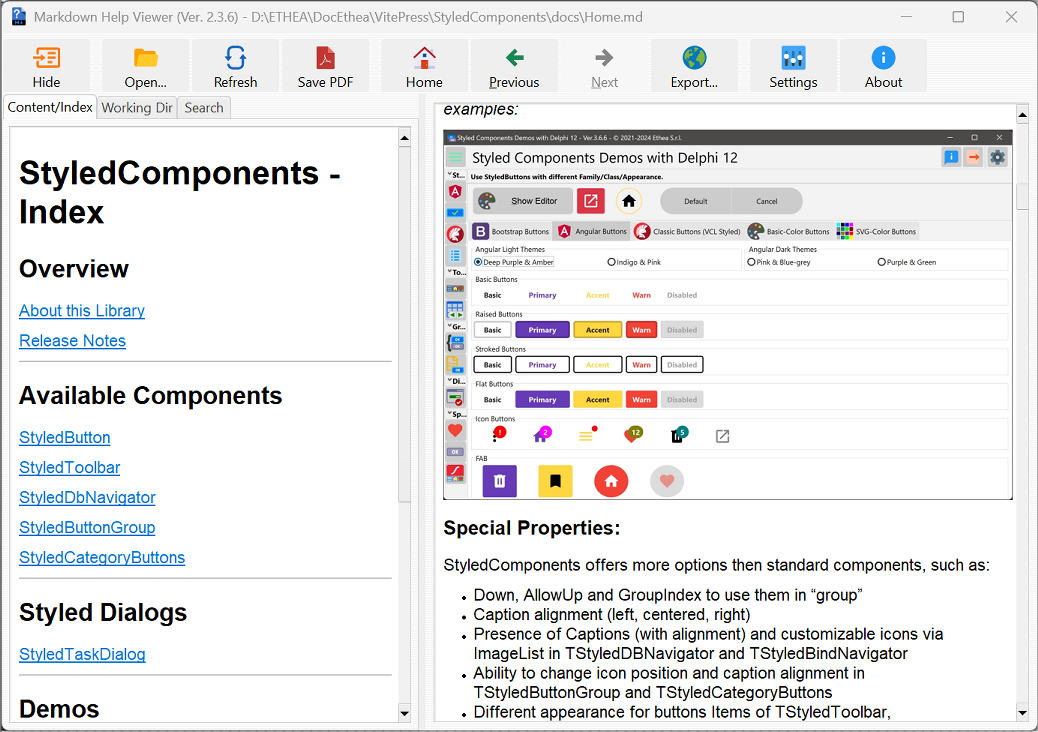
Content/Index:
- Show the indexed contents of the open help file
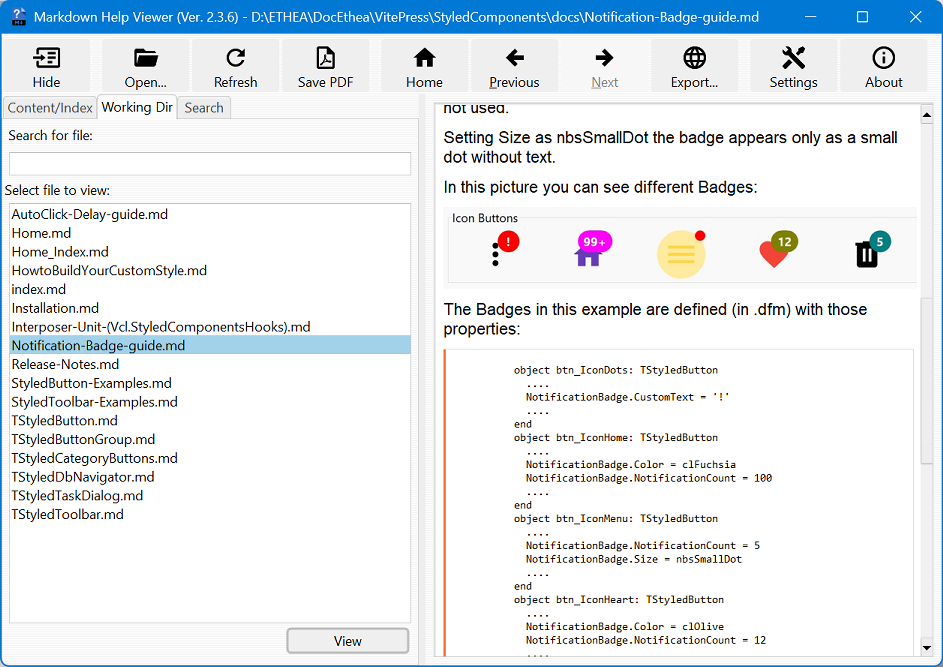
Working Director:
- Shows all files readable by the application present in the folder of the open file and the ability to search for them using the search bar at the top of the window
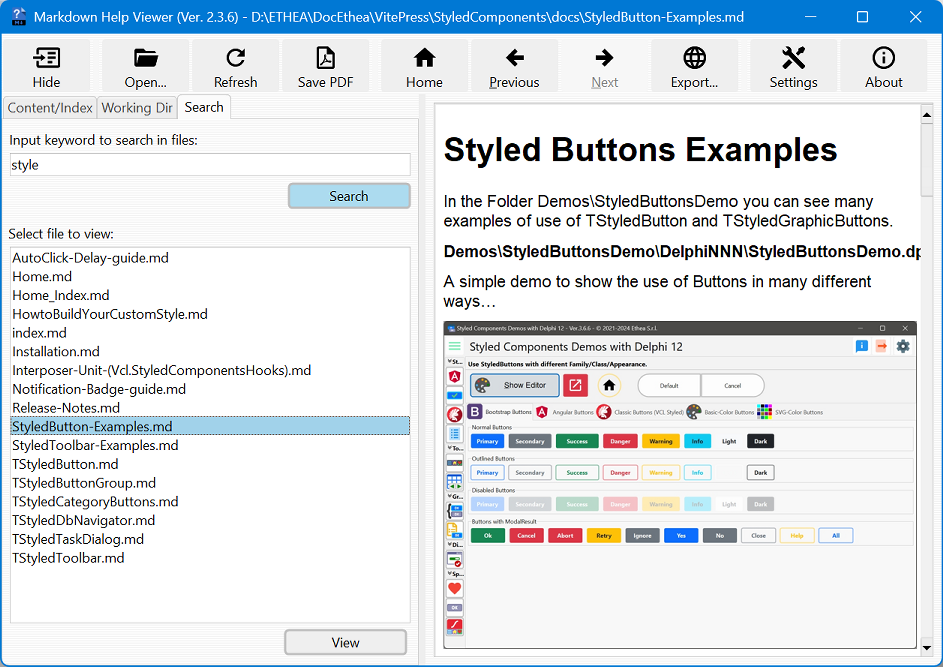
Search:
- allows a keyword search within the file list and the ability to search for keywords within the displayed file via the search bar at the top of the window
Toolbar/Actions
In the Toolbar located at the top on the page we find 8 tools:
 Hide:
Hide:- hides the Index/Search Panel just described
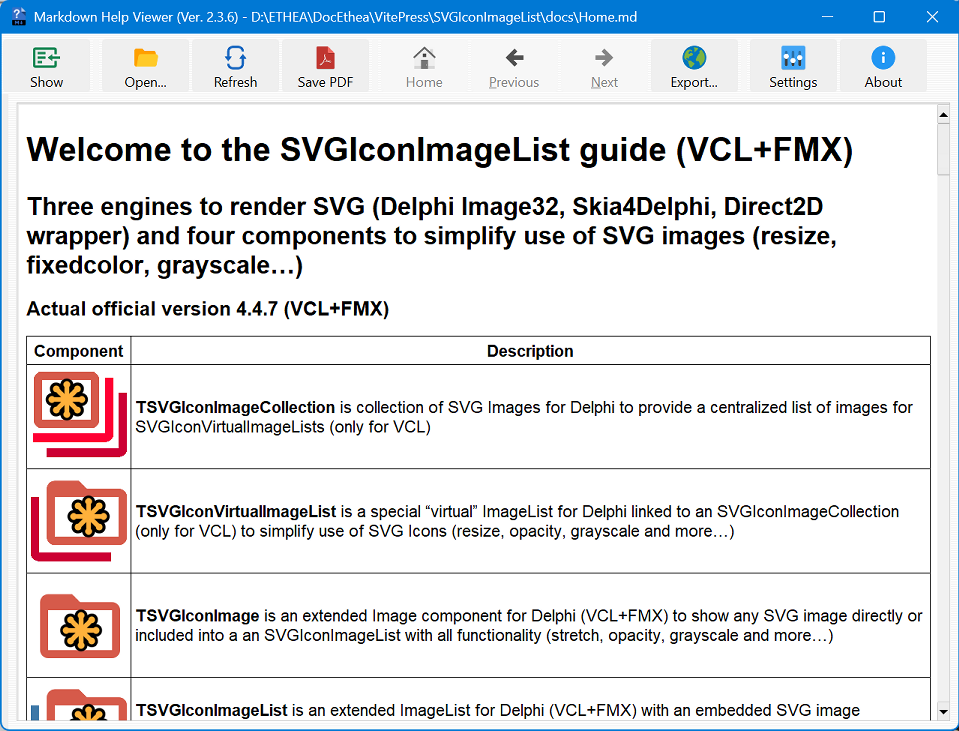
 Shows:
- present only if the section is hidden, demonstrates the latter
 Open:
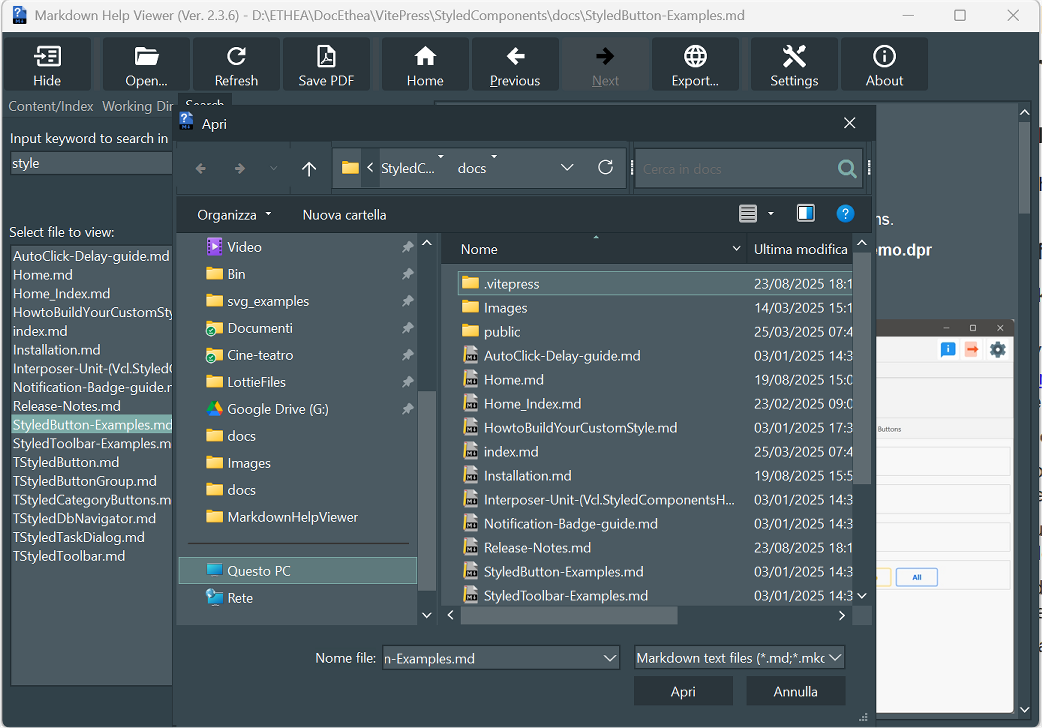
Open:- if pressed, it opens a dialog window that allows you to select a markdown or html file to load and show in the Viewer
 Home:
Home:- active only if we are not on the first screen, it allows to return to the starting screen (Home)
 Previous:
- active only if more than one document is open, allows to return to the document opened just before
 Next:
Next:- active only if the last document is not displayed, allows you to go to the next open document
 Save PDF:
- if pressed saves the document in PDF format (.pdf)
 Settings:
It contains five sub-windows:
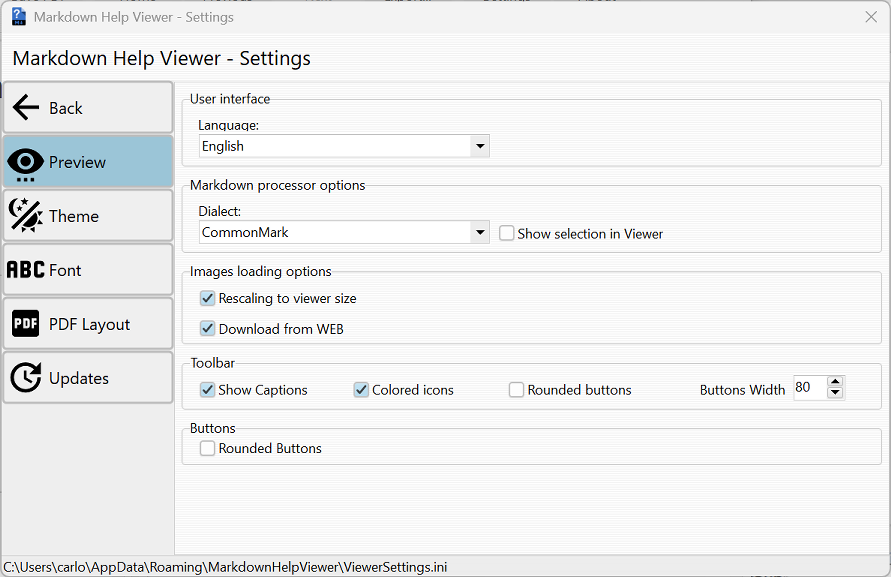
 Preview:
- User Interface: allows Setting the language for the Application**
- Markdown Processor Options: allows selecting the Dialect in which the document will be displayed (GitHub default), showing the selection in the toolbar, allowing unsafe HTML and choosing whether to use WebView2 (Edge) when available (default) or the internal HTML viewer
- Images Loading Options: allows to download Images from WEB and settings if must be fitting the viewer size
- Toolbar: allows to set Toolbar properties, as showing captions on buttons, use colored icons, use rounder toolbar buttons and dimensions of buttons.
- Buttons: allows use of rounded Buttons in the application.
 Theme:
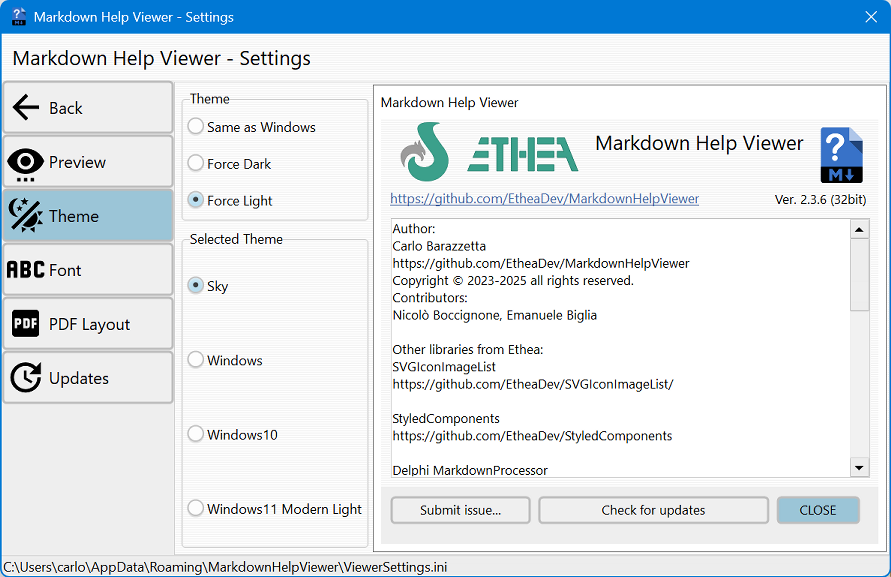
- Theme: Same as Windows (the default: light or dark as the theme of Windows), Force Dark or Force Light;
- Selected Theme: the VCL style of the application, among the styles of that type; on the right the About window shows a preview of the selected style:
- Light: Sky, Windows Modern, Windows11 Impressive Light, Windows11 Modern Light, Windows11 Polar Light;
- Dark: Glow, Windows Modern SlateGray, Windows11 Impressive Dark, Windows11 Modern Dark, Windows11 Polar Dark.
- The default style is Windows11 Modern Light or Dark on Windows 11, Windows Modern (light) or Windows Modern SlateGray (dark) on Windows 10. A style chosen with a previous version that is no longer available (for example the old Windows10 styles) is replaced by the default one.
- The page lists all the VCL styles linked into the application, classified as light or dark automatically: who builds the viewer with other styles finds them here.
 Font:
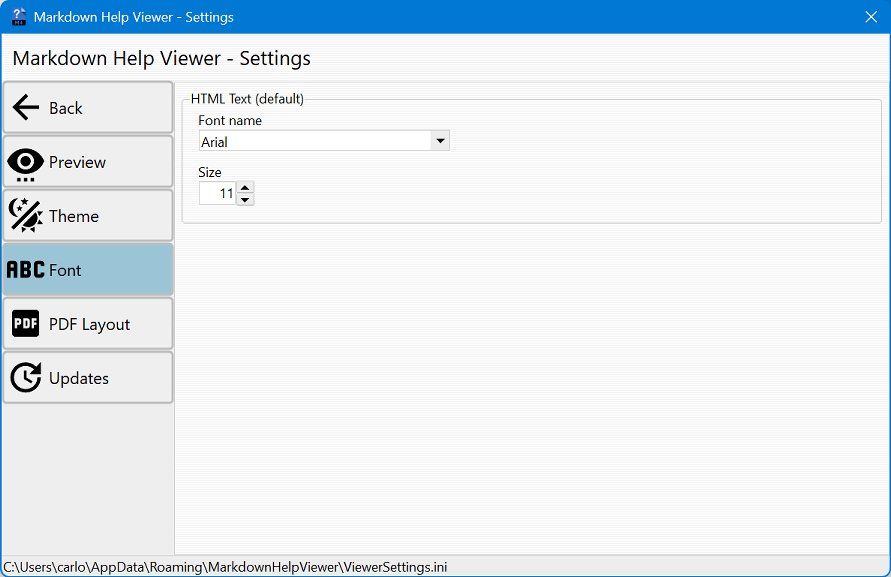
Font:- allows choosing the style and size to display the text within the application.
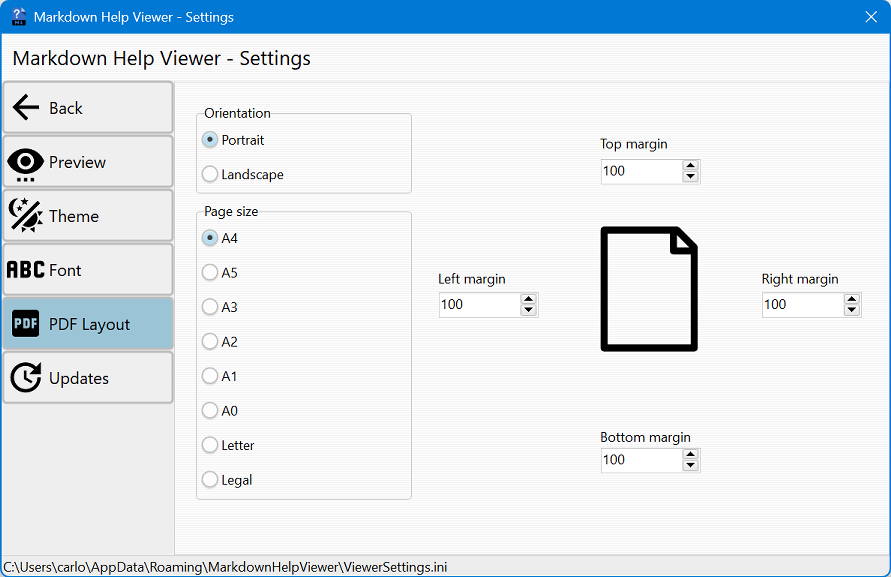
 PDF Layout:
- allows customizing the PDF saving of the document through orientation and page size, in addition to modifying various sizes using indicators, arrows, or entering the value from the keyboard.
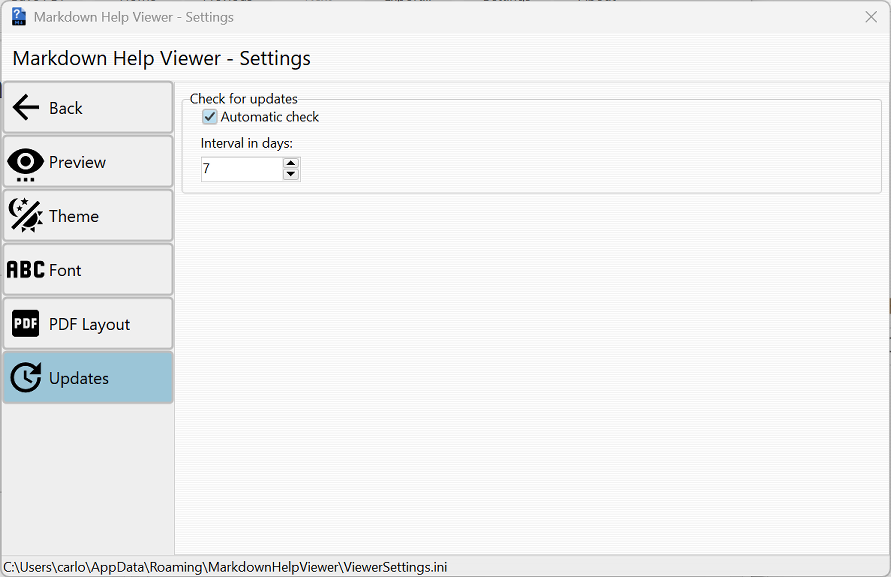
 Updates:
- Enable auto check for update (default) and the interval in days when auto-check must be performed automatically. You can alway check manually the Updates inside About Window.
 Back:
Back:- allows closing the window.
 About:
- when pressed, displays a window containing information about the application.
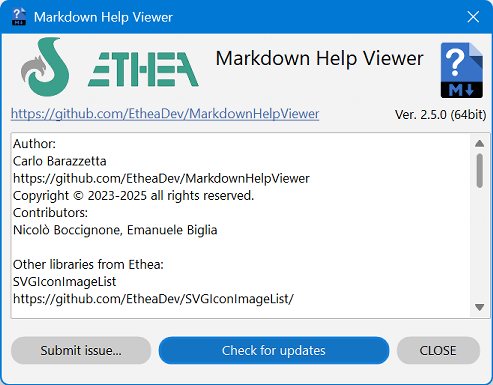
- Inside the About Window you can check if a new version of the Viewer is available, then Download it and Install.