
Quick Start
Five minutes, no API key, no network. At the end your application has a working contextual assistant that answers from your manual.
1. Drop the component
Put a TVclHelpChatAI (palette group Ethea HelpChatAI) on your main form. In FireMonkey, put a TFmxHelpChatAI.
2. Tell it where your manual is
procedure TMainForm.FormCreate(Sender: TObject);
begin
  HelpChatAI.Settings.Provider := 'docsearch';   // no API key needed
  HelpChatAI.Settings.DocIndexFile := TPath.Combine(
    TPath.GetDirectoryName(ParamStr(0)), 'help-index.json');
  HelpChatAI.Settings.DocBaseUrl := 'https://help.mycompany.com/myapp/';
  HelpChatAI.Active := True;
end;
Active can also be set at design time: the component activates when the form is loaded at runtime, never in the IDE.
Do not have an index yet? Skip DocIndexFile for now: the stub provider answers with a fixed placeholder and everything else — bubble, F1, panel, streaming — already works. Then read The documentation index.
3. Give your screens a keyword
On each form or tab sheet, set the standard Delphi help properties to the title of the page of your manual that describes it:
LeadsTab.HelpType := htKeyword;
LeadsTab.HelpKeyword := 'Leads';   // a page title of your manual
That is all the context the assistant needs. The deepest keyword wins: the focused control first, then its parents, the form last — see F1 and the screen context.
4. Run it
- A "?" bubble appears in the bottom-right corner of the form.
- F1 opens the chat with a question about the current screen.
- The user can type anything else in the panel.
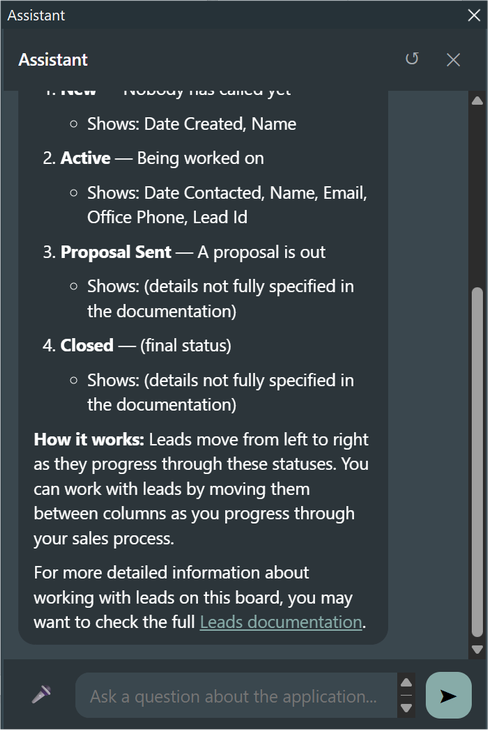
The reply above came from the sample manual with no API key: the question was built from the HelpKeyword of the active tab, the retriever found the page, and the answer links to it.
5. When you want real conversation
docsearch finds the right page and quotes it, deterministically and offline. To get a reply that reasons over your manual, switch provider and add a key:
HelpChatAI.Settings.Provider := 'claude'; // or 'openai', or 'gemini'The key does not belong in your source code. Put it in a JSON file on the machine:
// %APPDATA%\HelpChatAI\helpchatai.json  (shared by every HelpChatAI application of this user)
{
  "Claude": { "ApiKey": "sk-ant-..." }
}
See Providers and Configuration. When the key must not be on the user's machine at all, move the engine to a server — which is a configuration change, not a code change.
What you did not have to do
- No form to design: the chat is an HTML page inside an embedded browser.
- No threading: a model call takes seconds and never touches the UI thread.
- No colours to pick: the panel follows your VCL style.
- No
Application.OnHelphook: the component registers with the Delphi help system, so what you already declared withHelpKeywordandHelpContextkeeps working.
Next steps
- The VCL component — every property and event, and how to embed the chat in your own panel.
- The FMX component — what changes in FireMonkey.
- Actions — let the assistant open a screen or fill a form.
- The demo applications — a working example of all of it.