
The component editor
Everything the IDE offers on a TVclHelpChatAI or a TFmxHelpChatAI dropped on a form: the commands of its context menu, the configuration editor behind the first of them, and the property editors of the Object Inspector. All of it is in the design packages (dclHelpChatAIVcl, dclHelpChatAIFmx) and none of it reaches your application.
The commands
Right-click the component on the form:
| Command | VCL | FMX | What it does |
|---|---|---|---|
| Configuration... | yes | yes | Opens the configuration editor. A double click does the same |
| Test HelpChat... | yes | yes | Opens the real chat in a modal window: the preview |
| Check configuration... | yes | yes | Answers "would this work?" without building the application: the check |
| Rebuild documentation index... | yes | yes | Builds help-index.json from the pages the settings name: the index |
| Ver. x.y.z - (c) Ethea S.r.l. - Open Web Help... | yes | yes | Opens this documentation |
The configuration editor
Configuration... edits, in one window, what the component reads when it activates: the configuration files, the profile of this assistant in them, and the component's own settings.
Six pages, listed here in the order to go through them the first time (the window shows Appearance first):
| Page | What it holds |
|---|---|
| Models | The catalogue of models, and which of them the profile offers. Start here |
| Appearance | The icon of the assistant, its name and its greeting |
| Settings | How the assistant works: provider, languages, manual, conversation, attachments, remote server, then the settings of each provider |
| Prompt | What the model is told, with the prompt those settings build beside the list |
| Profiles | The sections of the assistants in the file |
| Documents | The PDF the panel and the assistant write |
The editor opens on the page it was left on - Appearance the first time - where it was left, at the same size, maximized if it was. It remembers all three in the registry of the IDE (HKEY_CURRENT_USER\Software\Embarcadero\BDS\<version>\HelpChatAI), so they survive a restart of Delphi; while no model is configured it opens on Models instead.
Nothing in it decides anything by itself. Every rule - which files, where a value comes from, what is written back, which page lists what - lives in one controller (HelpChatAI.ConfigController, in the engine package). The VCL window and the FireMonkey one are two views over it, with the same pages and the same buttons, and the controller is what the tests run.
The file being edited
The combo at the top lists the files the component reads, in the order it reads them:
| In the combo | The file |
|---|---|
| Shared by the HelpChat applications of this user | %APPDATA%\HelpChatAI\helpchatai.json |
| Next to the executable (shipped with the application) | helpchatai.json in the output folder of the active project |
| Per-user file of this application | %APPDATA%\<name of the executable>\helpchatai.json |
| ConfigFileName of the component | the file ConfigFileName names, alone |
When ConfigFileName names a file, that file is the whole configuration and the only one offered (a relative path resolves against the output folder of the project). With no project open there is no executable, so the shared file is the only one. The per-user file is the one of the project's executable, never the one of bds.exe.
The editor opens on the file the configuration comes from, reading the files from the last to the first, since the last one read wins:
- the last file that defines the profile of the assistant (a section under
"Profiles"); - else the last that sets any value the editor lists, other than a key, or that has a
Modelslist; - else the last that holds a key of the editor (
ApiKey,Remote.AppKey); - else the file next to the executable, the one that ships.
So a component that names no file and whose whole configuration is in the shared file opens on the shared file. A per-user file that only holds the ApiKeyEncrypted an application wrote there (the CRM demo does that) is where a key lives, not the configuration, and does not count before step 3. Pick another file in the combo to edit it.
The path of the file is shown under the combo, followed by (modified) while there are changes not yet saved. Save writes the file, creating its folder. It writes back only what changed: a file written by hand keeps its other keys, in their order, comments in a "// ..." key included. Reload reads the file again and drops what was not saved. Changing file with unsaved changes asks whether to save them first.
A file that is not there yet, or that is empty, is a configuration not written yet: it is shown empty, with no error, and Save creates it. A file that holds something that is not a valid JSON object is reported in the status line and shown empty, and Save refuses: writing would replace a file that only needed a comma fixed.
While the assistant has no model to answer with - none in any of the files nor in the component, and no Provider but stub - the editor opens on the Models page, and goes back to it when another file is picked in the combo: it is the first thing a new configuration needs. Once a model is there, wherever it is - the shared file, the form file - the editor opens on the page it was left on, whichever file is being edited.
Models
A model is the first thing to configure. A component just dropped on a form answers with the placeholder of stub: until a model is there, with the key of its service, nothing else in this window can be tried. If you already did it for another project, in the file Shared by the HelpChat applications of this user, there is nothing to do: every project on this machine reads that file, and this page opens with your models in it. Otherwise:
- choose the shared file in the combo at the top - a new project opens on the file next to the executable, which is the one that ships, and a key does not belong there;
- on this page, type a Name (what the user will read in the panel) and pick the Provider; paste the key of the service in the row of the provider's key (Claude API key, OpenAI API key, Gemini API key) and press Set; then Add;
- Save.
The key stays on your machine, outside the project, so it cannot end up in version control; the application you ship gets its own (Keys). The application must also link the unit of the provider it uses (HelpChatAI.Provider.Claude, .OpenAI, .Gemini): see Providers. Then Test HelpChat... answers for real.
The Models page holds the catalogue of models at the root of the file being edited (what a model is): name, provider, model, endpoint, and set in the Key column when the model has a key of its own. Fill the boxes and Add, select a row and Update selected or Delete selected.
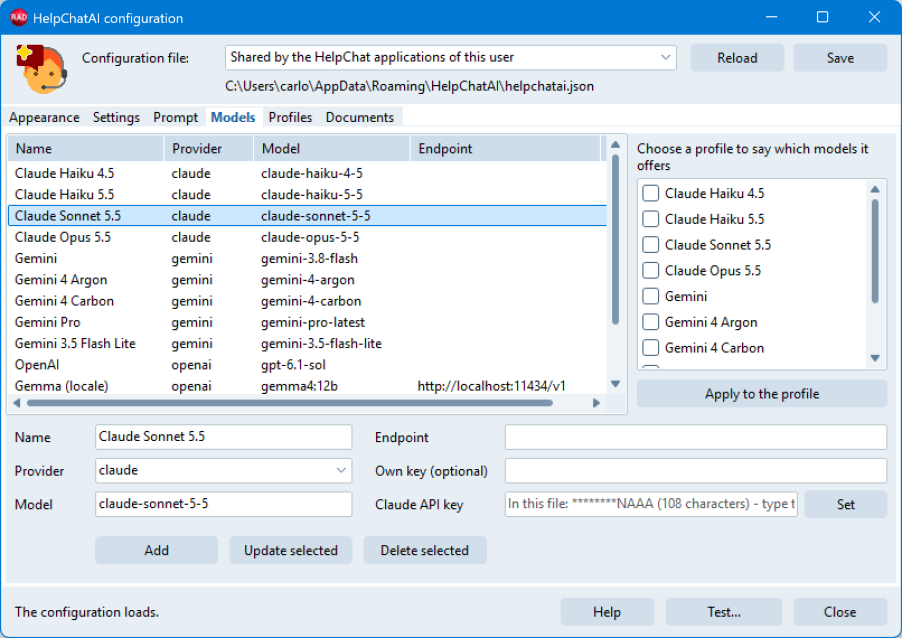
Only the name is required. Every box left empty falls back on something:
| Box | What it is | Empty means |
|---|---|---|
| Name | What the user picks in the panel, and what a profile names | - (required) |
| Provider | claude, openai, gemini, docsearch or one of yours | The provider of the configuration (Provider) |
| Model | The model the service is asked for (claude-sonnet-..., gpt-..., qwen3:8b) | The Model of the provider's section, else the library default |
| Endpoint | The BaseUrl of the service: an Ollama (http://localhost:11434/v1), Groq, OpenRouter, Azure | The BaseUrl of the provider's section, else the service's own address |
| Own key | The clear key of this model alone, for a service of its own | The key of the provider's section, but only while the model's endpoint is on the same host |
stub is not offered: it answers the same sentence to every question, which is what a component just dropped does, not a model to choose. The badge of a model in the panel is not typed either: it is deduced from the name of the model, then the host of the endpoint, then the provider (gemma4 served by an Ollama shows Gemma). An Icon written by hand in the file stays as it is.
The key of the provider has its row on this page too, so that it need not be looked for among the settings: it follows the provider of the boxes (Claude API key, OpenAI API key, Gemini API key; off for docsearch, which needs none). It is the same key as Claude.ApiKey on the Settings page, written at the root of the file by Set, and used by every model on that provider with no key of its own. The box starts empty: its hint says whether the file has one, masked to its last four characters. A key typed and left in the box is not lost: Add, Update selected, Save and closing the editor write it as Set does, for the provider the boxes show at that moment. Removing it is done on the Settings page. The boxes of the endpoint and of the keys grow with the window.
A model that is renamed keeps what the editor does not show: its ApiKeyEncrypted, and any key written by hand. The key typed here is the clear one, and it is optional: a model with no key of its own uses the key of its provider's section, unless its endpoint is on another host (the key of a model).
On the right, Offered by the profile lists the models of the catalogue with a tick on those the profile offers in the panel; Apply to the profile writes the ticked ones as its Models. None ticked removes the key, and the profile offers the whole catalogue again. The models the profile takes from the catalogue of another file, or defines itself, are listed after those of this file, ticked, and kept. With no profile chosen this part is off, and says Choose a profile to say which models it offers.
Settings
Four pages - Appearance, Settings, Prompt and Documents - list settings, and they share one list and one edit panel, which move to the page shown. Each page lists the settings that belong to it; a few are on two pages (the name of the assistant is on Appearance and on Prompt, the languages on Settings and on Prompt). Every published property of Settings is on one of them.
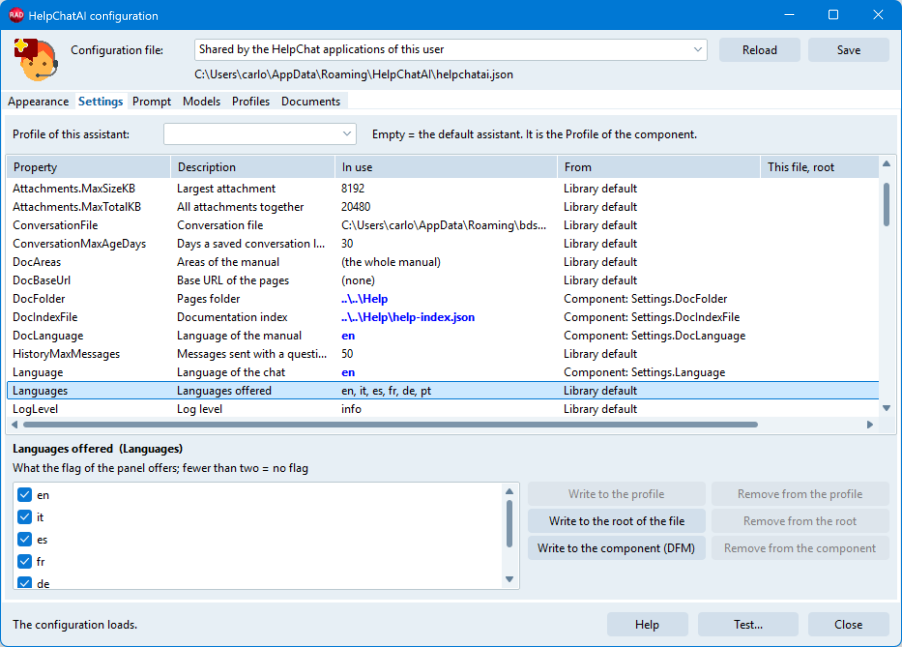
The rows are sorted the way the Object Inspector sorts them, by the name of the property, and the settings of the providers (Claude.*, OpenAI.*, Gemini.*) come last. The Prompt page is the exception: there the rows follow the order in which the prompt is written.
| Column | What it says |
|---|---|
| Property | The name of the property under Settings, which is also its path in the file (Claude.Model) |
| Description | What it is, in a few words |
| In use | The value the assistant runs with, never empty: what is configured, else what an empty value resolves to - the default model of the provider, the localized greeting and name, the language of the system for auto, the text of the library for a rule of the prompt - or, where nothing takes its place, a word in parentheses: (none), (the whole manual). A key is masked, only its last four characters shown |
| From | Who set that value: Library default, the property of the component that holds it (Component: Settings.Expertise, Component: AssistantName), or a file and where in it (Shared file, root, Application file, profile Orders) |
| This file, root | What the file being edited says at its root |
| This file, profile | What it says in the section of the profile |
From is computed the way the component loads: the library defaults, then the component, then each file, its root and then its profile, one at a time. The last one that changed a value is the one credited with it. In use says the same at a glance, the way the Object Inspector does: bold when a configuration file sets the value, bold and blue when the form file does, plain when it is the library's.
The name of the assistant is the AssistantName of the component, which the form file keeps: the list shows it as the component's, and a name written in a file prevails over it, as when the application runs.
Profile of this assistant, above the list, is the Profile of the component. Pick one of the file, or type a new name: the component takes it when a name is picked or when the box is left, and the form is marked modified. A name that the file does not have yet becomes a section with the first value written into it. Empty is the default assistant, the one with no profile.
Select a row to edit it below the list. The control shows what the file being edited says, in the profile first, else at the root; when the file says nothing, the value in use, wherever it comes from - the library included. So the localized greeting, the default model or the rules of the prompt are there to correct, not to type again from scratch. Only a setting that nothing replaces when it is empty ((the whole manual), (all of them)) starts empty. A key is shown only from the file being edited: copying one into another file is something you type.
Each kind of setting has its control:
| Setting | Control |
|---|---|
Text: the name, the greeting, the endpoints, the folders; and the lists of names DocAreas and AllowedActions, separated by commas | One line |
Expertise, Instructions and the texts of the prompt (SystemPrompt, IdentityRule...) | Several lines |
| A key | A masked line, with Show to read it |
Yes or no: PersistConversation, Attachments.Enabled, Pdf.Enabled... | A check box |
A number: how long a saved conversation lasts, the longest question, the messages sent and kept, the replies at the same time, the longest reply of each provider (MaxTokens) | A number with its arrows |
Language, DocLanguage | A drop-down of auto and the six languages |
Languages | One tick per language |
Skills | One tick per skill registered in the IDE, its actions beside its name; selecting it shows what it does. A skill the file names and the IDE does not know stays ticked, marked (not registered here) |
Provider, SelectedModel | A drop-down of the providers registered in the IDE, or of the models in force, that also takes another name - a provider your application registers, a model of a file read later |
Pdf.Paper, Pdf.Orientation, OpenAI.Api, LogLevel | A drop-down of their values |
Then the buttons, in two columns - what writes and what takes away, one row per place:
| Write | Remove |
|---|---|
| Write to the profile: into the section of the profile in the file. Off with no profile | Remove from the profile: takes the key away from that section, so the layer below decides again |
| Write to the root of the file: at the root of the file, which every assistant reads | Remove from the root: takes it away from the root of the file |
| Write to the component (DFM): into the settings of the component at once - it goes into the form file, and closing the editor does not undo it. Off for a key | Remove from the component: gives the setting of the component the library's value back, like Revert to inherited in the Object Inspector, and the form file stops storing it. On only when the component sets a value of its own, even if a file prevails over it |
A list (Languages, DocAreas, AllowedActions) is written as a JSON array, a yes/no setting as a boolean, a number as a number, the rest as text. A number box that was emptied, or holds something that is not a whole number, is refused with a message: nothing is written, and never a 0 in its place. Writing to or removing from the component the Name of the assistant sets or empties the AssistantName of the component, which is where the form file keeps it.
Appearance
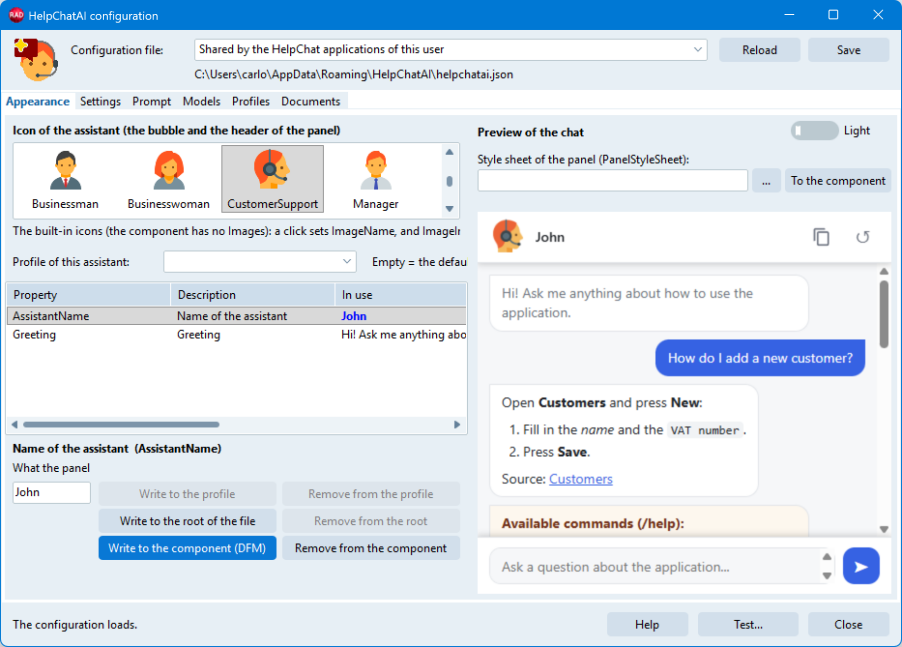
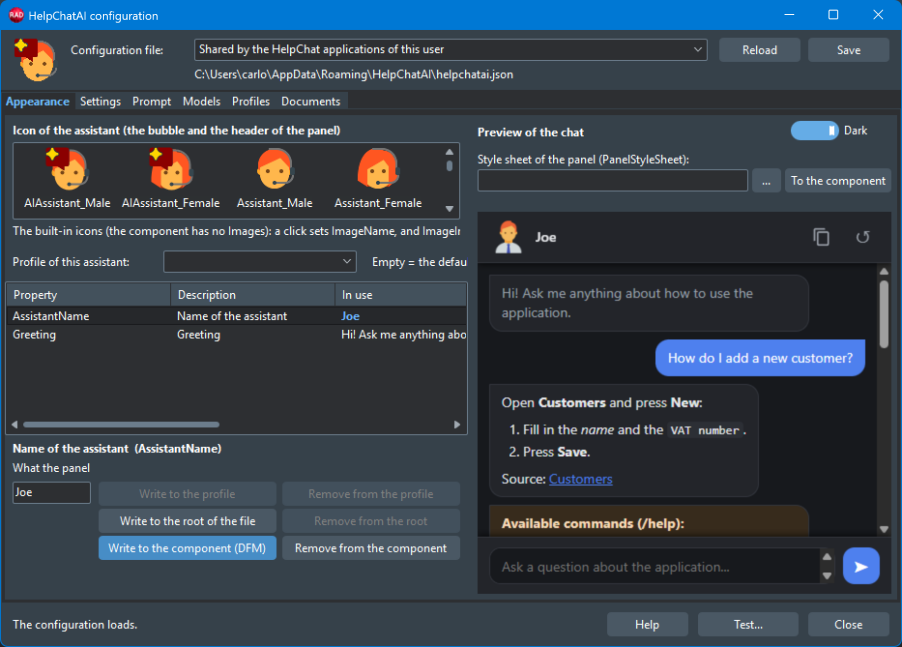
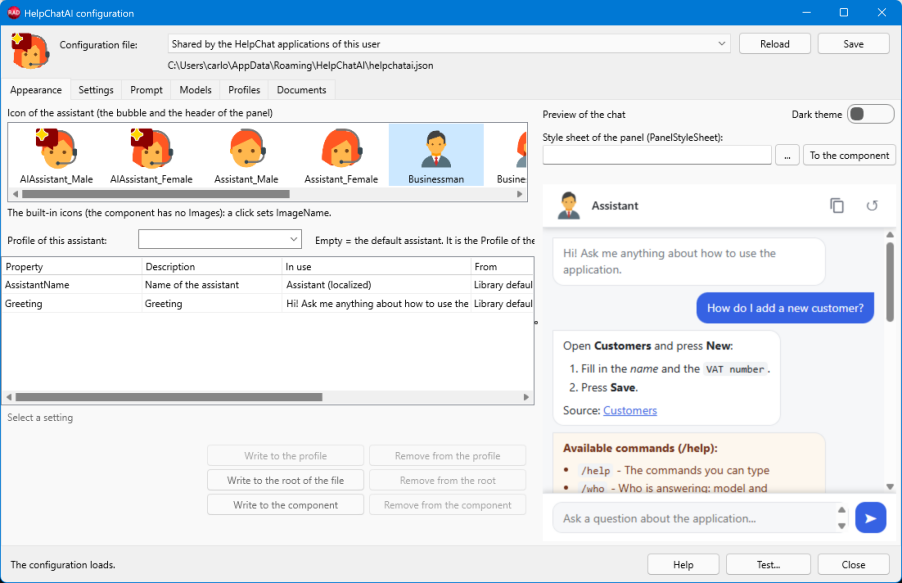
At the top left, the icon of the assistant: the one of the bubble and of the header of the panel. When the component has Images of its own, the list shows them and a click sets ImageIndex; with none, it shows the built-in icons and a click sets ImageName. Either way the other property follows, and the choice goes into the component at once, like Write to the component.
Below it, the settings of the page: AssistantName and Greeting.
On the right, the preview of the chat: the page of the library itself, with the greeting, a question, a short answer with the formatting a model uses (bold, a list, code, the link to its source) and the answer of /help, listing the commands the component enables. It is drawn with what the assistant would run with: the name, the greeting and the language of the component, the files and the profile - unsaved changes included - and the icon of the component. It is drawn again when the icon, a value of the page, the theme or the style sheet changes.
| Control | What it does |
|---|---|
| Light / Dark | Draws the preview with the built-in light or dark theme: how the chat looks on either, at design time. It is a switch of the preview, not a setting |
| Style sheet of the panel | The PanelStyleSheet of the component: the CSS file an application adds to the panel (theming). ... picks a file, To the component writes what is typed - empty removes it. A relative path is resolved against the output folder of the project, as at run time against the executable. A file that cannot be read is said in red under the box, and the preview is drawn without it |
The preview needs the WebView2 loader, found the way the preview finds it; without it the page says so instead of the chat.
Prompt
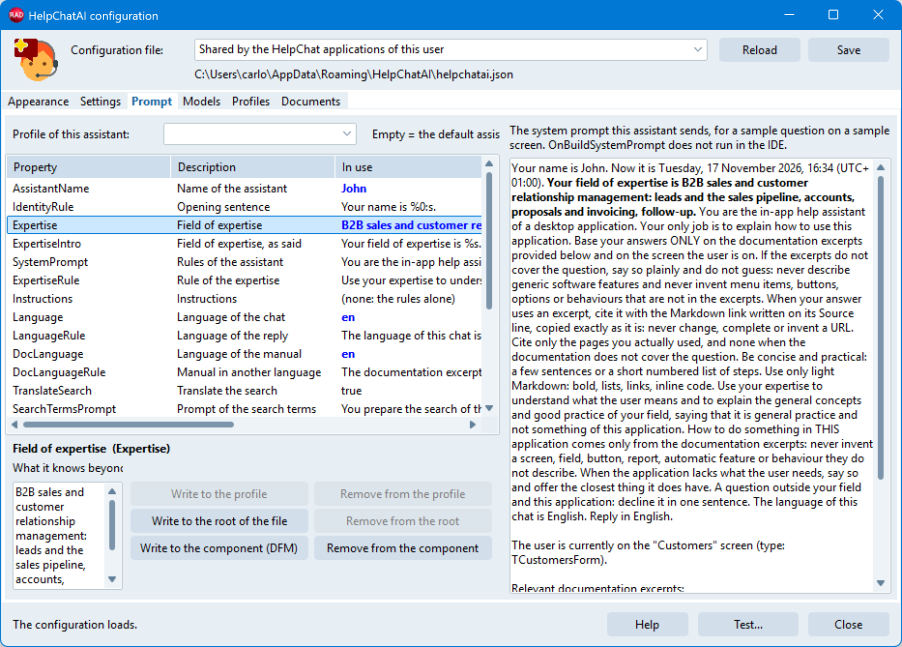
The list holds the settings that make up the system prompt, in the order in which the prompt writes them:
| Order | Settings | What they write |
|---|---|---|
| 1 | AssistantName, IdentityRule | The opening sentence: the name |
| 2 | Expertise, ExpertiseIntro | The field of expertise |
| 3 | SystemPrompt | The rules of the assistant |
| 4 | ExpertiseRule | The rule that keeps the procedures to the manual, with an expertise |
| 5 | Instructions | What this assistant does |
| 6 | Language, LanguageRule | The language of the reply |
| 7 | DocLanguage, DocLanguageRule | The manual in another language, when it is |
| 7 | TranslateSearch, SearchTermsPrompt | Not in the prompt: the request that translates the question for the search |
| 8 | NowRule | Now, which claude, openai and gemini send with the question, not in the system prompt (prompt caching) |
| 8 | GroundingMaxPages, GroundingMaxChars of each provider | The excerpts of the manual |
Beside it, the prompt this assistant would send, built from the settings in force - the component, the files as the editor has them, unsaved changes included, and the profile - for a sample question asked from a sample screen, with a sample excerpt. It is rebuilt at every change. Select a row and the part of the prompt that setting writes is shown in bold and scrolled into view, so walking down the list walks down the prompt.
Two things are not in it. The rule about the actions, which follows when the application registers some, is named at the end rather than copied: nobody may change it. And OnBuildSystemPrompt does not run inside the IDE, so whatever your handler changes is not there. The texts themselves: the texts of the prompt.
Documents
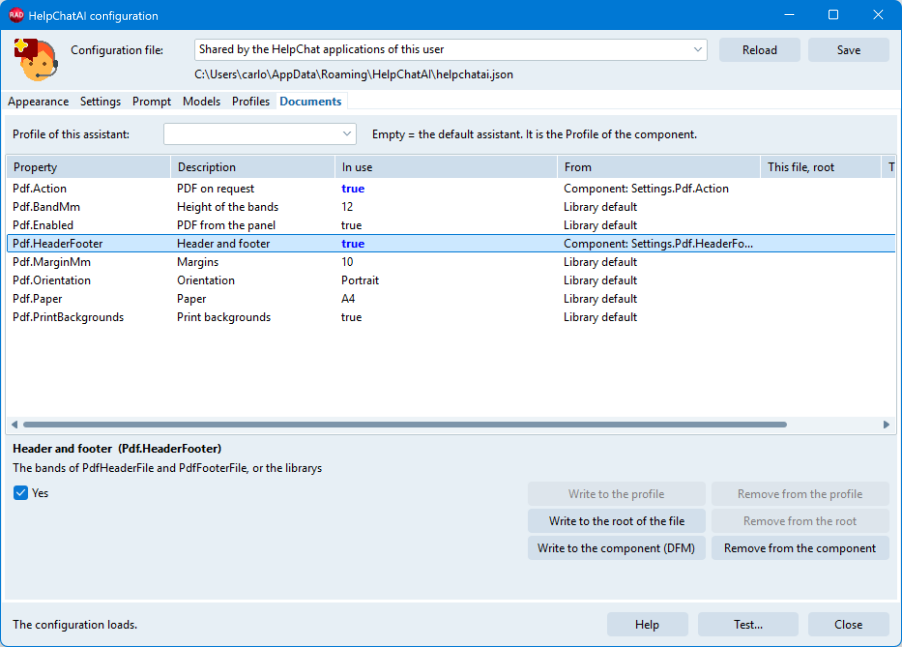
The settings of the PDF: the buttons of the panel (Pdf.Enabled), the document the assistant writes on request (Pdf.Action), paper, orientation, margins, backgrounds, and the header and footer with their height.
Profiles
The Profiles page lists the sections under "Profiles" of the file: Add..., Rename..., Delete.
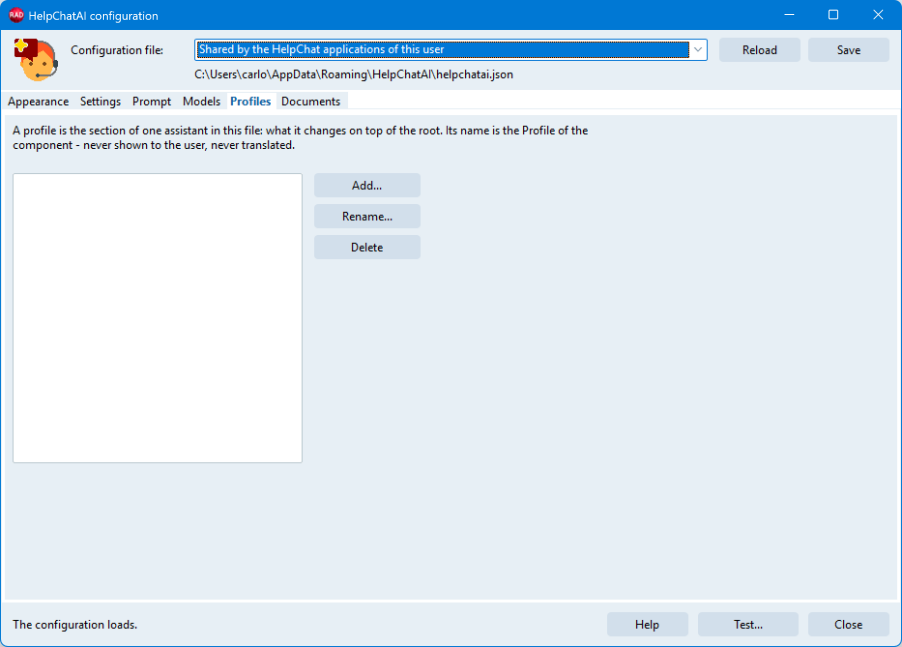 The name of a profile is never shown to the user (that is
AssistantName). It is what ties a component to its section, so renaming the profile the editor is on renames the Profile of this component too. Other components that name it are yours to change.
Keys
Keys are edited in clear, and never encrypted here. The editor reads and writes ApiKey, the node you develop with, and shows it masked. It never writes ApiKeyEncrypted, which is your application's to write with its own cipher, and never drops one that is there (the two nodes). A key is never written into the form file. A file with a key in it is not something to commit to version control.
The bottom of the window
The status line says The configuration loads., or the error the component would raise when it activates with these files: a key of 1.6 that changed name, a model the catalogue does not have, a file that does not parse.
| Button | What it does |
|---|---|
| Help | Opens this page |
| Test... | Opens the preview. The preview reads the files on disk, so with unsaved changes it asks to save them first |
| Close | Closes the editor. With unsaved changes it asks: Yes saves, No drops them, Cancel stays |
What went to the component and the choice of the profile were applied as you made them, and closing does not take them back. Only the file waits for Save.
The IDE theme, and FireMonkey
The VCL window follows the light or dark theme of the IDE, as the other editors of the IDE do:
The editor of TFmxHelpChatAI is the same window written with FireMonkey controls, over the same controller: same file combo, same pages, same buttons, and it works the same way. Two differences: the button that writes into the component is called Write to the component (the form file of a FireMonkey form is an .fmx), and on the Prompt page the part of the selected setting is selected rather than bold, since a FireMonkey memo has one font for all its text. The preview of the Appearance page is there too, in a FireMonkey TWebBrowser. Its picture is the female assistant, the face of the FireMonkey component in the Tool Palette, where the VCL editor shows the male one.
Test HelpChat: the preview
The preview is the chat, not a mock-up: the engine, the local server and the WebView2 page are the ones the application will run. When the documentation index the settings name does not exist yet, it first offers to build it, since an assistant with nothing to ground its answers on tells you very little. Three things differ at design time, and the component editor deals with all three:
- Relative paths would resolve against the folder of
bds.exe.Settings.DocIndexFile,Settings.DocFolder, and the style sheets and PDF bands the component names, are resolved against the output folder of the active project instead (the conversation file goes elsewhere, see below), and the configuration is read the way that application would read it, the per-user file included. WebView2Loader.dllis not next tobds.exe. It is looked for in the output folder of the project, where the application needs it anyway, and then inRedist\WebView2under the folder the IDE knows as$(HELPCHATAIDIR).- The component on the form is never started. It stays in
csDesigning. What runs is a copy of it (Assign: every published property butActiveand the events, the icon included), owned by nothing and freed when the preview closes, with the bubble, the help viewer and F1 switched off. Actions are off too, because their handlers live in the application that has not been built yet.
The conversation of a preview belongs to its project. Inside the IDE the executable is bds.exe, so the preview keeps its conversation, and the model and language picked in the panel, in a folder of its own for each project: %APPDATA%\HelpChatAI\Preview\<Project>-<code>\, with the profile in the file name as in the application. Open the preview of the same project again and the questions of last time are there; open another project and it starts empty. Nothing is written into the folders of the project, and the conversation of the application itself is never touched.
Only the providers compiled into the library run inside the IDE. A provider your application registers exists once that application runs.
In FireMonkey the preview is a FireMonkey form holding the panel of the component - the native TWebBrowser your application will run - and the copy takes the ThemeMode of the component. The window of the VCL preview is sized for the DPI of the monitor it opens on; FireMonkey scales its own.
Check configuration
The check reads the configuration the way the built application would - the same files, the paths resolved against the output folder of the project - and reports errors and warnings in one message:
- the provider: whether it is registered, and what it needs to work (a key, an index). With a catalogue of models, it is the provider of the model the assistant would start with that is checked. A provider your application registers cannot run in the IDE, and the check says so instead of calling the name a typo;
- the documentation index and the pages folder, and whether the areas of
DocAreasexist in the index; - a
Profilethat none of the files defines; - with
Settings.Remote.BaseUrl, the remote server instead of the local engine.
The same code runs behind /check in the panel, which adds what only a running application knows: names of AllowedActions no action answers to (diagnostics). In FireMonkey the check offers to build a missing index before it reports it.
Rebuild documentation index
Builds help-index.json from the folder of Markdown pages the settings name, the same work the command-line HelpIndexBuilder does. Before building, it shows the plan - the pages folder, the output file, the table of contents, the extension of the links - and asks. The extension is the one thing deduced: with no DocBaseUrl the pages are read inside the panel, so links keep .md. See the documentation index.
The Object Inspector
A few properties get an editor of their own:
| Property | VCL | FMX | What you get |
|---|---|---|---|
Settings.Provider | yes | yes | A drop-down of the providers registered in the IDE, instead of a free string |
ConfigFileName | yes | yes | A file dialog behind the ellipsis |
Container | yes | - | Only the controls that can hold another one, not every TWinControl of the form |
ImageIndex, ImageName | yes | ImageName | VCL: the icons, drawn in the list; with no Images of yours, the built-in ones. FMX: a drop-down of the names of the built-in icons, as text (a name of your own image list is typed) |
HostForm is not published: at design time the form of another unit is not a component of this one, so the combo would always be empty. Set it in code.
Each component appears in the Tool Palette of its own framework only: the VCL one on VCL forms, the FireMonkey one on FireMonkey forms. The library also puts itself in the splash screen and in the About box of the IDE, with its version, so you can tell which build is installed.