
Saving and copying an answer
An answer the user cannot take with them is a note nobody keeps. The panel offers two ways out of the chat, side by side: the clipboard and a PDF — of one answer, of the whole conversation, or of a page of your manual.
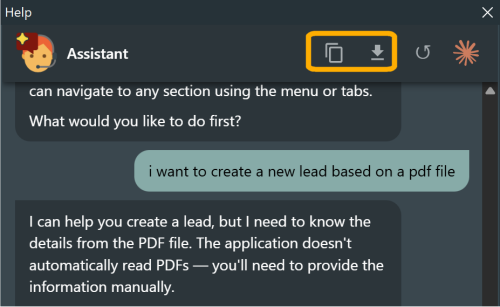
Both are on by default for copying, and on by default for the PDF as well: it all happens on the user's machine, with the browser engine the panel already needs, and nothing leaves.
Where the buttons are
| Where | Copy | Save as PDF |
|---|---|---|
| On an answer, appearing when the pointer is over it | that answer | that answer |
| In the header of the panel | the whole conversation, questions and answers | the same |
| In the bar of a documentation page | that page | that page |
A reply still being written, and the error bubbles, are left out of the conversation in both cases: a document somebody files away does not carry half an answer.
Copy: both flavours at once
The clipboard gets the answer twice, as HTML and as plain text, the way a word processor and a text editor each expect it:
- pasted into Word, Outlook or OneNote, the bold, the lists, the links and the tables are still there;
- pasted into Notepad, a code editor or a plain-text mail, it is clean text — a table included, laid out as the panel lays it out.
Copying asks nothing of the host application and nothing of the engine: it is the browser's own clipboard. That is why it works with a remote engine too, where saving a file does not.
Save as PDF: what happens
- The engine builds the document — the answer as Markdown, the conversation as a series of turns, or the documentation page with its images already inlined.
- The component puts the print stylesheet on it, and asks the user where the file goes, with the save dialog of Windows.
- The WebView2 runtime lays it out and writes the file, on a window that is never shown.
- The user is asked whether to open it.
// Nothing to write: it is on unless you turn it off
HelpChat.Settings.Pdf.Enabled := True;
No second browser
The exporter borrows the WebView2 environment the panel already created, so no second browser process starts for a sheet of paper. Measured on an ordinary machine: about half a second for the first document and a quarter for the next.
The look of the document
A printed document is not a chat: no bubbles, no dark theme — a dark theme printed is a black rectangle — and no colours of the host application. The library ships resources/print.css, which lays out headings, lists, code, images and tables (with the header row repeated on every sheet), and your application can replace it entirely:
HelpChat.PdfStyleSheet := 'print.css'; // next to the executableA relative path resolves against the executable, and a file that is named but not there raises EHelpChatConfigError — an application that asked for its own look and silently printed ours would be an application shipped with the wrong files.
Leave @page alone
The sheet, the margins and the orientation come from Settings.Pdf, not from the stylesheet. A margin written in CSS wins over the print settings: an @page { margin: 0 } in the stylesheet produced sheets with no margin at all, whatever the settings said. That is why the built-in stylesheet carries no @page rule, and yours should not either.
A header and a footer of your own
Settings.Pdf.HeaderFooter prints a band at the top and at the foot of every sheet:
┌──────────────────────────────────────────────┐
│ CRM Demo 1.4.2              Summary of leads │  ← print-header.html
│ ──────────────────────────────────────────── │
│                                              │
│ # Summary of leads                           │
│ …                                            │
│                                              │
│ ──────────────────────────────────────────── │
│ carlo · 02/11/2026 15:54              1 / 3  │  ← print-footer.html
└──────────────────────────────────────────────┘
Each band is a small HTML file of its own — the two built into the library, or the files your application names:
HelpChat.Settings.Pdf.HeaderFooter := True;
HelpChat.PdfHeaderFile := 'report-header.html';
HelpChat.PdfFooterFile := 'report-footer.html';
The placeholders in them are replaced before printing, HTML-escaped:
| Placeholder | What it becomes |
|---|---|
{app} {version} | The product name and the file version of your executable |
{user} | The user Windows is logged on as |
{title} | The title of the document |
{date} {time} | When it was printed, in the format of the machine |
{extra} | Anything you put there — a customer, a department, "confidential" |
{page} {pages} | The page number and the number of pages |
What the library found out by itself is rarely the whole truth, so it can be corrected before each document:
procedure TMainForm.HelpChatPdfInfo(Sender: TObject; var AInfo: THelpChatPdfInfo);
begin
  AInfo.AppName := 'Contoso ERP';
  AInfo.UserName := Session.UserFullName;   // not the user of the machine
  AInfo.Extra := 'Internal use only';
end;
The band does not eat the text
A band is laid out inside the margin of the sheet, so the margin grows by Settings.Pdf.BandMm (12 mm) when there is one: MarginMm stays the margin of the text. A template of two lines needs a larger BandMm, or what does not fit is cut.
A band is a little document of its own: the print stylesheet does not reach it, so its style lives inside the template, as a <style> block or inline. An image works too, as a data: URI — which is how a logo gets into the header.
Letting the assistant write a document
With Settings.Pdf.Action the assistant gets one more action, export_pdf:
User:      "write me a PDF with a summary of the open leads and what to do next"
Assistant: → export_pdf(title = "Open leads", markdown = "# Open leads\n\n…")
           "I have prepared the document."
and the save dialog opens with what it wrote, laid out by the same stylesheet. The model writes Markdown — headings, lists and tables are laid out as in any other document.
HelpChat.Settings.Pdf.Action := True; // off by defaultOff by default
It is one more tool in every request, and an answer that becomes a file without anybody asking for one. Turn it on when a document is something your users actually want.
The assistant knows what day it is — the system prompt carries the date — so a document it writes is dated properly instead of saying "today".
The settings
| Setting | Default | What it does |
|---|---|---|
Pdf.Enabled | True | The buttons that save a PDF |
Pdf.Action | False | The export_pdf action |
Pdf.Paper | hcppA4 | hcppA4 or hcppLetter |
Pdf.Orientation | hcpoPortrait | Upright or on its side |
Pdf.MarginMm | 10 | The margin of the text, on all four sides |
Pdf.PrintBackgrounds | True | Off, the shaded header row of a table comes out white |
Pdf.HeaderFooter | False | The two bands |
Pdf.BandMm | 12 | How much room a band gets |
and on the components, next to them:
| Property | What it is |
|---|---|
PdfStyleSheet | The stylesheet of the document |
PdfHeaderFile PdfFooterFile | The two band templates |
OnPdfInfo | What the bands say |
Copying has no setting of its own: the clipboard is the user's, and the text is already on their screen.
With a remote engine
With Settings.Remote the document would be built on the server, where there is no screen to save it from: the PDF buttons answer "Saving as PDF is not available in this application" (HTTP 501) rather than doing nothing. Copying works, because it never leaves the browser.
What is not there yet
- The page number lives in the footer band, and nowhere else. Chromium implements no
@pagemargin boxes, so a CSS counter cannot number the sheets: acounter(page)in the document prints0on every one of them. WithHeaderFooteroff, a document has no page numbers. - A band is drawn by the browser engine, through a DevTools call that Microsoft does not version with the rest of WebView2. If a future runtime refuses it, the PDF is written anyway and the component says the header and the footer are missing, rather than failing.
- FireMonkey on macOS, iOS and Android has no WebView2: the PDF is Windows only, and
THelpChatPdfExporter.IsAvailableanswersFalseelsewhere. Copying is the page, so it works wherever the panel does.