
Installation
1. Automatic installation (Setup)
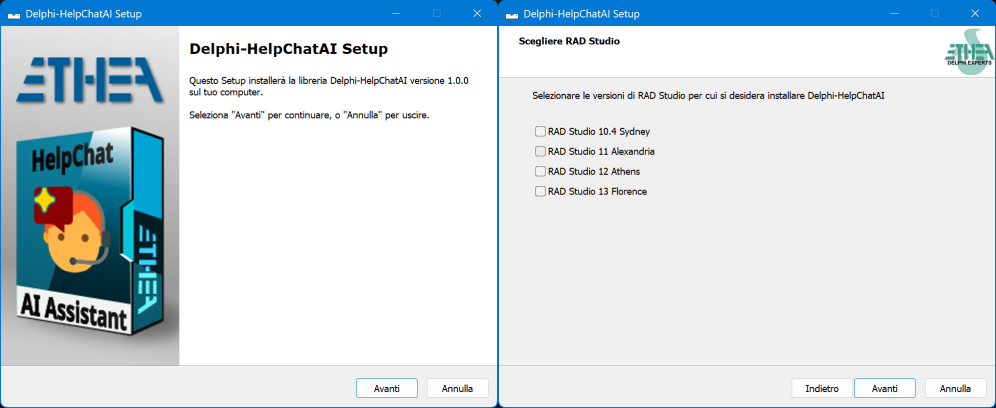
Download and run HelpChatAI_Setup.exe. It:
- finds the RAD Studio versions installed on the machine and lets you choose which ones to install into;
- copies the library where you decide;
- builds the runtime packages (Win32 and Win64) and the design-time ones;
- installs the design-time packages in the IDE, so the components appear in the palette;
- adds a
HELPCHATAIDIRenvironment variable and the source paths to the library path.
If a previous version is installed it is removed first.
Silent installation
HelpChatAI_Setup.exe /DIR="C:\Dev\HelpChatAI" /SILENT /RADStudioVersions=all installs into every RAD Studio found; /RADStudioVersions=37.0,23.0 restricts it to Delphi 13 and 12.
2. Manual installation
Get the sources (clone or download the repository).
Open the group project of your Delphi version:
packages\Delphi13\HelpChatAIPackages.groupproj
packages\Delphi12\HelpChatAIPackages.groupproj
packages\Delphi11\HelpChatAIPackages.groupproj
packages\Delphi10.4\HelpChatAIPackages.groupproj
Build the group (Release), then Install the design-time packages:
dclHelpChatAIVcl, anddclHelpChatAIFmxfrom Delphi 12 on. The first project of the group is the MarkdownProcessor of Ethea, which the engine requires: it is built before the others, and an IDE that already has it loaded has to be closed first.Add to the library path of every platform you target:
<HelpChatAI>\source
<HelpChatAI>\Ext\MarkdownProcessor\source
From a command line, Tools\Build_Packages.cmd [Delphi13|Delphi12|Delphi11|Delphi10.4|all] builds everything that is installed on the machine.
The packages
| Package | Kind | Contents |
|---|---|---|
HelpChatAI | runtime | the engine: store, providers, index, actions, the panel page |
HelpChatAIServer | runtime | the transports: local server, remote client, remote server, host channel |
HelpChatAIVcl | runtime | TVclHelpChatAI, the chat control, VCL style theming |
dclHelpChatAIVcl | design | palette registration ("Ethea HelpChatAI") |
HelpChatAIFmx | runtime | TFmxHelpChatAI and its chat control (Delphi 12+) |
dclHelpChatAIFmx | design | palette registration (Delphi 12+) |
The .dpk files are identical across Delphi versions; what changes in the .dproj is the ProjectVersion and the folder the DCUs go to (Lib\<version>).
3. What your application has to ship
WebView2 (VCL, and FMX on Windows)
The chat is rendered by the Microsoft WebView2 runtime, which is part of Windows 11 and of every machine with a recent Edge. What your application must carry next to its executable is the loader DLL:
Redist\WebView2\x86\WebView2Loader.dll   →  next to your Win32 exe
Redist\WebView2\x64\WebView2Loader.dll   →  next to your Win64 exe
The documentation index
If you use docsearch or a model provider, ship help-index.json (see The documentation index) next to the executable, or point Settings.DocIndexFile at it.
Nothing else
No database, no service to install, no port to open in the firewall: the local transport binds 127.0.0.1 on a free port and is reachable only from the machine itself.
4. Check that it works
Drop a TVclHelpChatAI on a form, right-click it and choose Test HelpChatAI...: the chat opens in a modal window and answers from the manual of the sample application, under CRM Demo\Help, with the docsearch provider — no API key and no network connection.
The demo applications are not in the installer
The installer brings the sample application, under CRM Demo\VCL: open its project, run it and press F1 on any screen — that is the component working on a real manual, and with a Claude key in %APPDATA%\HelpChatAI\helpchatai.json you can also ask it to open a screen, create a lead or prepare a proposal.