
Preview Panel and Thumbnails in action
Preview Panel
The Preview handler shows the SVG image directly into the Preview Panel of Windows Explorer, without opening the file. In Windows 11 with Dark theme:
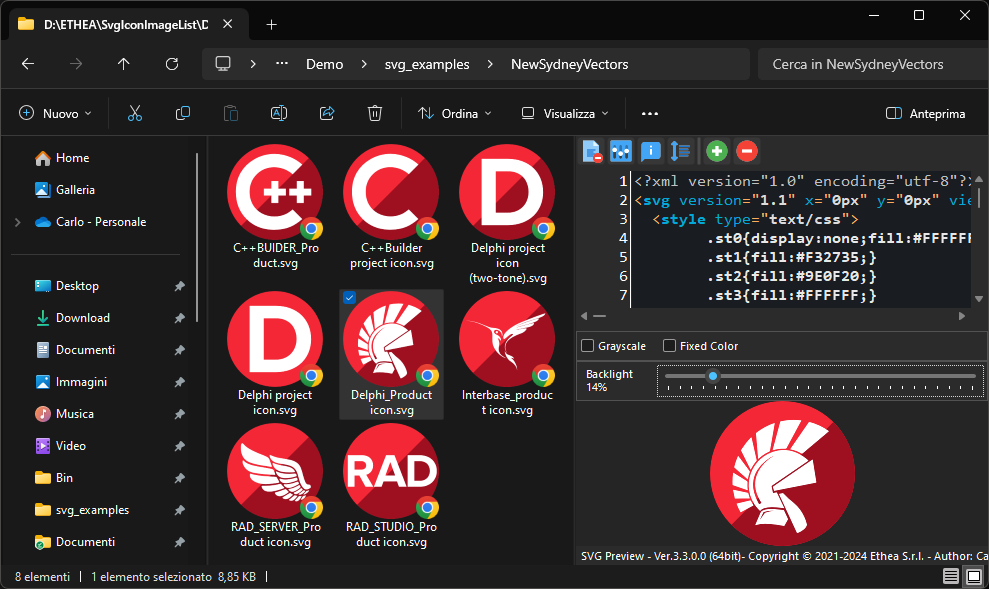
The Preview Panel shows the text of the SVG file over the image:
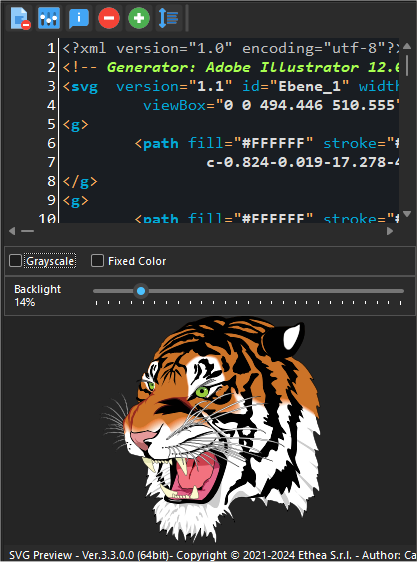
Using the toolbar of the Preview Panel you can:
- show or hide the text of the SVG file;
- reformat the XML text;
- enlarge or reduce the font of the text (Zoom In / Zoom Out);
- open the Settings of the Preview (theme, font, text colors and rendering engine);
- show the About dialog.
Under the text you can also choose how the image is drawn:
- Grayscale: the image is drawn in shades of gray;
- Fixed Color: the image is drawn with a single color, applied to the whole image or only to the root element (Apply to root only), to see how the SVG looks when used as a monochrome icon;
- Backlight: the brightness of the background behind the image.
Thumbnails
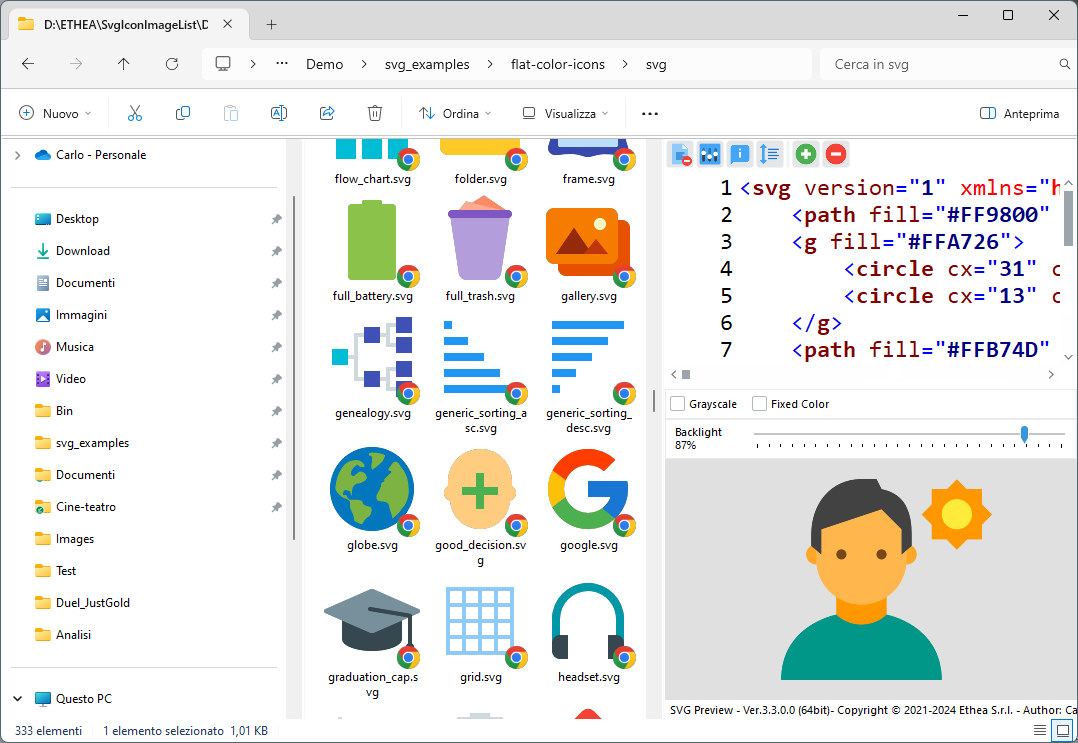
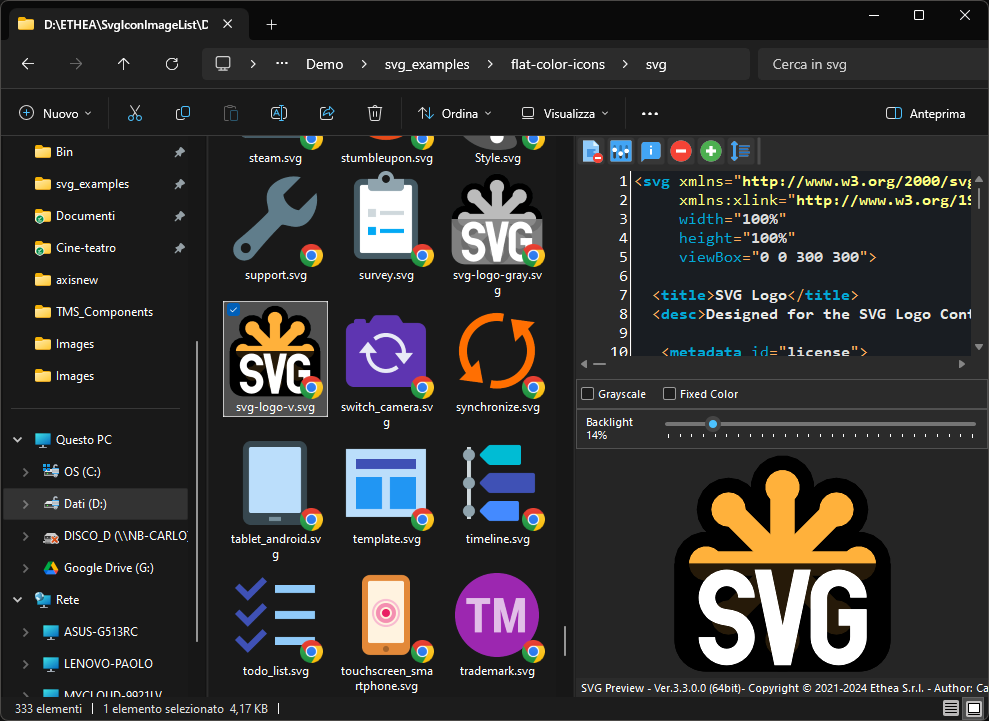
The Thumbnail handler shows the SVG files as images, in every view of Windows Explorer.
In Windows 11 with Light theme:
In Windows 11 with Dark theme:
TIP
The Preview Panel of Windows Explorer is shown with Alt+P, or with the "Preview pane" command of the View menu.