
Color Palette
Under the editor, the Color Palette shows all the colors used by the SVG, with the number of occurrences of each one.
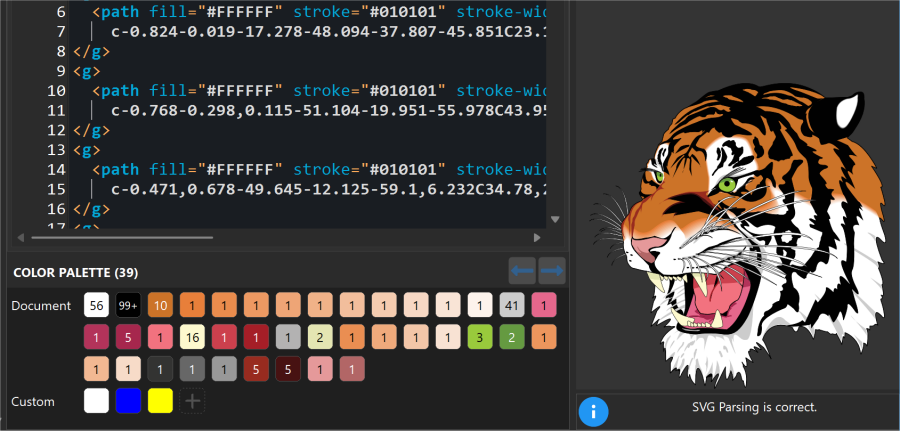
Colors are found:
- in the presentation attributes:
fill,stroke,stop-color,flood-color,lighting-color,color,solid-color; - in
styleattributes (e.g.style="fill:#FF0000"); - in
<style>blocks (e.g..cls{fill:red}).
They can be written as hex (#rgb, #rgba, #rrggbb, #rrggbbaa), rgb(), rgba(), hsl(), hsla() or color names (red, navy...): the same color written in different ways is shown once, with the total number of occurrences. Values that are not colors, like none, currentColor or the references to a gradient (url(#id)), are not shown (the colors of a gradient are its stop-color).
The palette has two sections:
- Document: the colors used by the SVG file, with the number of occurrences inside the swatch;
- Custom: your own colors, followed by the + button to add a new one.
The hint of each color shows its value (hex, rgb() and name), the number of occurrences, the properties using it and its opacities.
Find the colors in the text
- Click on a color to highlight all its occurrences in the text: the first one is selected.
- Move between the occurrences with Alt+Right / Alt+Left, with the arrow buttons of the palette, or clicking again on the same color. The header of the palette shows the color and the current occurrence (e.g.
#FF0000 - 2 of 5). - When the caret is on a color value, the corresponding color is marked in the palette with a small triangle.
Change the colors
- Double-click on a color to replace the color value under the caret: the new value keeps the notation of the old one (hex stays hex,
rgb()staysrgb(), a name stays a name when the new color has one) and its opacity. - If the caret is not on a color, the double-click inserts the color at the caret position, as
#RRGGBB.
Right-click on a color to open the context menu:
- Replace all occurrences with...: chooses a new color and replaces all the occurrences of the color (one single Undo restores them all);
- Select all occurrences: selects all the occurrences with multiple carets, to edit them together;
- Copy color value: copies the value of the color (
#RRGGBB) to the clipboard; - Add to custom colors / Remove from custom colors.
Custom colors
Add your own colors to the Custom section with the + button (color picker) or from the context menu of a color of the document. The custom colors:
- are kept for all the files;
- are shared with the custom colors of the color picker: the colors added in the color picker become custom colors of the palette too.
TIP
The palette can be hidden in the Settings ("Show color palette under the editor"); its height can be changed dragging the splitter over it, and it is remembered.