
Automatic updates
The SVG Text Editor can check if a new version is available on GitHub, then download and install it: there is no need to download the Setup manually.
Automatic check
When the Automatic check option is active (see Settings - Updates), the editor checks for a new version at startup, once every n days (Interval in days, 7 by default).
The check runs in background, without slowing down the start of the editor: if there is no Internet connection, or GitHub cannot be reached, nothing is shown.
When a new version is available, the editor asks:
A new installer is available to download:
Current version: v3.4.2 - Available version: v3.5.0
Do you want to download and install the new version?
Answering Yes, the download of the new Setup starts (see below).
TIP
To disable the automatic check, uncheck Automatic check in the Updates page of the Settings.
Manual check
You can check for a new version at any time from the About dialog, with the Check for updates button:
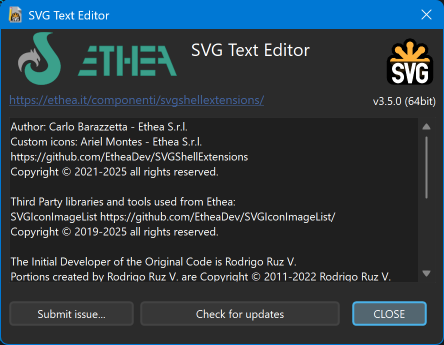
- if you already have the latest version, the message "No updates available. You have already the latest version" is shown;
- if GitHub cannot be reached, you can Retry or Abort the check;
- if a new version is available, the editor asks to download and install it.
Download and installation
- The About dialog shows the progress of the download of
SVGShellExtensionsSetup.exe, the same Setup available in the Download page. During the download the button becomes Stop download installer!, to stop it. - When the download is complete, the editor starts the Setup and closes itself, so the Setup can replace the files of the editor.
- Follow the steps of the Setup to complete the update.
WARNING
The Setup updates also the Shell Extensions: for a clean update close all the Windows Explorer instances which have the Preview Panel active, because the dll remains in memory until Windows Explorer is closed.