
Preview Panel and Thumbnails in action
Preview Panel
The Preview handler plays the animation directly into the Preview Panel of Windows Explorer, without opening the file. In Windows 11 with Dark theme:
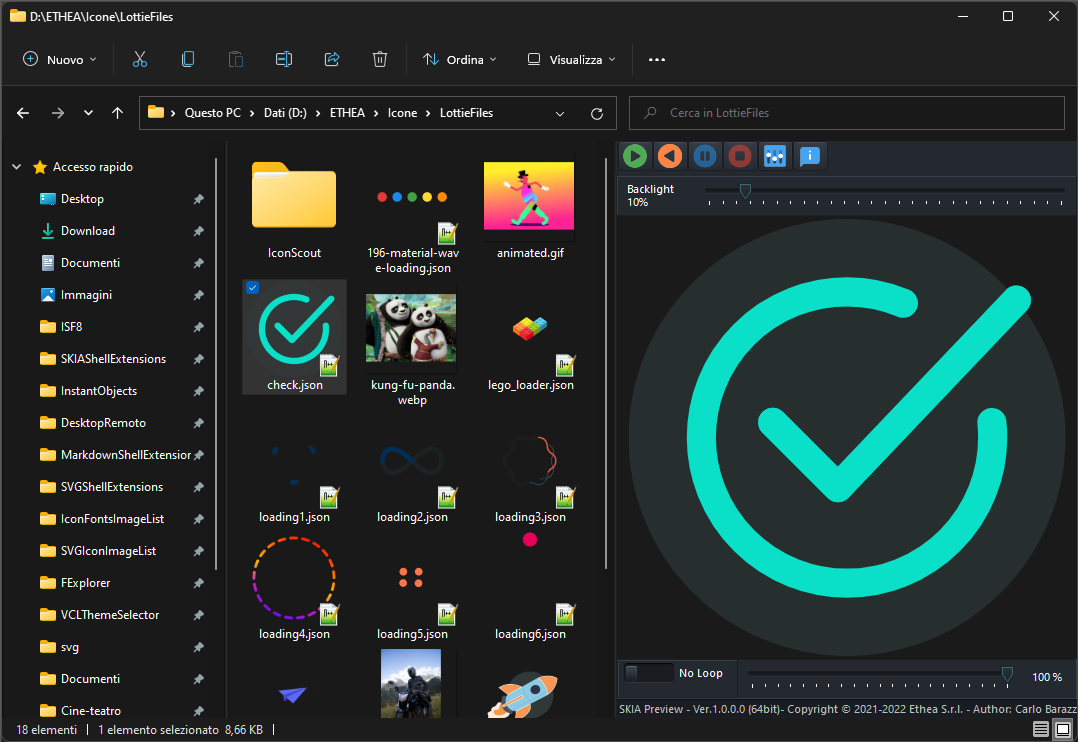
The Preview Panel works with Lottie animations (.json, .lottie), static and animated GIF (.gif) and WebP (.webp), and Telegram stickers (.tgs).
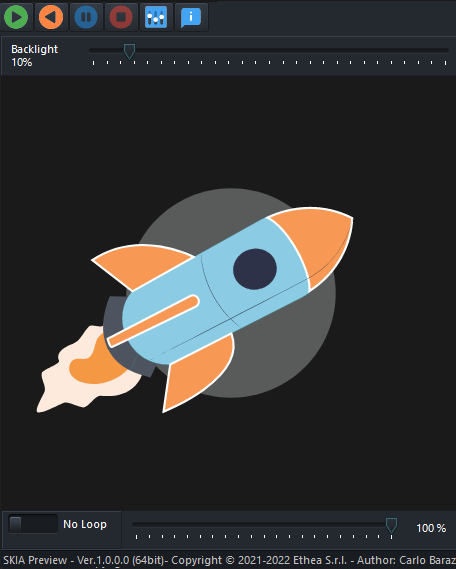
Play controls
Using the toolbar of the Preview Panel you can:
- Play the animation, or Play inverse (from the end to the start);
- Pause and Stop the animation;
- open the Settings of the Preview (text colors, font, theme, AutoPlay and Loop);
- show the About dialog.
At the bottom of the panel:
- Loop: plays the animation continuously;
- the slider moves the animation to any frame (from 0% to 100%), to examine it frame by frame.
Over the image, Backlight changes the brightness of the background behind the animation.
When the AutoPlay option is active (see Settings - Preview), the animation starts as soon as the file is selected in Windows Explorer.
For Lottie files, the toolbar has also a button to show the JSON text of the animation.
Thumbnails
The Thumbnail handler shows the files as images, in every view of Windows Explorer: for an animation, the thumbnail is the last frame.
In Windows 11 with Light theme:
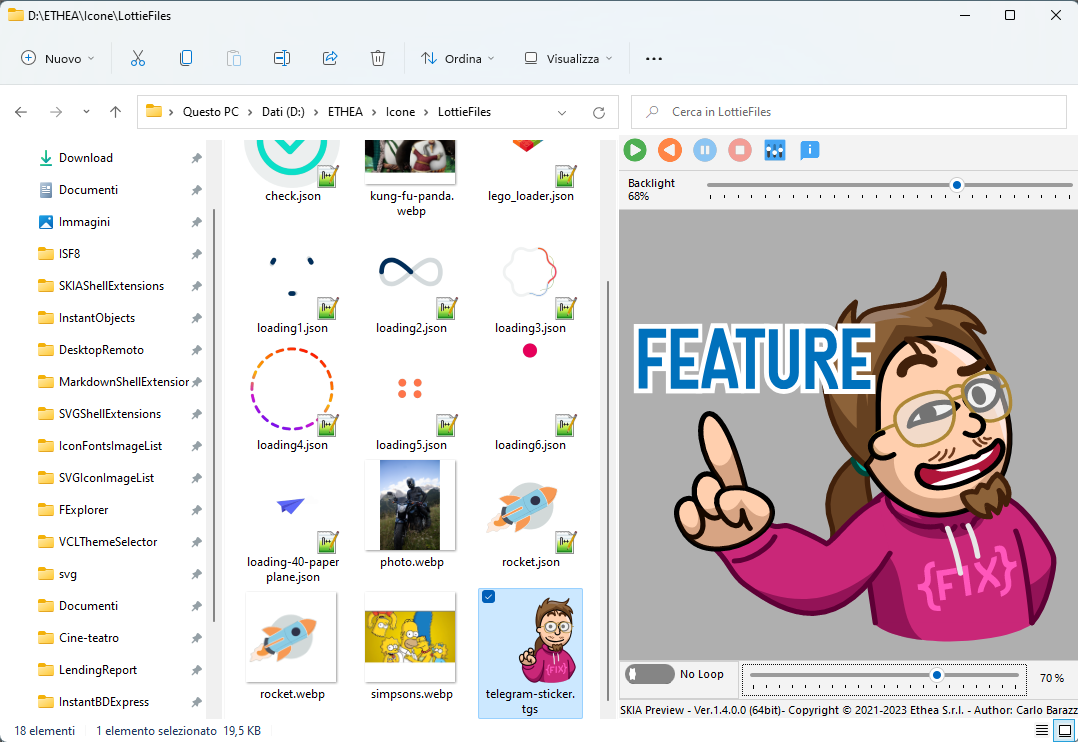
In Windows 11 with Dark theme:
TIP
The Preview Panel of Windows Explorer is shown with Alt+P, or with the "Preview pane" command of the View menu.