Lottie Text Editor
A useful Text editor to manually edit the JSON text of Lottie files, with instant preview of the animation:
Components of the Lottie Text Editor
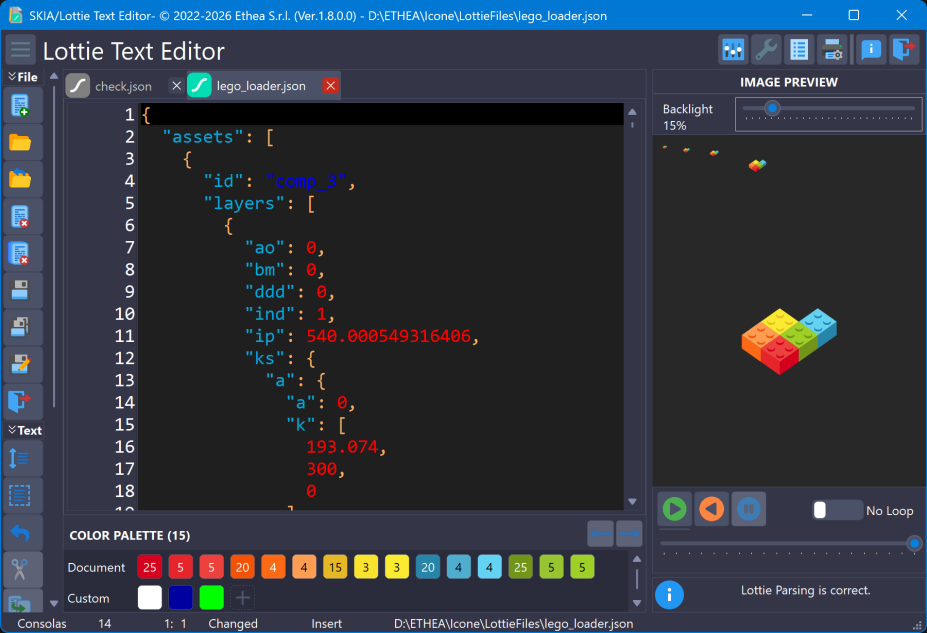
Left Panel: the text of the Lottie file
The text of the Lottie file is edited with JSON syntax highlighting. More files can be opened at the same time, each one in its own tab, with a close button over the tab.
Under the text, the Color Palette shows all the colors used by the animation.
Right Panel: the Image Preview
The animation is drawn again as soon as you stop typing. If the JSON text contains an error, the message is shown at the bottom of the panel; otherwise the message is "Lottie Parsing is correct.".
Under the image you can control the animation:
- Play, Play inverse, Pause and Stop;
- Loop: plays the animation continuously;
- the slider moves the animation to any frame (from 0% to 100%).
Over the image, Backlight changes the brightness of the background behind the animation. When the AutoPlay option is active (see Settings - Preview), the animation starts as soon as the file is opened.
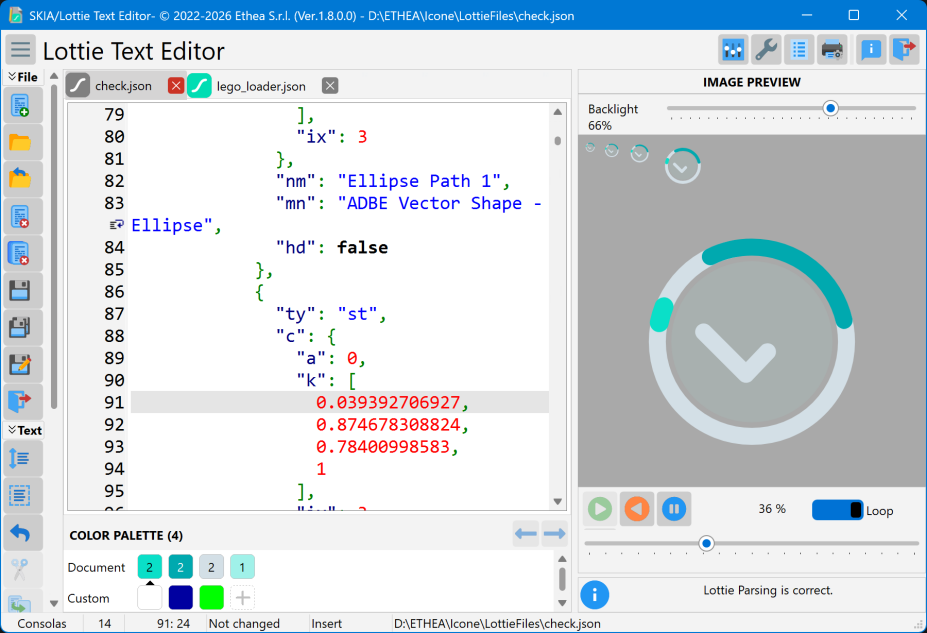
The editor follows the Windows theme (Light or Dark): "Windows11 Modern Light" or "Windows11 Modern Dark" on Windows 11, "Windows Modern" or "Windows Modern SlateGray" on Windows 10. You can choose other Light and Dark styles in the Settings:
Main commands
The menu on the left side of the editor groups the commands:
- File: New, Open, Open recent, Close (Ctrl+F4), Close All, Save, Save All, Save As, Quit.
- Text: Reformat text (indents the JSON, Ctrl+T), Select All, Undo, Cut, Copy, Paste, Search (Ctrl+F), Repeat search (F3), Replace (Ctrl+R).
- Print: Print and Print Preview.
The toolbar on the top right opens the Settings (Theme and Editor Options), Page Setup and Printer Setup, the About dialog, and closes the editor.
Use Ctrl + mouse wheel to enlarge or reduce the font of the text.
The context menu of the editor (right click on the text) has Word-Wrap Text and Show Line Numbers, with a check mark: they switch word wrap and line numbers in every open editor, and they are saved with the other Editor Options.
Search and Replace
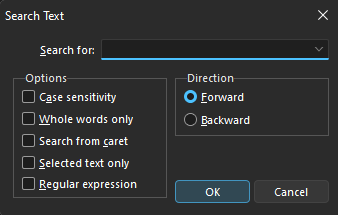
The search can be case sensitive, by whole words, from the caret, in the selected text only, with regular expressions, forward or backward.
Other features
- Drag and drop: drop Lottie files from Windows Explorer into the editor to open them.
- Single instance: opening a Lottie file from Windows Explorer reuses the running editor, in a new tab.
- Remember the session: optionally, the files open when the editor is closed are opened again at the next run (see Settings).
- Changed files: when a file is changed by another program, the editor asks to reload it.
- New versions: the editor checks if a new version is available, and can download and install it (see Automatic updates).