
Color Palette
Under the editor, the Color Palette shows all the colors used by the Lottie animation, with the number of occurrences of each one.
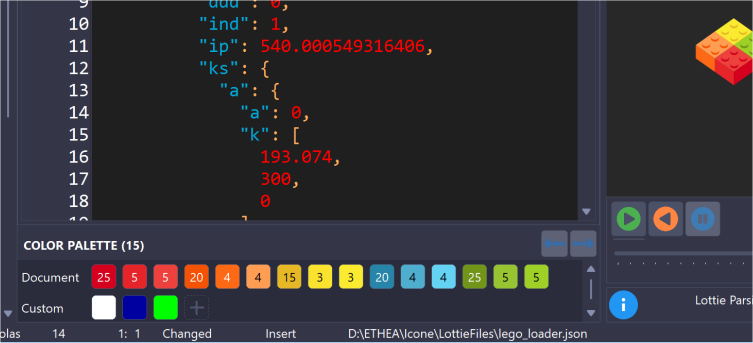
How Lottie colors are found
In a Lottie file a color is usually not a string but an array of numbers: [r,g,b] or [r,g,b,a], with values from 0 to 1 (or from 0 to 255 in old exports). An array is recognized as a color by the place where it is written:
| Where | Example |
|---|---|
| fill and stroke colors | "c":{"a":0,"k":[0.937,0.231,0.192,1]} |
| animated fill and stroke colors: every keyframe | "c":{"a":1,"k":[{"t":0,"s":[1,0,0,1]},{"t":30,"s":[0,0,1,1]}]} |
| gradient fill and stroke: every stop | "g":{"p":2,"k":{"a":0,"k":[0,1,0,0, 1,0,0,1]}} |
| solid layers (the only hex color of Lottie) | "sc":"#ef3b31" |
| text fill and stroke | "fc":[1,1,1], "sc":[0,0,0] |
| color effects (tint, fill, tritone...) | "v":{"a":0,"k":[0.2,0.4,0.6,1]} |
| slots (colors shared by the animation) | "slots":{"id":{"p":{"a":0,"k":[1,0,0,1]}}} |
The same color written with a different precision (0.9372 and 0.93725) is shown once, with the total number of occurrences: it is the same color in the animation. The palette works also on a minified file, written on a single line; use Reformat text (Ctrl+T) to make the JSON readable.
The palette has two sections:
- Document: the colors used by the animation, with the number of occurrences inside the swatch;
- Custom: your own colors, followed by the + button to add a new one.
The hint of each color shows its value, the number of occurrences, the properties using it (e.g. fill, stroke, gradient fill stop 2, solid layer, text fill, effect) and its opacities.
Find the colors in the text
- Click on a color to highlight all its occurrences in the text: the first one is selected.
- Move between the occurrences with Alt+Right / Alt+Left, with the arrow buttons of the palette, or clicking again on the same color. The header of the palette shows the color and the current occurrence (e.g.
#EF3B31 - 2 of 5). - When the caret is on a color value, the corresponding color is marked in the palette with a small triangle.
Change the colors
Double-click on a color to replace the color value under the caret. The new value keeps the notation of the file:
- the same number of components (3 or 4) and the same alpha;
- the same precision of the numbers (
0.937254905701or0.94); - the same scale, from 0 to 1 or from 0 to 255;
- for a gradient stop, only the r, g, b numbers change, not the offset of the stop;
- a hex color of a solid layer stays hex, with the same case.
If the caret is not on a color, nothing is inserted (in JSON a color written alone has no meaning): the status bar shows "Place the caret on a color value to replace it".
Right-click on a color to open the context menu:
- Replace all occurrences with...: chooses a new color and replaces all the occurrences of the color (one single Undo restores them all);
- Select all occurrences: selects all the occurrences with multiple carets, to edit them together;
- Copy color value: copies the value of the color (
#RRGGBB) to the clipboard; - Add to custom colors / Remove from custom colors.
After every change the animation of the preview is drawn again with the new colors.
Custom colors
Add your own colors to the Custom section with the + button (color picker) or from the context menu of a color of the document. The custom colors:
- are kept for all the files;
- are shared with the custom colors of the color picker: the colors added in the color picker become custom colors of the palette too.
TIP
The palette can be hidden in the Settings ("Show color palette under the editor"); its height can be changed dragging the splitter over it, and it is remembered.