Installation
1. Automatic installation (Setup)
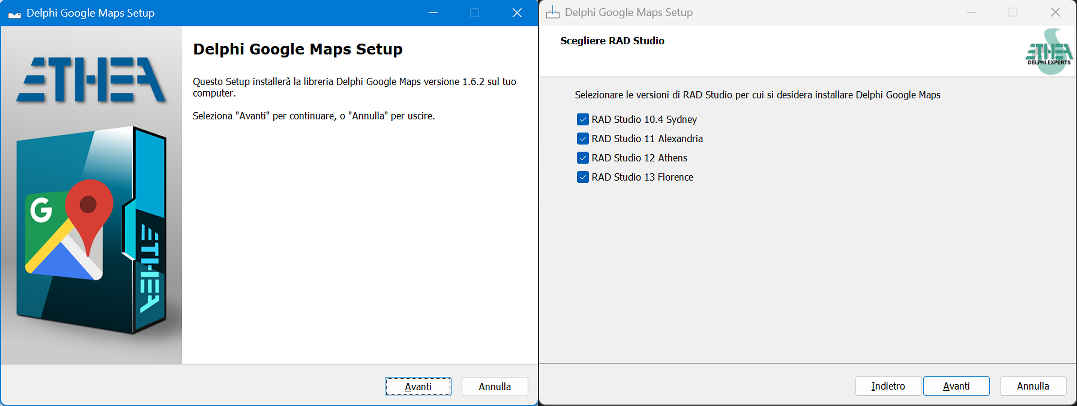
Download and run DelphiGoogleMaps_Setup.exe. It detects the Delphi versions installed on the machine, installs the sources, builds and installs the packages and adds the source paths to the library path.
2. Installation with DPM (Delphi Package Manager)
The library is also published on delphi.dev as the package EtheaDev.DelphiGoogleMap (Delphi 10.4 to 13, Win32 and Win64): you can install it with DPM, the Delphi Package Manager, as an alternative to the Setup. From the IDE, right click on your project in the Project Manager and choose Manage DPM Packages, or from the command line:
dpm install EtheaDev.DelphiGoogleMap <path of your project>.dprojDPM downloads the package, builds it for the Delphi version and the platforms of your project and adds it to the project. DPM also copies WebView2Loader.dll (Win32 or Win64) next to the executable of your project.
3. Manual installation
If you do not want the installer, build the packages yourself:
- Get the sources (clone or download the repository).
- Open
Packages\<Delphi version>\DelphiGoogleMapsPackages.groupprojin the IDE (D10_4,D11,D12orD13). - Build the run-time package
DelphiGoogleMap. - Build and install the design-time package
dclDelphiGoogleMap: the component appears in the Ethea page of the palette. - Add the
Sourcefolder to the Delphi library path.
WebView2Loader.dll
The component is built on WebView2, which needs WebView2Loader.dll (the 32 or the 64 bit one, according to your platform) in the same folder as the executable. The copies to use are in the repository, under Demo\GoogleMaps\Bin\Win32 and Demo\GoogleMaps\Bin\Win64; with DPM they are copied for you. See Deploying your application.
Next step
Quick Start: from an empty form to a map.