How to Install Ethea SynEdit into Delphi
There are three ways to install Ethea SynEdit into Delphi: using the "Setup", with DPM (Delphi Package Manager) or manually.
Remove any other SynEdit first
Ethea SynEdit registers the same class names (TSynEdit...) as the other SynEdit libraries. Uninstall any other SynEdit package (pyscripter, TurboPack, GetIt) from the IDE before installing it.
1.Automatic Installation using Setup
Download the Setup file EtheaSynEdit_Setup.exe
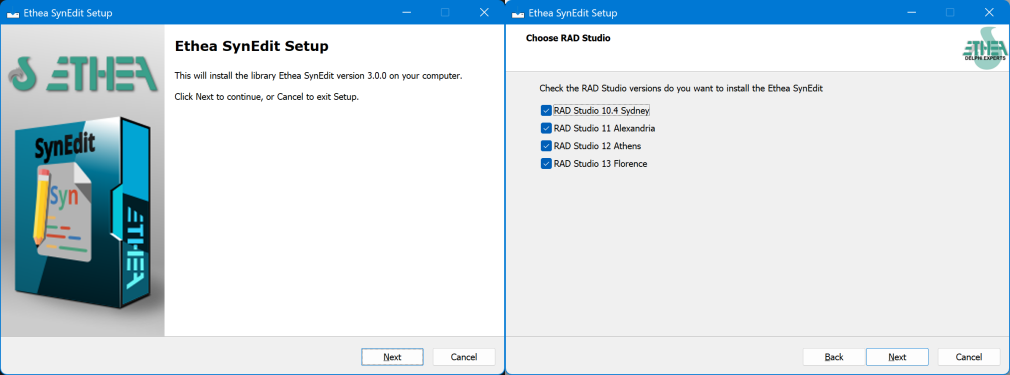
Running this Setup you can easily:
- Select the versions of Delphi present in your system
- Select a specific developing folder
The Setup automatically:
- Builds units (32 and 64 bits in release mode)
- Builds Runtime Packages (for Win32 and Win64 Platforms)
- Builds and Install Designtime Packages (for Win32 bits only)
- Builds and Install Designtime Packages (for new Win64 Delphi IDE)
- Adds a
SYNEDITDIRenvironment variable - Adds the 32 and 64 bit paths of:
- the binaries units
- all the sources
Please note that if you have already installed a GetIt package version of a SynEdit library, it should be uninstalled first.
2.Installation with DPM (Delphi Package Manager)
The library is also published on delphi.dev as the package EtheaDev.SynEdit (Delphi 10.4 to 13, Win32 and Win64): you can install it with DPM, the Delphi Package Manager, as an alternative to the Setup. From the IDE, right click on your project in the Project Manager and choose Manage DPM Packages, or from the command line:
dpm install EtheaDev.SynEdit <path of your project>.dprojDPM downloads the package, builds it for the Delphi version and the platforms of your project and adds it to the project. All the units are under the SynEdit. scope (see Migration to update a project that uses the original SynEdit).
3.Manual Installation
Installation of Packages for Delphi/VCL (from Delphi 10.4 to Delphi 13)
- Get the sources (for example in
d:\EtheaSynEdit). - Start RAD Studio and add the
{Folder}\EtheaSynEdit\Sourcefolder to the library path of the IDE (Win32 and Win64). - Open the package group
PackageGroup.groupprojfrom the folder of your Delphi version, for example\EtheaSynEdit\Packages\Delphi13. - Build the run-time package EtheaSynEdit and install the design-time package dclEtheaSynEdit.
The packages are in Packages\Delphi10_4, Delphi11, Delphi12 and Delphi13 and use {$LIBSUFFIX AUTO}.
To use the library in your application add the {Folder}\EtheaSynEdit\Source path to the project, or the library path {Folder}\EtheaSynEdit\Lib\DelphiXX\WinXX\Release with the compiled units.
Building from the command line (PowerShell scripts)
Instead of opening the group projects in the IDE you can build the packages with the PowerShell scripts in the Packages folder:
BuildAllPackages<Delphi version>.ps1(for exampleBuildAllPackagesD13.ps1orBuildAllPackagesD10.4.ps1) rebuilds the runtime package (EtheaSynEdit) and then the design-time package (dclEtheaSynEdit), for Win32 and Win64 (the design-time package for Win64 only from Delphi 12, the first with a 64 bit IDE), and prints a summary table.BuildAllPackages.ps1 -DelphiVersion <version>is the common script,BuildPackages.ps1builds a single package (-Project).
Common parameters: -Platform (Win32, Win64, Both), -Config (Debug, Release), -Target (Build, Clean, Rebuild) and -BDSRoot (root of the RAD Studio installations, default C:\BDS\Studio, with one subfolder for each version: 21.0 ... 37.0).
.\BuildAllPackagesD13.ps1
.\BuildAllPackagesD12.ps1 -Platform Win64 -Config Debug -Target Build
.\BuildAllPackages.ps1 -DelphiVersion D10.4
The compiled units go in Lib\Delphi<version>\<Platform>\<Config>.
Supported Delphi versions
| Delphi | Packages folder | Design-time Win64 |
|---|---|---|
| 10.4 Sydney | Packages\Delphi10_4 | no |
| 11 Alexandria | Packages\Delphi11 | no |
| 12 Athens | Packages\Delphi12 | yes |
| 13 | Packages\Delphi13 | yes |
if you need a package for a Delphi version not included please add a new Issue
License
Licensed under the dual license MPL 1.1 / GPL 2, as the original SynEdit.