
TSVGIconImageList FMX Demo
Overview
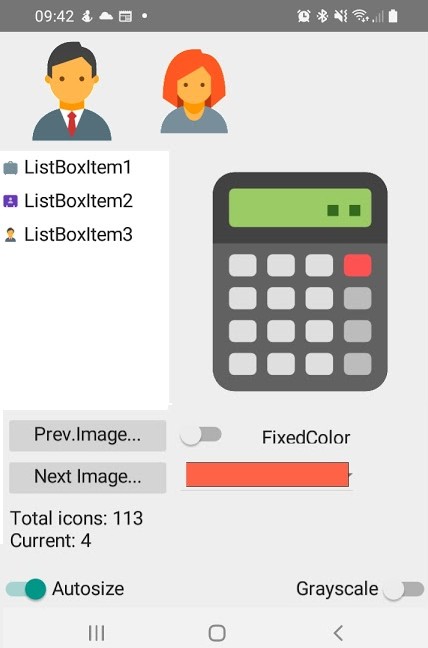
The SVGIconImageListDemoFMX demonstrates the TSVGIconImageList component in a FireMonkey (FMX) application. This demo showcases icon management in a cross-platform environment, featuring dynamic icon assignment, visual effects, and multi-resolution support.
Location: Demo\DXXX\SVGIconImageListDemoFMX.dpr
Features Demonstrated
1. Glyph Components at Multiple Sizes
The demo displays three TGlyph components using the same TSVGIconImageList, each showing icons at different sizes:
- Small Glyph: 32x32 pixels
- Medium Glyph: 48x48 pixels
- Large Glyph: 64x64 pixels
This demonstrates how a single ImageList can provide icons at multiple sizes, with SVG ensuring perfect rendering at each size.
procedure TMainForm.SetupGlyphs;
begin
  // All glyphs use same ImageList
  GlyphSmall.Images := SVGIconImageList1;
  GlyphMedium.Images := SVGIconImageList1;
  GlyphLarge.Images := SVGIconImageList1;

  // Different sizes
  GlyphSmall.Width := 32;
  GlyphSmall.Height := 32;
  GlyphMedium.Width := 48;
  GlyphMedium.Height := 48;
  GlyphLarge.Width := 64;
  GlyphLarge.Height := 64;

  // Same icon index
  GlyphSmall.ImageIndex := 0;
  GlyphMedium.ImageIndex := 0;
  GlyphLarge.ImageIndex := 0;
end;
2. ListView with Icons
The demo includes a TListView populated with items, each displaying an SVG icon:
- Uses
ListView.Imagesproperty linked toTSVGIconImageList - Icons automatically scale based on ListView appearance
- Demonstrates icon usage in data-driven controls
procedure TMainForm.PopulateListView;
var
  Item: TListViewItem;
  I: Integer;
begin
  ListView1.ItemAppearance.ItemAppearance := 'ImageListItemRightButton';
  ListView1.Images := SVGIconImageList1;

  for I := 0 to SVGIconImageList1.Source.Count - 1 do
  begin
    Item := ListView1.Items.Add;
    Item.Text := Format('Icon %d: %s', [I, SVGIconImageList1.Source[I].IconName]);
    Item.ImageIndex := I;
  end;
end;
3. Dynamic Icon Assignment
Change the icon displayed in a glyph at runtime:
- Next/Previous Buttons: Navigate through all available icons
- Random Button: Assign random icon to selected glyph
- Direct Assignment: Select specific icon by index
procedure TMainForm.btnNextClick(Sender: TObject);
begin
  // Cycle to next icon
  FCurrentIconIndex := (FCurrentIconIndex + 1) mod SVGIconImageList1.Source.Count;
  GlyphMedium.ImageIndex := FCurrentIconIndex;
end;

procedure TMainForm.btnRandomClick(Sender: TObject);
begin
  // Assign random icon
  FCurrentIconIndex := Random(SVGIconImageList1.Source.Count);
  GlyphMedium.ImageIndex := FCurrentIconIndex;
end;
4. Visual Effects
Apply effects to all icons in the ImageList:
GrayScale Effect:
procedure TMainForm.chkGrayScaleChange(Sender: TObject);
begin
  SVGIconImageList1.GrayScale := chkGrayScale.IsChecked;
  SVGIconImageList1.RefreshAllIcons;
end;
Fixed Color:
procedure TMainForm.btnChangeColorClick(Sender: TObject);
begin
  if ColorDialog1.Execute then
  begin
    SVGIconImageList1.FixedColor := ColorDialog1.Color;
    SVGIconImageList1.RefreshAllIcons;
  end;
end;
Opacity:
procedure TMainForm.trackOpacityChange(Sender: TObject);
begin
  // FMX uses 0.0-1.0 range
  SVGIconImageList1.Opacity := trackOpacity.Value;
  SVGIconImageList1.RefreshAllIcons;
end;
5. Multi-Resolution Bitmap Generation
The demo automatically generates bitmaps at multiple scales:
- 1x: Standard resolution
- 1.5x: Medium DPI
- 2x: Retina/High-DPI
- 3x: Ultra-high DPI
This ensures sharp icons on all devices, from standard monitors to Retina displays and mobile devices.
procedure TMainForm.FormCreate(Sender: TObject);
begin
  // Enable automatic multi-resolution
  SVGIconImageList1.AutoSizeBitmaps := True;

  // Load icons
  LoadIcons;
end;
6. Runtime Component Editor
Launch the Advanced Component Editor at runtime:
- Add, remove, or modify icons
- Test changes immediately
- Debug component editor issues
- Preview icons at different sizes
procedure TMainForm.btnEditorClick(Sender: TObject);
begin
  // Launch component editor at runtime
  EditSVGIconImageList(SVGIconImageList1);
end;
Key Concepts
TSVGIconImageList vs TSVGIconImageCollection
This demo uses TSVGIconImageList, the self-contained approach:
- Advantages:
- Simpler to use (one component)
- Works with all Delphi versions (10.3+)
- Self-contained storage and rendering
- Disadvantages:
- Less memory efficient for multiple sizes
- Icons stored separately in each ImageList
For Delphi 10.4+, consider using TSVGIconImageCollection + TVirtualImageList for better memory efficiency.
AutoSizeBitmaps Property
FMX-specific feature for dynamic bitmap generation:
- True (default): Generates bitmaps on-demand at requested sizes
- False: Uses predefined scale factors (1x, 1.5x, 2x, 3x)
// Dynamic sizing (more flexible)
SVGIconImageList1.AutoSizeBitmaps := True;

// Fixed scaling (better performance)
SVGIconImageList1.AutoSizeBitmaps := False;
RefreshAllIcons Method
After changing visual properties, call RefreshAllIcons to regenerate bitmaps:
procedure TMainForm.ApplyChanges;
begin
  SVGIconImageList1.FixedColor := NewColor;
  SVGIconImageList1.GrayScale := NewGrayScale;
  SVGIconImageList1.Opacity := NewOpacity;

  // Regenerate all bitmaps with new settings
  SVGIconImageList1.RefreshAllIcons;
end;
Cross-Platform Considerations
Color Types
Use TAlphaColor (not TColor like VCL):
// Correct for FMX
SVGIconImageList1.FixedColor := TAlphaColorRec.Black;

// Using hex values
SVGIconImageList1.FixedColor := $FF000000; // Black with full opacity
Opacity Values
Use Single (0.0-1.0), not Byte (0-255) like VCL:
// Correct for FMX
SVGIconImageList1.Opacity := 0.5; // 50% transparent

// NOT this (VCL style)
// SVGIconImageList1.Opacity := 128;
Platform-Specific Testing
Test on multiple platforms to verify icon rendering:
- Windows: Test at 100%, 125%, 150%, 200% DPI
- macOS: Test on Retina displays (2x scaling)
- iOS: Test on 1x, 2x, 3x devices
- Android: Test on MDPI, HDPI, XHDPI, XXHDPI devices
Running the Demo
Prerequisites
- Delphi 10.3 Rio or later
- SVGIconImageList FMX components installed
- Platform SDK for target platform (optional)
Steps to Run
- Navigate to
Demo\DXXX\folder - Open
SVGIconImageListDemoFMX.dpr - Select your target platform (Win32, Win64, macOS, iOS, Android)
- Build and run (F9)
Testing Tips
- Resize the form - Verify icons remain sharp
- Try all glyphs - Test icon assignment
- Apply effects - Test GrayScale, FixedColor, Opacity
- Navigate icons - Use Next/Prev buttons
- Open editor - Test runtime editing
- Deploy to devices - Test on real iOS/Android hardware
Demo Icons
The demo uses free SVG icons from Icons8:
- Location:
Demo\flat-color-icons\folder - License: Free to use
- Count: ~50 icons (navigation, actions, status, UI)
Source Code Structure
Main Files:
SVGIconImageListDemoFMX.dpr- Project fileMainFormFMX.pas- Main form implementationMainFormFMX.fmx- Form layout
Key Methods:
FormCreate- Initialize components and load iconsPopulateListView- Fill ListView with icon itemsbtnNextClick/btnPrevClick- Navigate iconsbtnRandomClick- Assign random iconchkGrayScaleChange- Toggle grayscale effectbtnEditorClick- Launch component editor
Common Issues and Solutions
Icons don't appear
Cause: Icons not loaded or ImageList not assigned Solution:
// Ensure icons are loaded
SVGIconImageList1.LoadFromFiles(IconFiles);

// Ensure ImageList is assigned
Glyph1.Images := SVGIconImageList1;
Glyph1.ImageIndex := 0;
Icons appear pixelated
Cause: AutoSizeBitmaps disabled or wrong scale Solution:
// Enable dynamic sizing
SVGIconImageList1.AutoSizeBitmaps := True;

// Force regeneration
SVGIconImageList1.RefreshAllIcons;
Wrong colors
Cause: Using VCL TColor instead of FMX TAlphaColorSolution:
// Use TAlphaColor
SVGIconImageList1.FixedColor := TAlphaColorRec.Black;

// Not TColor
// SVGIconImageList1.FixedColor := clBlack; // Wrong!
Performance issues
Cause: Too many icons or excessive refreshing Solution:
// Disable AutoSizeBitmaps for fixed layouts
SVGIconImageList1.AutoSizeBitmaps := False;

// Preload and pre-generate bitmaps
LoadAllIcons;
SVGIconImageList1.RefreshAllIcons;
Related Documentation
- Overview (FMX) - FMX components overview
- FMX Reference - Complete FMX API reference
- Demo (FMX) - All FMX demos overview
- TSVGIconImage FMX Demo - Single image component demo
- Deploy FMX Application - Deployment guide
- Demos - Detailed - Comprehensive demo documentation