
Declaring Model Units
It is good practice to keep an application's business classes encapsulated and separated from other classes such as the user interface classes. The convention when using InstantObjects is to create separate code units within the application's IDE project solely for the purpose of containing the business classes that constitute an InstantObjects model. This model can be placed in one or more code units in the project. These units are referred to as model units.
The InstantObjects Model Explorer needs to know which of the application project's units are intended to be model units. This is done using the Select Units button on the toolbar of the InstantObjects Model Explorer.
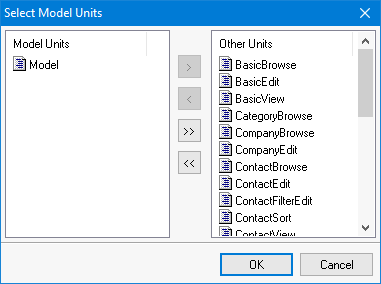
The Select Units button will open a dialog showing all the units of the current project. The left side of the dialog shows the model units and the right side shows the other units included in the project. Use the buttons between the two lists to move one or more units from one side to the other. Select the OK or Cancel button to close the dialog and save or cancel, respectively, any changes. When the model unit(s) has been declared the business model can be created or maintained using the treeview pane's right button click, pop-up menu.
The Model Resource (.mdr)
When the project is compiled in the IDE, the Model Explorer reads the IOMETADATA of the model units and writes the model resource <Project>.mdr next to the project. The resource is linked into the executable by the directive generated in the project source, which also lists the model units:
{$R *.res}
{$R *.mdr} {Model}
At run time the model is loaded from this resource, so the .mdr file must be updated every time the model changes.
Building from the Command Line
Outside the IDE (msbuild, dcc32, continuous integration) the Model Explorer is not available. Since 4.4.0 InstantObjects includes the command line tool InstantMdrGen (Tools\MdrGen), which generates the same resource of the IDE:
rem reads the model units from the {$R *.mdr} directive of the project
InstantMdrGen Project.dpr [Project2.dpr ...]

rem or: model resource of the given units
InstantMdrGen -o Output.mdr Unit1.pas [Unit2.pas ...]
Build the tool with Tools\MdrGen\InstantMdrGen.dproj or with BuildInstantMdrGen.bat from a RAD Studio Command Prompt. Run it before compiling the project, for example:
InstantMdrGen MyApp.dpr
msbuild MyApp.dproj /t:Build /p:Config=Release /p:Platform=Win64