
How to Install InstantObjects into Delphi
There are three ways to install InstantObjects into Delphi: using the "Setup", with DPM (Delphi Package Manager) or manually.
1.Automatic Installation using Setup
Download the Setup file InstantObjects_Setup.exe
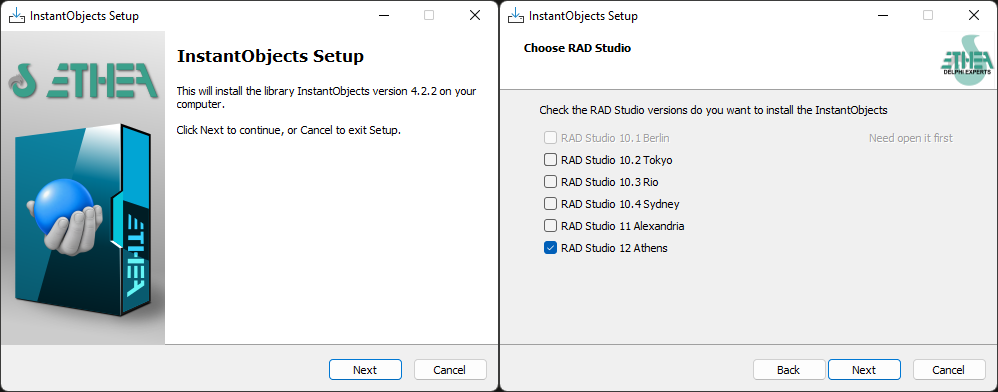
Running this Setup you can easily:
- Select the version of Delphi present in your system
- Select a specific developing folder The Setup automatically:
- Builds units (32 and 64 bits in release mode)
- Builds Runtime Packages (for Win32 and Win64 Platforms)
- Builds and Install Designtime Packages (for Win32 bits only)
- Adds a IODIR environment variable
- Adds the 32 and 64 bit paths form:
- the binaries units
- all the sources
Please note that if you have already installed a GetIt package version of the same library, it will be uninstalled first.
2.Installation with DPM (Delphi Package Manager)
The library is also published on delphi.dev as the package EtheaDev.InstantObjects (Delphi XE6 to 13, Win32 and Win64): you can install it with DPM, the Delphi Package Manager, as an alternative to the Setup. From the IDE, right click on your project in the Project Manager and choose Manage DPM Packages, or from the command line:
dpm install EtheaDev.InstantObjects <path of your project>.dprojDPM downloads the package, builds it for the Delphi version and the platforms of your project and adds it to the project. The package has the same packages as the Setup: the core, the catalogs and the ADO, dbExpress, XML and FireDAC brokers, with their design-time packages. The IBX broker is deprecated and the JSON broker, which needs delphi-neon, is not included.
3.Manual Installation
If you want to procedd with a manual installation, you can use the two "group project" files located into the folder for your Delphi version under <installdir>\Source\PackageGroups folder.
For every Delphi version you can find two files.
Form example, for Delphi 12 Athens look into: <installdir>\Source\PackageGroups\D12
RunTimePackages to Build all of the "standard" run-time packages.
- Open it and "BuildAll" projects.
DesignTimePackages to Build/Install all of the "standard" design-time packages.
- Open it and "Install" each package included.
"Standard" packages means that you can compile it with components included in a standard Delphi installation. If you want to know how to install other brokers to use third party data access components and technologies, please refer to the section for custom installation.
For example RunTimePackages.bpg for Delphi 12 Athens contains:
IOCore.dpk: InstantObjects Core Package
IOIBFbCatalog.dpk: Catalog for Interbase/Firebird
IOMSSqlCatalog.dpk: Catalog for MS-SQL
IOMySQLCatalog.dpk: Catalog for MySQL
IOADO.dpk: ADO Broker
IODBX.dpk: DBExpress Broker
IOXML.dpk: XML Broker
IOFireDAC.dpk: FireDAC Broker
For example DesignTimePackages.bpg for Delphi 12 Athens contains:
dclIOCore.dpk: InstantObjects Core Package
dclIOIBFbCatalog.dpk: Catalog for Interbase/Firebird
dclIOMSSqlCatalog.dpk: Catalog for MS-SQL
dclIOMySQLCatalog.dpk: Catalog for MySQL
dclIOADO.dpk: ADO Broker
dclIODBX.dpk: DBExpress Broker
dclIOXML.dpk: XML Broker
dclIOFireDAC.dpk: FireDAC Broker
The IBX broker is deprecated since 4.4.0 and no longer maintained: its packages (IOIBX_4, dclIOIBX_4, in Source\Brokers\IBX) are not part of the groups above and are not installed by the Setup. Use the FireDAC broker for InterBase and Firebird.
Environment library path
Demos can compile InstantObjects units because they have relative search path into project, like:
..\..\Source\Core;
..\..\Source\Brokers\ADO;
..\..\Source\Brokers\BDE;
..\..\Source\Brokers\DBX;
..\..\Source\Brokers\IBX;
..\..\Source\Brokers\XML;
..\..\Source\Catalogs\IBFb;
..\..\Source\Catalogs\MSSql;
..\..\Source\Catalogs\MySql;
Compiler directives of the demos
The PrimerCross demo includes the units of all the brokers supported natively by Delphi. Two directives, defined in the project options, exclude the libraries that are not installed:
NO_DELPHI_NEON: compiles the demo without the JSON broker and the delphi-neon serialization (Delphi 12 and 13 projects);NO_IBX: compiles the demo without the IBX broker. From Delphi 13 IBX is not installed by default (it is a GetIt package), soPrimer_D13.dprojdefinesNO_IBX; remove it if you installed IBX.
Building from the command line
The model resource (.mdr) of a project is written by the Model Explorer when the project is compiled in the IDE. To build a project outside the IDE after changing the model, generate it first with the InstantMdrGen tool (Tools\MdrGen, since 4.4.0): see Declaring Model Units.
If you wan to compile your projects, remember to add search path to your Delphi Environment settings:
<installdir>\Source\Core
<installdir>\Source\Brokers\<brokername>
When you are familiar with the packages and source structure of InstantObjects you can setup and maintain your own personalised bpg files to include only packages you want use, editing those complete project groups.
Note that you need to include Brokers path only for the data-access technology you want to use.
Custom installation for selected Brokers
If you want to install only specific brokers into IDE, you can compile and install only some packages.
First, build and install the InstantObjects core packages:
<installdir>\Source\Core\<version>\IOCore.dpk (build)
<installdir>\Source\Design\<version>\DclIOCore.dpk (install)
Where <version> identifies your version of Delphi, for examples: DXE7, D10_3, etc.
Then select the Brokers you want to use: if you are going to use a broker that needs a separate catalog (currently the DBX, ADO and FireDAC brokers; the IBX broker is deprecated), then you'll also need to install the package of required catalog.
Here is a table of current broker-catalog dependencies:
| Broker | Depends on Catalog |
|---|---|
| IBX (deprecated) | IBFb |
| DBX | IBFb, MSSql, MySQL |
| ADO | MSSql |
| FireDAC | IBFb, MSSql, MySQL |
Other brokers have their catalogs integrated into themselves, so there are not dependency issues for them.
Build and install the desired catalog and broker package(s):
For example, if you need the ADO broker:
<installdir>\Source\Catalogs\MSSql\<version>\IOMSSqlCatalog.dpk (build)
<installdir>\Source\Brokers\ADO\<version>\IOADO.dpk (build)
<installdir>\Source\Brokers\ADO\<version>\DclIOADO.dpk (install)
If you need a broker that doesn't depend on a catalog, just build and install the broker's packages. Here's an example for the XML broker:
<installdir>\Source\Brokers\XML\<version>\IOXML.dpk (build)
<installdir>\Source\Brokers\XML\<version>\DclIOXML.dpk (install)
Please note that not all brokers are available and maintained in all versions of Delphi. If you think you can make a supplied broker work in an unsupported version, or create a new broker from scratch then look at the other broker implementation.
Environment variables and search path
After installing packages, you must:
Create an environment variabile named IODIR pointing to
Manually add the Source location of the binary files to your system (for example):
- for 32 bit: $(INSTOBJDIR)\Lib\D12\Win32\Release
- for 64 bit: $(INSTOBJDIR)\Lib\D12\Win64\Release
If you want to compile source files, add:
- $(IODIR)\Source
- $(IODIR)\Image32\source
Release Notes
License
Licensed under the Mozilla License, Version 2.0